• ×
    Information
    Need Windows 11 help?
    Check documents on compatibility, FAQs, upgrade information and available fixes.
    Windows 11 Support Center.
  • post a message
  • ×
    Information
    Need Windows 11 help?
    Check documents on compatibility, FAQs, upgrade information and available fixes.
    Windows 11 Support Center.
  • post a message
Guidelines
Join the HP Community Solve‑a‑thon | Help Others & Share Your Solutions | Live on Zoom | 2:30 PM to 2:30 AM IST | Every Wednesday Click here to know more
Common problems HP Solution Center not working : Adobe Flash Player Error and Unable to scan
We would like to share some of the most frequently asked questions about HP Solution Center not working : Adobe Flash Player Error and Unable to Scan.
HP Recommended
HP ENVY Inspire 7955e All-in-One Printer

When trying to use printers touchscreen, when scanning to my laptop-my scanner wont P/U paper from the feeder. But when i copy a Document feeder works fine Trying to figure out why? I ran the sacn doctor and got the following

This tool is unable to find the HPscan  application software in your Computer.Ive Uninstalled and reinstalled Printer and all its software a couple of times it will work for awhile but not for long maybe a couple of weeks at most before having problems.

works just fine when using the HP Smart App , But Using the Printers touchscreen it wont work work Any Ideas? What Software do i need That the ScanDr Cant find?

1 REPLY 1
HP Recommended

@Abbycat1 


Welcome to the HP Community Forum.


Update - Add references


@Abbycat1 wrote:

Product:   HP ENVY Inspire 7955e All-in-One Printer 

Operating System:  Windows - unknown version

Software / Application:  Printer control / display panel - Scan

Connection Type:  Unknown


When trying to use printers touchscreen, when scanning to my laptop-my scanner wont P/U paper from the feeder.


But when i copy a Document feeder works fine Trying to figure out why?


I ran the scan doctor and got the following


This tool is unable to find the HP scan  application software in your Computer.


Ive Uninstalled and reinstalled Printer and all its software a couple of times it will work for awhile but not for long maybe a couple of weeks at most before having problems.


works just fine when using the HP Smart App , But Using the Printers touchscreen it wont work work


Any Ideas?

What Software do i need That the ScanDr Cant find?


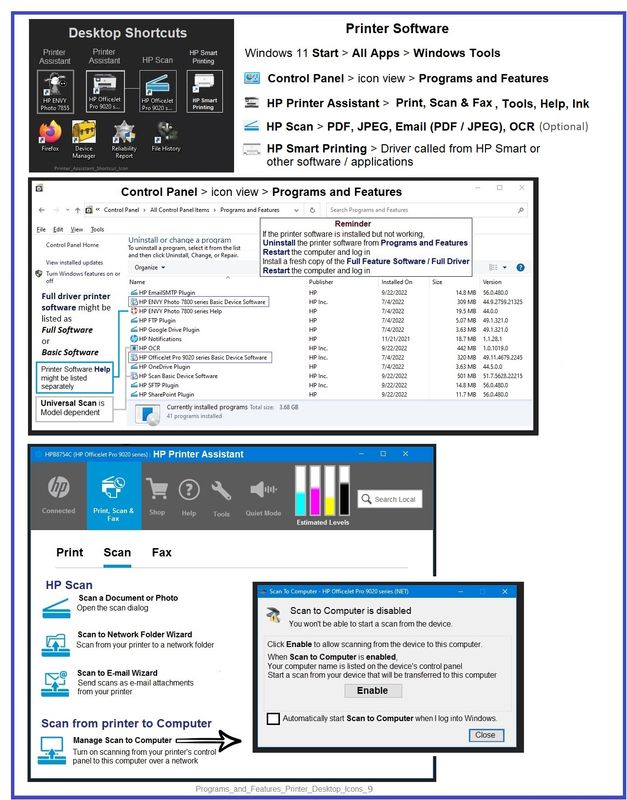
Scanning from the printer to the computer -- other than using Webscan (via EWS) -- requires the Full Feature Software / full driver printer software to be installed and functional.


In addition, the "Scan to Computer" feature must be enabled.


Assuming the feature is enabled, the setting (whether it actually works) depends on the connection, the ability of Windows and the printer software to keep track of the setup, and a myriad of other mysteries that can "make or break" this type of functionality.


Yes - convoluted.


The setup is further complicated by the type of connection and what Windows is doing -- if the printer disconnects, if the full driver printer software is corrupted, if Windows Updates stomps on the printer software, the Scan to Computer setup can stop working.


What to do?

  • Strengthen the connection type - for example, switch to TCP/IP, assign a manual (static) IP address.
  • Stop using the feature if it won't cooperate.  True - this is not what you want.
  • Try to figure out why else the feature won't stay enabled.  ?


Example - Full Feature Software / full driver printer software - Installed

Programs_and_Features_Printer_Desktop_Icons_9Programs_and_Features_Printer_Desktop_Icons_9


References / Resources

Technology Tips – Video Gallery  -- From our HP Expert greenturtle

"Technology Tips" Envy Inspire - Scan


How to Scan

HP Printers - How to Scan (Windows, Mac, Mobile) | HP® Customer Support


Provided FYI

For those reading and using a supported version of Windows -

Full Feature Software / Full Driver printer software

How to check / install software > Easy Start Software wrapper method


Printer Software – Full Driver Installation – Details / Examples


 In general, there are two methods to install the full driver printer software.


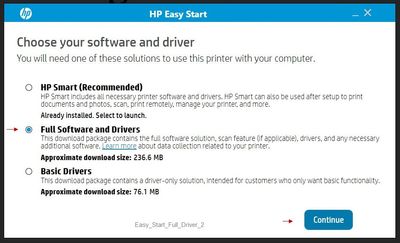
Easy Start Software is a wrapper that will find and install your printer software – If you want to install the full driver software, you do need to select the "Full Driver" when the option is presented.


The Web Pack Installation Package method uses the full driver installation package for your printer.  This method is dependent on the Web Pack package being available for your system / OS.


+-+-+-+-+-+-+-+-+-+-+-+-+-+-+-+-+-+-+-+-+-+-+-+-+-+-+-+-+-+-+-+-+-+


Method - Use the Easy Start Software to Install HP Smart and / or the Full Feature / Full Driver Software


Easy Start Installation Package - Information and Download / Save


  • Open  Home Page - HP Easy Start >> Click to open Category Software and Drivers 
  • Download and Save the current version of the Easy Start Software installation package  to install your print software


 Easy Start can be used to install your printer software or the HP Smart application.


If the HP Smart Application is (already) Uninstalled, Use Easy Start OR Get a new copy of the application from the Microsoft Store


If you want to install the full driver printer software, choose the "Full Software and Drivers" option during the Easy Start installation procedure.


+-+-+-+-+-+-+-+-+-+-+-+-+-+-+-+-+-+-+-+-+-+-+-+-+-+-+-+-+-+-+-+-+


 =+=+=+=+=+=+=+=+=+=+=+=+=+=+=+=+=+=+=+=+=+=

Basic Instructions - Install the Full Feature Software / Full Driver printer software


Preparation


  • If the printer software is still / already installed, Uninstall the printer software  from Control Panel > icon view > Programs and Features > Restart the computer and log in – Reference Uninstall HP printer software and drivers


  • >>> After the printer software is uninstalled, check that the printer is not still lurking in Devices and Printers.  If the printer is listed, Right-Click on the printer and "Remove" > Restart the computer and sign in.


Continuing

  • If using VPN, shut it off to install software.  NOTE >> If you don’t know what this is, you are not using a VPN – ignore this part.


  • Reminder:  If using USB cable between printer and computer, disconnect the cable before installing software.  Later... Connect the cable when instructed (near the end of the installation procedure).


  • Observation:  It is possible (assuming your Wireless Network is stable) that using a Wireless connection to install the printer software might work better than using an Ethernet Connection.   Personal choice - the Wireless connection method is recommended when you face insurmountable issues installing the software.


Installation

  • Download and Save the Full Feature Software Web Pack installation package or the Easy Start Software
  • Open File Explorer
  • Navigate to the folder in which you saved the installation file  (likely Downloads)
  • Right-Click on the installation package and “Run as Administrator
  • After the software is installed, Restart the computer and log in


If using Easy Start


  • Skip any extra software / offers you do not want – Wording varies as does the number of times you have to “skip” or opt-out of various options.
  • When asked, opt for "Full Software and Drivers" (exact wording might vary).
  • Easy_Start_Full_Driver_2Easy_Start_Full_Driver_2
  • If, after the Full Software and Drivers option is selected, the installation terminates (suddenly stops and disappears – never comes back): Open your Downloads folder > Look for and Right-Click on the full Web installation package and “Run as Administrator


NOTES

- - - - - - - - - - - - - - - - - - - - - - - - - - - - - - - - - - - - - - - - - - - - - - - - - - - - - - - - - -

Preparation > Check / enable the printer as the “Default Printer”


Windows 11

Settings > Bluetooth & devices > Printers and scanners

Scroll down > Switch OFF Let Windows manage my default printer

Scroll up > Select (Left-Click) your printer from the list of printers > Set as Default


Windows 10

Settings > Devices > Printers and scanners

UNCHECK (clear box) Let Windows manage my default printer

Select (Left-Click) your printer from the list of printers > Manage > Set as Default


HP Printer Home Page - References and Resources

Learn about your Printer  - Solve Problems

“Things that are your printer”

When the website support page opens, Select (as available) a Category > Topic Subtopic

NOTE:  Content depends on device type and Operating System

Categories:  Alerts, Access to the Print and Scan Doctor (Windows), Warranty Check, HP Drivers / Software / Firmware Updates, How-to Videos, Bulletins/Notices, Lots of How-to Documents, Troubleshooting, Manuals > User Guides, Product Information (Specifications), Supplies, and more

Open

HP ENVY Inspire 7955e All-in-One Printer 


Thank you for participating in the HP Community:

People who own, use, and support HP devices.

Click Yes to say Thank You

Question / Concern Answered, Click "Accept as Solution"


Dragon-Fur

† The opinions expressed above are the personal opinions of the authors, not of HP. By using this site, you accept the <a href="https://www8.hp.com/us/en/terms-of-use.html" class="udrlinesmall">Terms of Use</a> and <a href="/t5/custom/page/page-id/hp.rulespage" class="udrlinesmall"> Rules of Participation</a>.