• ×
    Information
    Need Windows 11 help?
    Check documents on compatibility, FAQs, upgrade information and available fixes.
    Windows 11 Support Center.
  • post a message
  • ×
    Information
    Need Windows 11 help?
    Check documents on compatibility, FAQs, upgrade information and available fixes.
    Windows 11 Support Center.
  • post a message
Guidelines
Join the HP Community Solve‑a‑thon | Help Others & Share Your Solutions | Live on Zoom | 2:30 PM to 2:30 AM IST | Every Wednesday Click here to know more
Common problems HP Solution Center not working : Adobe Flash Player Error and Unable to scan
We would like to share some of the most frequently asked questions about HP Solution Center not working : Adobe Flash Player Error and Unable to Scan.
HP Recommended
HP OfficeJet Pro 9015
macOS 10.13 High Sierra

Web scan says its disabled. I preferably would like to have it scan to my computer.  I can't set up anything else so I can scan.  I don't have SharePoint. I tried to set up network folder but somehow failed at that too. 

3 REPLIES 3
HP Recommended

Hi @victoriadm,


A warm welcome to HP Community!

I believe we can enable web scan from the printer EWS(Embedded Web Server) page. Here is how to do it:

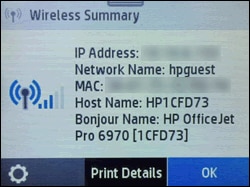
1.) Touch the wireless icon on the printer display and locate the printer IP address

Example of the IP address on a printer control panel


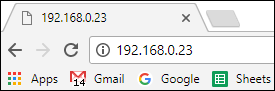
2.) Type the IP address in the web browser address line, and then press Enter to open the printer Embedded Web Server (EWS).

Example of an IP address entered into the Chrome address bar


3.) Click Settings in the top menu, click Security, and then click Administrator Settings.

A message displays that you are being redirected to a secure HTTPS-enabled page. Click OK or Redirect to HTTPS.

4.) If a 'Your connection is not private' message displays, click Advanced, and then click Proceed to [Printer IP address].

5.) In the Administrator Settings, select the box next to Webscan or Webscan from EWS, click Apply, and then click OK.


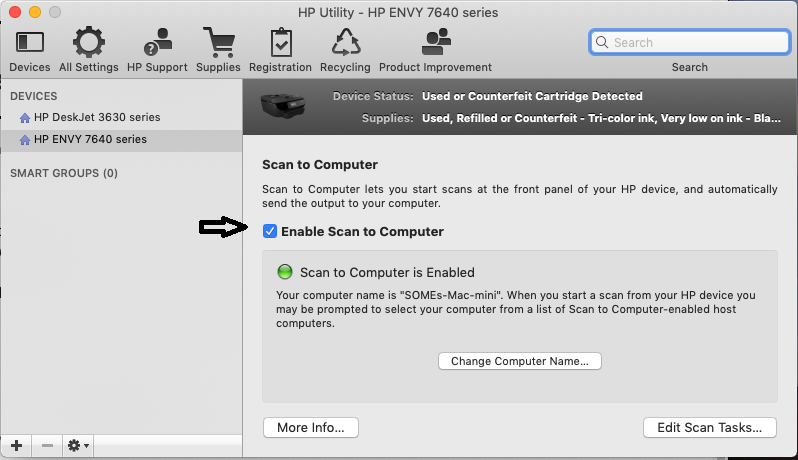
If you are still not able to scan to computer using the printer control panel display, then try enabling scan to computer using HP Utility:

1.) On your Mac, click Finder, click Applications, click the Hewlett-Packard or HP folder, then double-click HP Utility. (If HP Utility is not available, download and install the install HP Utility from here

2.) Under Scan Settings, click Scan to Computer, then make sure the Enable Scan to Computer check box is selected.


3.) Try to scan.

Let me know how it goes!


If the information I've provided was helpful, give us some reinforcement by clicking the Accepted Solution and Kudos buttons, that'll help us and others see that we've got the answers!
Have a great day!

Senan6806


I am an HP Employee

HP Recommended

Hello everyone!


I have a problem with my scanner and followed the advice of Senan6806. Once I get to HP Utility and make sure I do what Senan6806 says, on the top of the window I see that the Device Status is "Inactive". What is the problem and what shall I do to switch the scanner to the active mode?


Thank you in advance for your help.


Kind regards,

mf


HP Recommended

Hi @Mariafranca,


Is the printer and Mac connected to your home WiFi?

Do you have an antivirus software installed on your Mac?

What's the printer model?

Could you perform a ping test using the Mac Network Utility and let me know the results. Use the printer IP address to perform a ping test, the printer IP can be located by selecting the wireless icon on the printer display.

The wireless status menu on your Mac should also give us quite a lot of information that would help us identify the issue. You can access the menu by pressing the Option(Alt) key and then  clicking the Wireless icon.


Senan6806


I am an HP Employee

† The opinions expressed above are the personal opinions of the authors, not of HP. By using this site, you accept the <a href="https://www8.hp.com/us/en/terms-of-use.html" class="udrlinesmall">Terms of Use</a> and <a href="/t5/custom/page/page-id/hp.rulespage" class="udrlinesmall"> Rules of Participation</a>.