-
×InformationNeed Windows 11 help?Check documents on compatibility, FAQs, upgrade information and available fixes.
Windows 11 Support Center. -

-
×InformationNeed Windows 11 help?Check documents on compatibility, FAQs, upgrade information and available fixes.
Windows 11 Support Center. -
- HP Community
- Printers
- Scanning, Faxing, and Copying
- Re: Scanning & cropping multiple pictures

Create an account on the HP Community to personalize your profile and ask a question
01-31-2022 01:49 PM
I have a HP Envy 5052 3 in one copier, printer and scanner. I had not used the scanner until now.
I am starting to scan my old pictures. How can I scan and crop multiple pictures at once? I don't want to have to scan one picture at a time.
Thank you for your help! 😃
Solved! Go to Solution.
Accepted Solutions
02-11-2022 01:54 PM
At some point I couldn't scan from touching the screen on the printer but found they now added a scan Icon in the Windows task/icons, has a large scanner. I always start by creating creating a Word document add some returns and past the picture on the page. you can add text for title or date above or below by selecting the image, picture tool pops up. select Text wrapping.
later after you fix colors or brightness crop and resize the pictures to get the number per page you desire.
The important point is the page may look great in print preview but the image may get cut off when printed. With picture selected and picture tool above the top task showing, right click mouse then scroll down to Size, in Aspect Ration uncheck
[ } uncheck box" relative to original picture size. Now the boxes for height and width will change to 100% and the cropped off stuff is actually gone and the printer will print what is in print preview.
01-31-2022 04:01 PM
Welcome to the HP User Community.
General scan guide
Details / How-to / Examples
Place the photos on the printer glass (face down).
Separate the photos by about an inch on each side to allow the software to "see" the edges of each photo.
Use
HP Scan (part of the Full Feature Software)
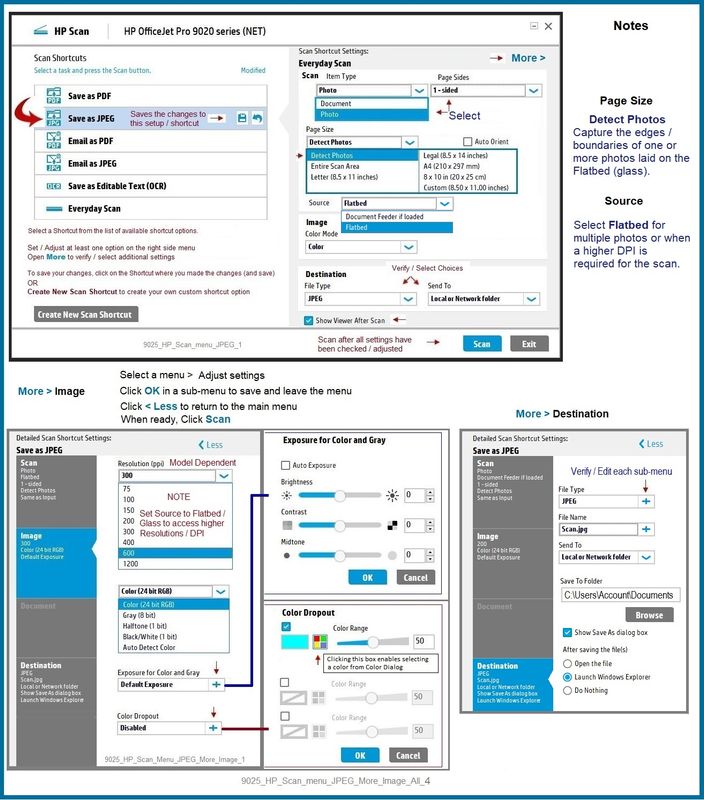
Set the Page Size to "Detect Photos"
Set the Source to "Flatbed" (glass)
Example - HP Scan - Save as JPEG (photo / image)
9025_HP_Scan_menu_JPEG_More_Image_All_4
Dragon Tip
Later, if you like, you can use HP Smart (Windows app) to print more than one photo on a single sheet of paper.
Ask a new question about this when / if you are interested in doing that and need setup help.
References / Resources
=================================================
Full Feature Software installation package - Download and Information
HP ENVY 5000 All-in-One Print and Scan Driver and Accessories
Basic Instructions - Install the Full Feature Software / Full Driver printer software
- If using VPN, shut it off to install software
- Download and Save the Full Feature Software installation package or the Easy Start Software
- Open File Explorer
- Navigate to the folder in which you saved the installation file (likely Downloads)
- Reminder: If using USB cable between printer and computer, disconnect the cable before installing software.
- Right-Click on the installation package and “Run as Administrator”
- If using Easy Start > When asked, opt for "Full Driver" (exact wording might vary).
- If using Easy Start > Skip any extra software / offers you do not want (wording varies).
- After the software is installed, Restart the computer and log in
NOTES
- - - - - - - - - - - - - - - - - - - - - - - - - - - - - - - - - - - - - - - - - - - - - - - - - - - - - - - - - -
Preparation > Check / enable the printer as the “Default Printer”
Settings > Devices > Printers and scanners
UNCHECK (clear box) Let Windows manage my default printer
Select (Left-Click) your printer from the list of printers > Manage > Set as Default
- - - - - - - - - - - - - - - - - - - - - - - - - - - - - - - - - - - - - - - - - - - - - - - - - - - - - - - - - -
HP Printer Support Home Page - References and Resources – Learn about your Printer - Solve Problems
“Things that are your printer”
NOTE: Content depends on device type and Operating System
Categories: Alerts, Access to the Print and Scan Doctor (Windows), Warranty Check, HP Drivers / Software / Firmware Updates, How-to Videos, Bulletins/Notices, Lots of How-to Documents, Troubleshooting, Manuals > User Guides, Product Information (Specifications), more
When the website support page opens, Select (as available) a Category > Topic > Subtopic
HP ENVY 5052 All-in-One Printer
Thank you for participating in the HP Community.
Our Community is comprised of volunteers - people who own and use HP devices.
Click Helpful = Yes to say Thanks!
Question / Concern Answered, Click "Accept as Solution"
02-11-2022 01:54 PM
At some point I couldn't scan from touching the screen on the printer but found they now added a scan Icon in the Windows task/icons, has a large scanner. I always start by creating creating a Word document add some returns and past the picture on the page. you can add text for title or date above or below by selecting the image, picture tool pops up. select Text wrapping.
later after you fix colors or brightness crop and resize the pictures to get the number per page you desire.
The important point is the page may look great in print preview but the image may get cut off when printed. With picture selected and picture tool above the top task showing, right click mouse then scroll down to Size, in Aspect Ration uncheck
[ } uncheck box" relative to original picture size. Now the boxes for height and width will change to 100% and the cropped off stuff is actually gone and the printer will print what is in print preview.