• ×
    Information
    Need Windows 11 help?
    Check documents on compatibility, FAQs, upgrade information and available fixes.
    Windows 11 Support Center.
  • post a message
  • ×
    Information
    Need Windows 11 help?
    Check documents on compatibility, FAQs, upgrade information and available fixes.
    Windows 11 Support Center.
  • post a message
Guidelines
Join the HP Community Solve‑a‑thon | Help Others & Share Your Solutions | Live on Zoom | 2:30 PM to 2:30 AM IST | Every Wednesday Click here to know more
Common problems HP Solution Center not working : Adobe Flash Player Error and Unable to scan
We would like to share some of the most frequently asked questions about HP Solution Center not working : Adobe Flash Player Error and Unable to Scan.
HP Recommended
Laser Jet Pro CM1415fnw
macOS 10.15 Catalina

I just installed the HP Smart App & I am trying to scan documents from my printer & then save them in a file to my Mac computer.  Once I have scanned the documents my only option is to save them to Box, drop box, quickbooks, etc.  I don't want to save to any of these options.  I want to save as a PDF in my documents on my computer.  Where do I go so I can save the scan I just scanned on this HP Smart app to my computer in my documents?

2 REPLIES 2
HP Recommended

Hi @Cherie62,


I'd like to help!


Scan a document or photo from your printer

Scan documents or photos from your printer to your Mac. Then save your scans or share them via email or social media.

  1. From the HP Smart app home screen, click the Scan tile.

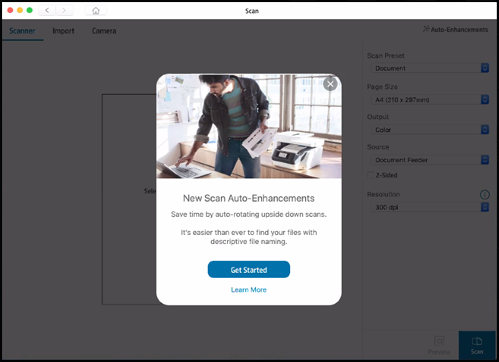
  2. Click Get Started.

    The Scan window opens.

    NOTE: 

    The Get Started screen displays when you select Scan for the first time.

    The Scan window

  3. From the Scan window, change auto-enhancement and settings, such as document or photo type, page size, output type, source, and resolution to match the scan job.

    NOTE: 

    Auto-enhancements are automatically applied to give you the best scan quality.

  4. Click Scan .

    A preview of the scan displays.

    Example of a scanned photo

  5. On the Preview window, you can add another page to your scan, reorder multi-page scans, change the file name or type, or edit the scan.

    An editable preview of the scan displays in the Edit window.

    Example of an editable scan

  6. When you complete the edits, click Done.

    The Preview window displays any changes to the scan.

    Example of an editable scan

  7. Use the features in the Preview window to work with your scan.

    • Print: Send your scan to your printer.

    • Save: The default save location for scanned documents is the Documents folder and the Pictures library for scanned photos. Save your scan in the default location or browse to a different folder.

    • Share: Send your scan in an email, share via social media accounts such as Twitter, Facebook, or Instagram, or save the scan in a cloud storage account, such as Box or OneDrive. You can also look for other apps in the App Store.

    • Smart Tasks: Create or use an existing shortcut for printing, emailing, or saving scanned files to cloud accounts.

    • Fax: Send your scan via fax.

  8. After you save or share the scan job, click OK.

You may refer to - Install and Use the HP Smart App (Mac)

Hope this helps! Keep me posted. 


And, Welcome to the HP Support Community. 


Please click “Accept as Solution” if you feel my post solved your issue, it will help others find the solution.

Click the “Kudos, Thumbs Up" on the bottom right to say “Thanks” for helping

HP Recommended

I am also working on the same issue but still cant find the right solution from any where but am reading an article that is related to this issue and hopeful that it will give me some guidance you can see here Instagram blog.

† The opinions expressed above are the personal opinions of the authors, not of HP. By using this site, you accept the <a href="https://www8.hp.com/us/en/terms-of-use.html" class="udrlinesmall">Terms of Use</a> and <a href="/t5/custom/page/page-id/hp.rulespage" class="udrlinesmall"> Rules of Participation</a>.