-
×InformationNeed Windows 11 help?Check documents on compatibility, FAQs, upgrade information and available fixes.
Windows 11 Support Center. -

-
×InformationNeed Windows 11 help?Check documents on compatibility, FAQs, upgrade information and available fixes.
Windows 11 Support Center. -
- HP Community
- Printers
- Scanning, Faxing, and Copying
- Scanning as a PDF instead of JPEG

Create an account on the HP Community to personalize your profile and ask a question
02-12-2021 11:15 AM - edited 02-12-2021 11:16 AM
==============================================================
Welcome to the HP Community.
Reminder to those reading:
Do NOT respond to individuals who post phone numbers or email addresses.
These might be scammers trying to steal your information / money.
HP does not post phone numbers or email in Community messages.
==============================================================
Answer:
Use Software / application on the computer to scan your PDF document.
===================================================================
If you have not done so, download-save-install the Full Feature Software / Full Driver for the printer
Full Driver / Full Feature Software does not require a sign-in to use the software.
HP Easy Start Printer Setup Software
- Download-and-Save the printer software (Full Feature Software / HP Smart / Easy Start)
- Right-Click on the downloaded package and "Run as Administrator" to start the installation
- Reminder: If using Easy Start, select the Full Driver
Easy Start...
About 2/3 of the way through the setup, you will be given the opportunity to select the software - select the "Full Driver" set (as opposed to the basic driver).
Any...
If using USB: Connect the cable when instructed to do so (near the last part of the driver installation)
After the software is installed, Restart the computer and log in.
Full driver provides print and scan functions.
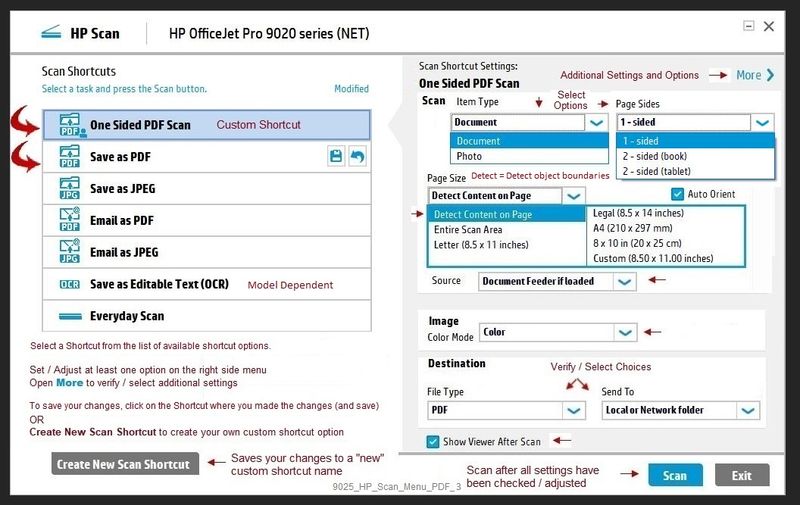
Example - HP Scan - Windows
Reminder: Be sure to check / adjust settings in More >
9025_HP_Scan_Menu_PDF_3
=======================================================================
Optional - HP Smart Windows and Mobile Does require sign-in using your HP Account credentials
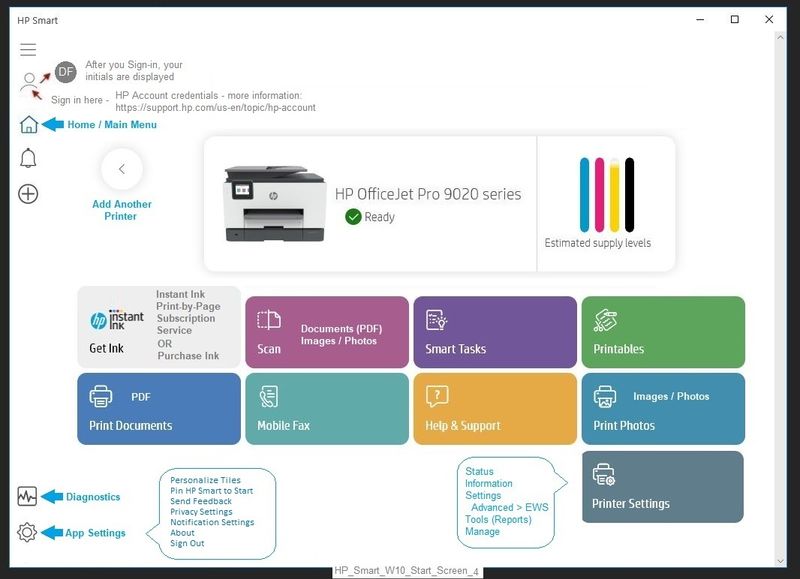
HP Smart for Windows
HP Smart is an application available in the Microsoft Store
Learn how to use HP Smart on your Windows 10 computer.
Open the Software and Drivers Support Website for your printer > Check the Box Get the App
OR
HP Printers - Using the HP Smart App (Windows 10)
NOTES:
- Website includes the HP Smart software for Windows and Mobile devices, plus an FAQ section to assist with questions / issues
Latest versions of HP Smart require that you be signed into the application with your HP Account credentials.
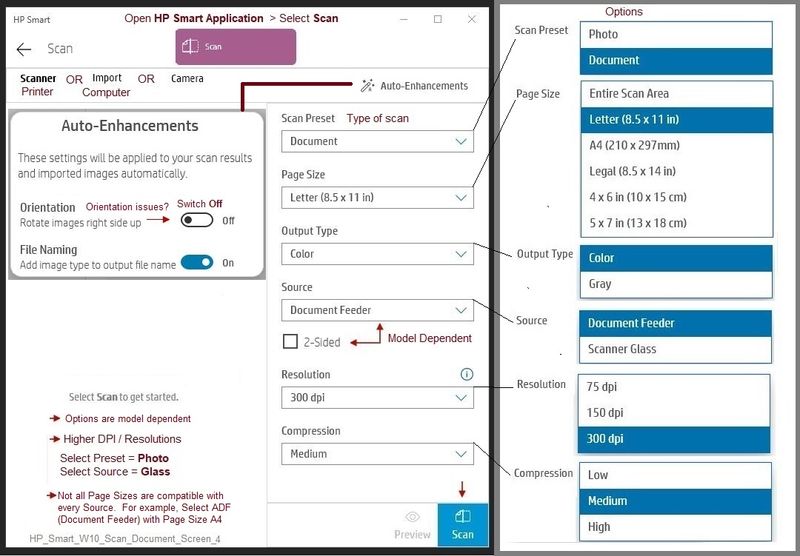
Example - HP Smart - Windows - PDF / Document Scan
Reminder: Switch OFF Auto-Enhancements > Orientation
HP_Smart_W10_Start_Screen_4
HP_Smart_W10_Scan_Document_Screen_4
What else?
Some Other options...
NAPS2– “Not Another PDF Scanner”
- Download-Save-Install > NAPS2
- Not another PDF Scanner – free program scans PDF files and image(s) as .jpeg or PDF file(s).
- Includes an OCR feature – may need Ghostscript add-on (See NAPS2 forum entry)
- Read the Support pages for information
- Download, save, and install the NAPS2 software to use.
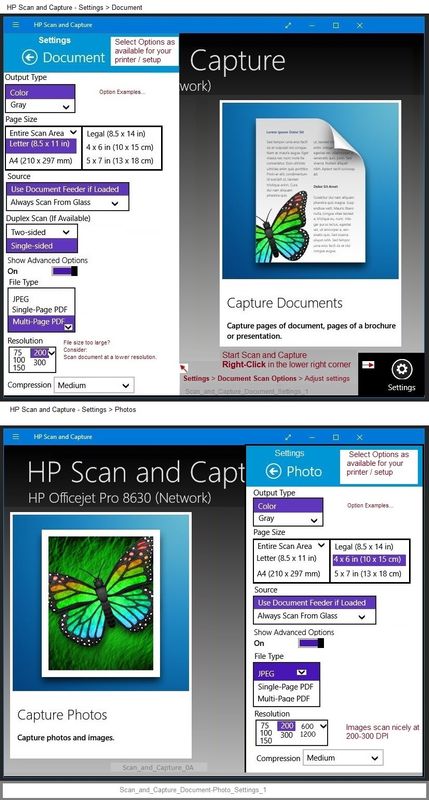
HP Scan and Capture - Microsoft Store - Requires Windows 8 or higher
- Download-Save-Install HP Scan and Capture
Scan_and_Capture_Document-Photo_Settings_1
Embedded Web Server (EWS) > Webscan
Enable Webscan (if first time use)
Adjust settings
Scan and save the document
NOTE: EWS is also available in HP Smart Windows and HP Smart Mobile > Settings > Advanced
Example
First Time Use Only: Enable Webscan
- Open your favorite browser > type / enter Printer IP address into URL / Address bar
- Tab Settings > Security > Administrator Settings > Enable >> Check box next to Webscan
- Click Apply to save any changes
Next
- Open your favorite browser > type / enter Printer IP address into URL / Address bar
- Tab Scan > Webscan
- Set up Webscan the way you want it - for example, set the Source to ADF
- Click Start Scan to scan your document / image using Webscan
- After the scan is complete, Save the scan to your computer.
References / Resources
Basics - How to Document:
Printer Home Page - References and Resources – Learn about your Printer - Solve Problems
“Things that are your printer”
NOTE: Content depends on device type and Operating System
Categories: Alerts, Access to the Print and Scan Doctor (Windows), Warranty Check, HP Drivers / Software / Firmware Updates, How-to Videos, Bulletins/Notices, Lots of How-to Documents, Troubleshooting, Manuals > User Guides, Product Information (Specifications), more
When the website support page opens, Select (as available) a Category > Topic > Subtopic
HP OfficeJet Pro 8028 All-in-One Printer
Thank you for participating in the HP Community.
The Community is a separate wing of the HP website - We are not a business group of HP..
Our Community is comprised of volunteers - people who own and use HP devices.
Click Thumbs Up to say Thank You.
Question Resolved / Answered, Click "Accept as Solution"