-
×InformationNeed Windows 11 help?Check documents on compatibility, FAQs, upgrade information and available fixes.
Windows 11 Support Center. -

-
×InformationNeed Windows 11 help?Check documents on compatibility, FAQs, upgrade information and available fixes.
Windows 11 Support Center. -
- HP Community
- Printers
- Scanning, Faxing, and Copying
- Scanning black

Create an account on the HP Community to personalize your profile and ask a question
05-04-2019 06:40 AM
When I put a piece of paper with an image on it into the scanner and then use the HP smart app to scan the image onto my phone it’s just scanning all black, the image isn’t showing up at all
05-05-2019 11:06 AM
@Jadesmith36, Welcome to HP Support Community!
Did you try making a copy, does that work fine?
Clean the scanner glass and underside of the scanner lid with a soft, lint-free cloth sprayed with glass cleaner.
-
Turn the printer off, then disconnect the power cord.
-
Lift the scanner lid.
-
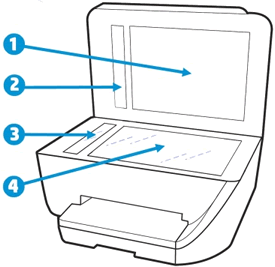
White scanner lid backing
-
Spray a soft, lint-free cloth with glass cleaner, then wipe the scanner glass, glass strip (if present), the white backing under the scanner lid, and the white strip under the lid (if present) until clean, dry, and streak-free.
Figure: Clean the scanner glass and under the lid, and any glass or white strips (if present)

-
White scanner lid backing
-
White ADF scanner lid strip (if present)
-
Glass ADF scanner strip (if present)
-
Main scanner glass
5. Reconnect the power cord, turn on the printer, then close the scanner lid completely.
6. Load the original document or photo, then try to scan. Make sure the original document or photo is in good condition and free of tears, creases, folds, staples, or tape.
If the issue persists, continue to the next step.
Reset the printer
Resetting the printer can force some types of scanners to calibrate, which might fix the problem.
-
Remove any items from the scanner glass and automatic document feeder (ADF), then close the scanner lid.
-
With the printer turned on, disconnect the power cord from the printer and from the wall outlet or power strip.
-
Wait at least 60 seconds.
-
Plug the power cord back into a wall outlet.
-
Reconnect the power cord to the printer.
-
Load the original document or photo, then try to scan.
Let me know the outcome.
Cheers 🙂
Please click “Accept as Solution” if you feel my post solved your issue, it will help others find the solution. Click the “Kudos/Thumbs Up" on the bottom right to say “Thanks” for helping!
TEJ1602
I am an HP Employee