• ×
    Information
    Need Windows 11 help?
    Check documents on compatibility, FAQs, upgrade information and available fixes.
    Windows 11 Support Center.
  • post a message
  • ×
    Information
    Need Windows 11 help?
    Check documents on compatibility, FAQs, upgrade information and available fixes.
    Windows 11 Support Center.
  • post a message
Guidelines
Is your HP DeskJet 3830 series scanner not working? Here is the solution Click here to view the instructions!
Common problems HP Solution Center not working : Adobe Flash Player Error and Unable to scan
We would like to share some of the most frequently asked questions about HP Solution Center not working : Adobe Flash Player Error and Unable to Scan.
HP Recommended
HP OfficeJet Pro 9012e All-in-One Printer

I would like to send immediately PDF'documents to a folder in my computer, please help me to fix this problem

1 REPLY 1
HP Recommended

@Gregory35 


Welcome to the HP Community --


An Immediate solution: 

Use Webscan


Secondary solution: 

Install the Full Feature Software / full driver for your printer and Operating System / version

Next > Enable "Scan to Computer"


------------------------------------------------------------------

Webscan – located in the Embedded Web Server (EWS) – No additional software

This option requires a network connection and EWS


EWS > HP Document / How-to

Use the HP printer Embedded Web Server (EWS)


NOTE: Webscan feature is not available on Laser printers


If the printer is on the network,

If the EWS feature is available on your printer,


First Time Use Only: Enable Webscan

Open your Browser > Type / enter the Printer IP address into URL / Address bar

Tab Settings > Security > Administrator Settings > Enable >> Check box next to Webscan

Click Apply to save any changes


Use Webscan

Open your Browser > Type / enter the Printer IP address into URL / Address bar

Tab Scan > Webscan 

Set up Webscan the way you want it - for example, set the Source to ADF

Click Start Scan to scan your document / image using Webscan

After the scan is complete, Save the scan to your computer.


Example - EWS - Webscan

EWS_9025_Webscan_4EWS_9025_Webscan_4


==========================================


Relevant to supported versions of Windows


Video - Install printer software

 HP OfficeJet 9010 | 9015 | 9018 | 9019: Download & Install HP Full featured software 


Details Page - Example - Driver - For your Printer

>>> Full Feature Software - Web Pack Installation Package - Information - Download / Install  <<<

HP Easy Start Printer Setup Software (Internet connection required for driver installation) 


During the installation, if / when the option is offered,

Select to install the full software and drivers.

Sample

Easy Start - Install - Choose software


====================================


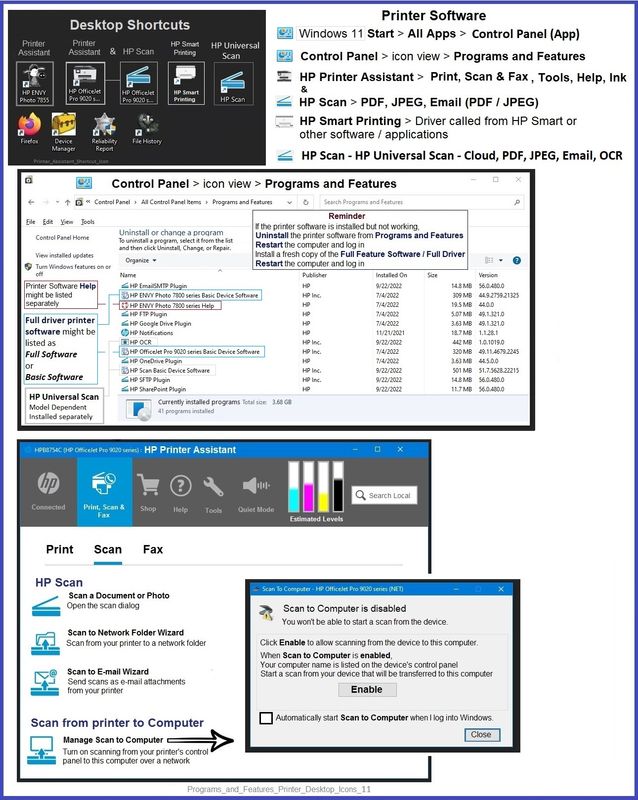
The installation of the full driver adds at least two shortcuts to the Desktop:  

Printer Assistant 

HP Scan


>>> Open the Printer Assistant > tab Scan Manage Scan to Computer Enable


Example - HP Full Feature Software - Installed in Programs and Features

Programs_and_Features_Printer_Desktop_Icons_11Programs_and_Features_Printer_Desktop_Icons_11


=+=+=+=+=+=+=+=+=+=+=+=+=+=

References / Resources


HP Printer Home Page - References and Resources

Learn about your Printer - Solve Problems

“Things that are your printer”

When the website support page opens, Select (as available) a Category > Topic > Subtopic

NOTE: Content depends on device type and Operating System

Categories: Alerts, Troubleshooting, Ink & Paper, HP Software / Drivers / Firmware Updates , Setup & User Guides, Product Specifications, Account & Registration, Warranty & Repair

Open

HP OfficeJet Pro 9012e All-in-One Printer  


Thank you for participating in the HP Community --

People who own, use, and support HP devices.

Click Yes to say Thank You

Question / Concern Answered, Click my Post "Accept as Solution"


Dragon-Fur

† The opinions expressed above are the personal opinions of the authors, not of HP. By using this site, you accept the <a href="https://www8.hp.com/us/en/terms-of-use.html" class="udrlinesmall">Terms of Use</a> and <a href="/t5/custom/page/page-id/hp.rulespage" class="udrlinesmall"> Rules of Participation</a>.