-
×InformationNeed Windows 11 help?Check documents on compatibility, FAQs, upgrade information and available fixes.
Windows 11 Support Center. -

-
×InformationNeed Windows 11 help?Check documents on compatibility, FAQs, upgrade information and available fixes.
Windows 11 Support Center. -
- HP Community
- Printers
- Scanning, Faxing, and Copying
- Re: Scanning multi page doc

Create an account on the HP Community to personalize your profile and ask a question
05-27-2024 01:07 PM
I have a new Lenovo laptop and an HP Envy Inspire printer/scanner. I have downloaded HP Smart and now would like to scan a multipage document from the hp feeder. I can’t seem to figure out how to do that. Any advice?
05-27-2024 03:56 PM
Welcome to the HP English Community --
First, Select and become familiar with your particular HP Envy Inspire model:
Results for "HP Envy Inspire" (5)
HP Document - How to Scan
HP Printers - How to Scan (Windows, Mac, Mobile) | HP® Customer Support
------------------------------------------------------
Printer selected for this answer:
Reminders
This printers in the Inspire series support single-sided scan.
The printers that include an Automatic Document Feeder (ADF) can scan a stack of supported paper sizes / types and create a document from the scanned content.
2-Sided documents must be scanned on one side, flipped, returned to the feeder and "Added".
--------------------------------------------------------------
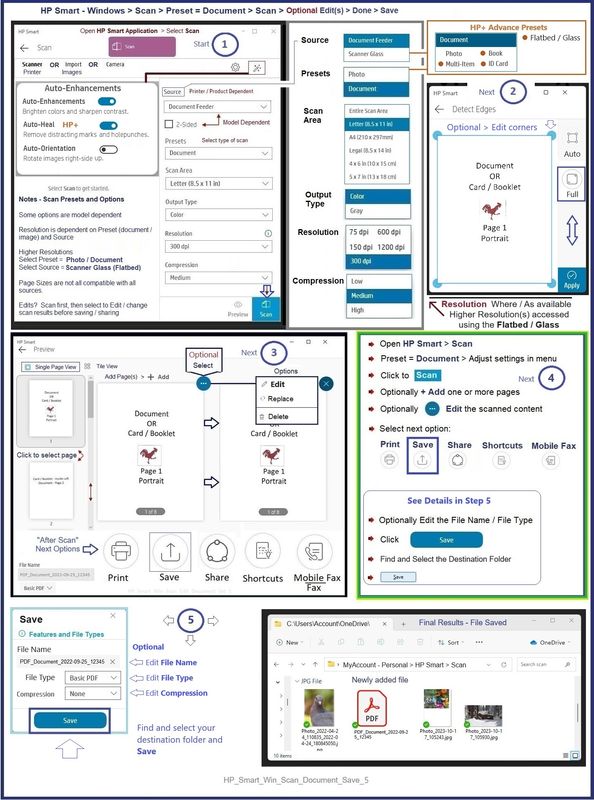
Yes, HP Smart - Windows - can scan a document for you and save it as a PDF file.
Documents printed on supported paper and fed through the ADF (Automatic Document Feeder) can be scanned and will save as a single document.
HP Smart does not automatically reorder scanned "second side" pages.
That said, it does give you an option to reorder the sheets to your satisfaction before you save the file.
Should the worst happen and you end up with scanned "out of order" pages in a document that you cannot re-scan, you can print the weird document using Page Range -- tell the printer which pages to print and in what order.
General Example - HP Smart - Windows - Simple PDF Scan
HP_Smart_Win_Scan_Document_Save_5
--------------------------------------------------------------
What about that pretty full driver printer software?
Not sure if the full driver printer software will install in Windows IOT --
You can try it -- Most Windows is smart enough to reject software / installations not meant for it.
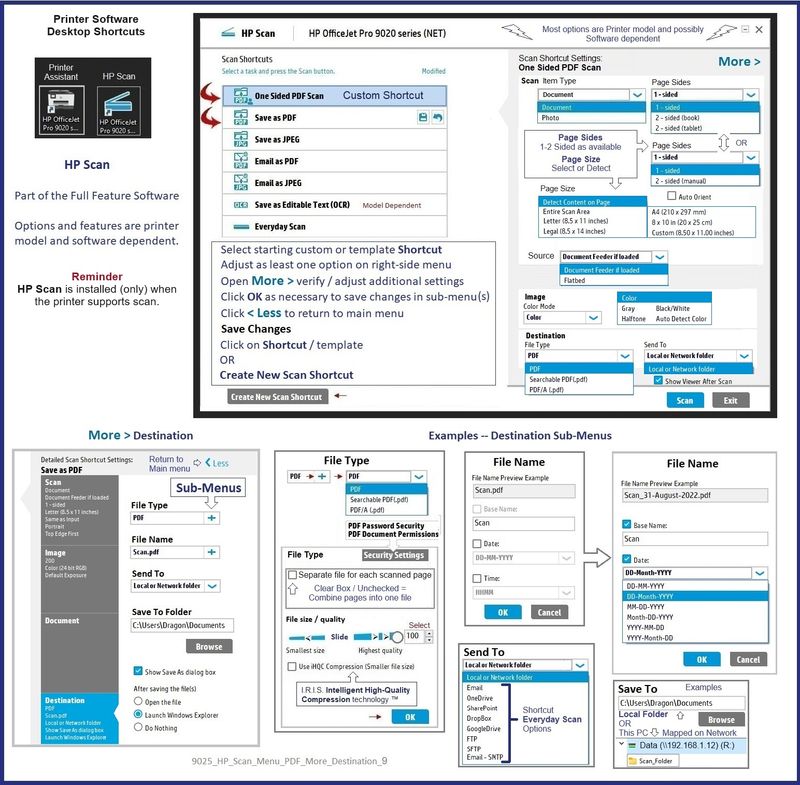
If you (can and do) install the Full Feature Software / full driver software, the driver supports printing includes either the original format HP Scan Software or the "new" format replacement (also called HP Scan).
HP Scan can scan one side (or stack), and, after you flip and reinstall the stack, scan and reorder the second side(s).
HP Scan defaults to saving scanned documents using the ADF as a single file.
AND
The default setting can be overridden; you can, if you wish, scan a pile of papers and create separate files.
Example - Original Format HP Scan (part of the full driver printer software)
Main Menu - Save as PDF > More > Destination
Remember >> When scanning a 2-sided document, select (on main menu) Page Sides = 2-Sided (manual)
9025_HP_Scan_Menu_PDF_More_Destination_9
==== ==== ==== ==== ==== ====
Windows
Printer - Full Feature Software
HP Full Feature Software / Full Driver printer software - supports printing and scanning from the web, printing in in other software and programs (for example, Word), and provides access to the full range of Printing Preferences / Shortcuts. The full driver generally adds at one, possibly least one, possibly two shortcuts to the Desktop: Printer Assistant, HP Scan Assistant, and/or HP Scan.
NOTES:
HP Scan is not installed if the printer does not support Scan.
The Printer Assistant is not installed if the type of full driver software does not support it. If the printer model includes built-in Fax hardware, the software supports the setup and use of the Fax driver. No Sign-in required.
Reinstalling?
- Uninstall existing full driver printer software from Programs and Features.
- If your printer includes a separate "help" in Programs and Features, uninstall that, too.
- Restart the computer and log in.
- If the printer is connected to the computer using a printer USB cable, remove / disconnect the cable before loading the software.
Details Page - Driver - For your Printer
>>> Full Feature Software - Web Pack Installation Package - Information - Download / Save / (then) Install <<<
HP Easy Start Printer Setup Software – Offline Use Only
If asked, opt for the Full Driver to be installed.
After the software is installed, Restart the computer and sign in.
=--=--=--=--=--=--=--=--=--=--=--=--=--=--=--=--=--=
The installation of the full driver generally adds at least one or more shortcuts to the Desktop.
Note: Printer Assistant, HP Scan Assistant, and HP Scan are dependent on printer model and supported software options.
- Printer Assistant – Where still supported as part of the full driver printer software
- HP Scan Assistant – For those printers that no longer provide the Printer Assistant
- HP Scan – Shortcut on Desktop named for the printer model
- When installed, HP Universal Scan software adds a separate self-named “HP Scan” shortcut
Printer Assistant shortcut > Tab Scan > Manage Scan to Computer > Enable
Or
HP Scan Assistant shortcut > Manage Scan to Computer > Enable
Example - Windows - Full Feature Software - Installed
Programs_and_Features_Printer_Desktop_Icons_14
Content References
User Guide - HP ENVY Inspire 7200e series - HP ENVY Inspire 7900e series
=--=--=--=--=--=--=--=--=--=--=--=--=--=--=--=--=--=
References / Resources
HP Printer Home Page - References and Resources
Learn about your Printer - Solve Problems
“Things that are your printer”
When the website support page opens, Select (as available) a Category > Topic > Subtopic
NOTE: Content depends on device type and Operating System
Categories: Alerts, Troubleshooting, Ink & Paper, HP Software / Drivers / Firmware Updates , Setup & User Guides, Product Specifications, Account & Registration, Warranty & Repair
Open
Enter the device type and model name of your HP product
OR
Select a saved product from HP Account Dashboard
OR
Results for "HP Envy Inspire" (5)
Thank you for participating in the HP Community --
People who own, use, and support HP devices.
Click Yes to say Thank You
Question / Concern Answered, Click my Post "Accept as Solution"