
-
×InformationNeed Windows 11 help?Check documents on compatibility, FAQs, upgrade information and available fixes.
Windows 11 Support Center. -
-
×InformationNeed Windows 11 help?Check documents on compatibility, FAQs, upgrade information and available fixes.
Windows 11 Support Center. -
- HP Community
- Printers
- Scanning, Faxing, and Copying
- Re: Scanning multiple pages into one PDF Office Jet Pro 9018

Create an account on the HP Community to personalize your profile and ask a question
Your account also allows you to connect with HP support faster, access a personal dashboard to manage all of your devices in one place, view warranty information, case status and more.
Common problems HP Solution Center not working : Adobe Flash Player Error and Unable to scan
We would like to share some of the most frequently asked questions about HP Solution Center not working : Adobe Flash Player Error and Unable to Scan.

It has been a while since anyone has replied. Simply ask a new question if you would like to start the discussion again.

04-14-2020 09:49 AM
 HP Recommended
Product: HP intel core i7
Operating System: Microsoft Windows 10 (64-bit)
How do I scan multiple pages into one PDF? I don't think my co-workers will enjoy getting 30 different attachments.
Solved! Go to Solution.
1 ACCEPTED SOLUTION
Accepted Solutions


04-14-2020
11:52 AM
- last edited on
10-11-2025
07:58 AM
by
 Raj_05
HP Recommended
The exact process depends on which software you are using for the scan.
If using the Full Feature Software (HP Scan),
Reference - Full Feature Software
HP OfficeJet Pro 9010 Print and Scan Driver and Accessories
Reminder: After the software is installed, Restart the computer and log in
====================================================================
If using the HP App for Windows application (available from the Windows Store),
HP App for Windows
HP App is an application available from the Windows Store.
Learn how to use HP App on your Windows 10 computer.
Open the Software and Drivers Support Website for your printer > Check the Box Get the App
OR
HP Printers - Using the HP App (Windows 10)
NOTE: Website includes the HP App software for Windows and Mobile devices, plus an FAQ section to assist with questions / issues
Open and read section "Scan a document or photo from your printer"
"Add pages" is explained in #5
=====================================================================
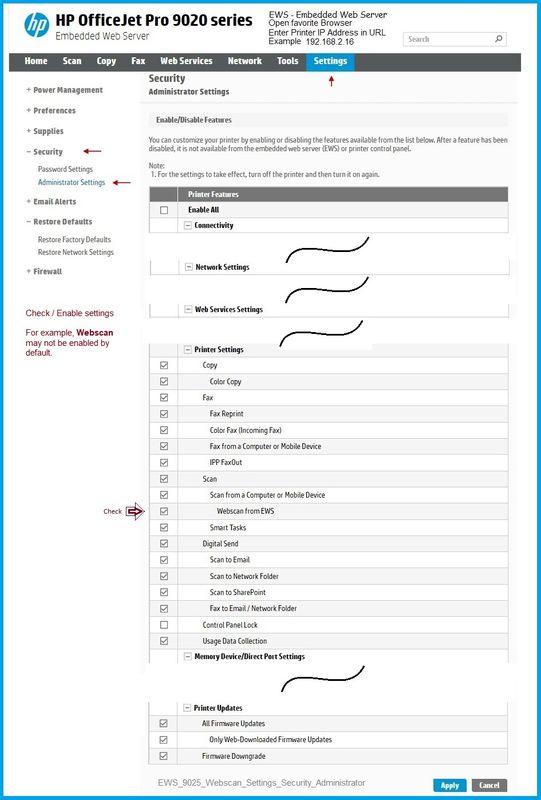
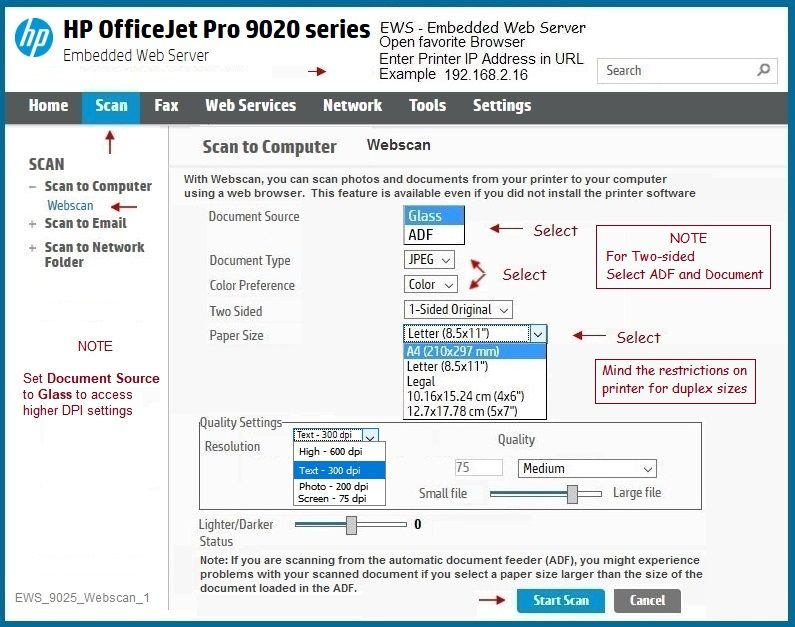
No software? Consider using the Embedded Web Server (EWS) > Webscan
READ section "How do I scan from the printer homepage?"
Example
NOTE: Some settings / options / locations are model dependent!
Open your favorite browser > type / enter Printer IP address into URL / Address bar
Reference and Resources – (More) Places to find help, solve problems, and learn how to use your Printer
Printer Homepage – “Things that are your printer”
NOTE: Content depends on device type and Operating System
Categories: HP Drivers / Software / Firmware Updates, How-to Videos, Bulletins/Notices, Lots of How-to Documents, Troubleshooting, Access to the Print and Scan Doctor (Windows), User Guides / Manuals, Product Information (Specifications), more
When the website support page opens, Select (as available) a Category > Topic > Subtopic
HP OfficeJet Pro 9018 All-in-One Printer
|
Thank you for participating in the HP Community Forum. We are a world community of volunteers dedicated to supporting HP technology. |
Dragon-Fur

3 REPLIES 3
04-14-2020
11:52 AM
- last edited on
10-11-2025
07:58 AM
by
Raj_05
HP Recommended
The exact process depends on which software you are using for the scan.
If using the Full Feature Software (HP Scan),
Reference - Full Feature Software
HP OfficeJet Pro 9010 Print and Scan Driver and Accessories
Reminder: After the software is installed, Restart the computer and log in
====================================================================
If using the HP App for Windows application (available from the Windows Store),
HP App for Windows
HP App is an application available from the Windows Store.
Learn how to use HP App on your Windows 10 computer.
Open the Software and Drivers Support Website for your printer > Check the Box Get the App
OR
HP Printers - Using the HP App (Windows 10)
NOTE: Website includes the HP App software for Windows and Mobile devices, plus an FAQ section to assist with questions / issues
Open and read section "Scan a document or photo from your printer"
"Add pages" is explained in #5
=====================================================================
No software? Consider using the Embedded Web Server (EWS) > Webscan
READ section "How do I scan from the printer homepage?"
Example
NOTE: Some settings / options / locations are model dependent!
Open your favorite browser > type / enter Printer IP address into URL / Address bar
Reference and Resources – (More) Places to find help, solve problems, and learn how to use your Printer
Printer Homepage – “Things that are your printer”
NOTE: Content depends on device type and Operating System
Categories: HP Drivers / Software / Firmware Updates, How-to Videos, Bulletins/Notices, Lots of How-to Documents, Troubleshooting, Access to the Print and Scan Doctor (Windows), User Guides / Manuals, Product Information (Specifications), more
When the website support page opens, Select (as available) a Category > Topic > Subtopic
HP OfficeJet Pro 9018 All-in-One Printer
|
Thank you for participating in the HP Community Forum. We are a world community of volunteers dedicated to supporting HP technology. |
Dragon-Fur
04-14-2020
12:38 PM
- last edited on
10-11-2025
08:03 AM
by
Raj_05
HP Recommended
You are welcome.
I suspected as much - the printer control screen on this series is useful but still not much for allowing any additional setups. Smiling.
In general, though the settings are a bit less "full featured" than on Windows, you can also investigate using HP App for Mobile.
iOS Here
Mobile Printing – Options, How-to, Help, and Information
Print from your Android, iOS, or Amazon Fire device with the HP Mobile printing app.
Read this document first - List of printers and supported applications
HP Printers - Mobile Printing Solutions Compatible with HP Printers
“Print Anywhere App” Supported on Select Printers
HP Printers - Print Anywhere with the HP App
HP App- iOS and Android - Download, How-to. Videos, and FAQ
HP Printers - Using the HP App (Android, Apple iOS)
HP App– “Quick View” Reference Sheet
HP Mobile Printing – “Show and Tell” – Step by Step How-to
Learn how to connect and use your printer with your device
HP Mobile Printing - Print from Smart phone or Tablet
Stay safe!
Thank you for participating in the HP Community Forum.
We are a world community of volunteers dedicated to supporting HP technology
Dragon-Fur

Be alert for scammers posting fake support phone numbers and/or email addresses on the community.
If you think you have received a fake HP Support message, please report it to us by clicking on "Flag Post".
† The opinions expressed above are the personal opinions of the authors, not of HP. By using this site, you accept the Terms of Use and Rules of Participation.


Didn't find what you were looking for?
Ask the community
† The opinions expressed above are the personal opinions of the authors, not of HP. By using this site, you accept the <a href="https://www8.hp.com/us/en/terms-of-use.html" class="udrlinesmall">Terms of Use</a> and <a href="/t5/custom/page/page-id/hp.rulespage" class="udrlinesmall"> Rules of Participation</a>.