• ×
    Information
    Need Windows 11 help?
    Check documents on compatibility, FAQs, upgrade information and available fixes.
    Windows 11 Support Center.
  • post a message
  • ×
    Information
    Need Windows 11 help?
    Check documents on compatibility, FAQs, upgrade information and available fixes.
    Windows 11 Support Center.
  • post a message
Guidelines
Seize the moment! nominate yourself or a tech enthusiast you admire & join the HP Community Experts!
Common problems HP Solution Center not working : Adobe Flash Player Error and Unable to scan
We would like to share some of the most frequently asked questions about HP Solution Center not working : Adobe Flash Player Error and Unable to Scan.
HP Recommended

Why is it that when scanning from my HP 5255 you need to launch the HP SMART Application each tome.


If there something that needs to be added?

1 REPLY 1
HP Recommended

@FrankQ6810 


Welcome to the HP Community Forum.


I might not understand the context of your question.

True - HP Smart - Windows - does require that you sign in to use the application

It should not be necessary to close the application if you plan on using it often during your current session.

The application, when it remains open - should indeed remain open and your sign-in should remain connected.


If HP Smart is not behaving as expected,

Try / Consider


Restart everything, including the router that controls your network.


No Joy?

Reset HP Smart Application - Windows


Reset the HP Smart application - This action removes the app data.


Open Settings > Apps > Apps and Features


Windows 11 - Settings > Apps > Installed Apps


Search and Find HP Smart in the apps list

Open Advanced options > Reset the app


Restart the computer and log in

Open HP Smart > Sign in > Add Printer(s)


HP_Smart_Win_Apps-and-Features_ Reset_4HP_Smart_Win_Apps-and-Features_ Reset_4


If the app Reset does not work by itself,

Next,

Uninstall the HP Smart App from Settings > Apps > Apps and Features / Installed Apps

Restart the computer and log in

“Get” a new copy of the HP Smart application from the Microsoft Store

Open HP Smart > Sign in > Add Printer(s)


=+=+=+=+=+=+=+=+=+=+=+=+=+=+=+=+=+=+=+=+=

What else?

If you do not wish to use the HP Smart application -- 

and / or you wish to use additional scan software / programs,

If you have not done so,

Install the Full Feature Software / full driver printer software

Use HP Scan (part of the full driver printer software)


>>> Web Pack Installation Package - Download and Save <<<

HP OfficeJet 5200 All-in-One Print and Scan Driver and Accessories 

After the software is installed, Restart the computer and log in.


NOTE:  Ask if you need help to install the printer software


Installing the full driver printer software provides a foundation so you can install and use additional scan software and applications.


For example,

NAPS2 – “Not Another PDF Scanner” (Free – Donations gladly accepted by the NAPS2 organization)

  • Download-Save-Install >  NAPS2 
  • Not another PDF Scanner – free program scans PDF files and image(s) as .jpeg or PDF file(s).
  • Not always simple “Plug and Play”, nonetheless, this free software is powerful and configurable.
  • NAPS2 might require that the full driver printer software is installed.

Notes


HP Scan and Capture

Available from the Microsoft Store (formally Windows Store) - Requires Windows 8 or higher

Download-Save-Install   HP Scan and Capture

 Description

HP Scan and Capture is a simple and fun application that captures photos or documents from any* HP scanning device or your computer's built-in camera.  These images can be previewed, edited, saved, and shared to other applications.


HP Scan and Capture features an adjustable screen size.


* NOTE:  The correct HP print software drivers for your scanner must be installed from HP's Support Website.


=+=+=+=+=+=+=+=+=+=+=+=+=+=+=+=+=+=+=+=+=

References / Resources


At this writing, important Firmware update issued October 2022

If not done, consider updating the Firmware

HP OfficeJet 5200 All-in-One Printer series Firmware Update 


User Guide


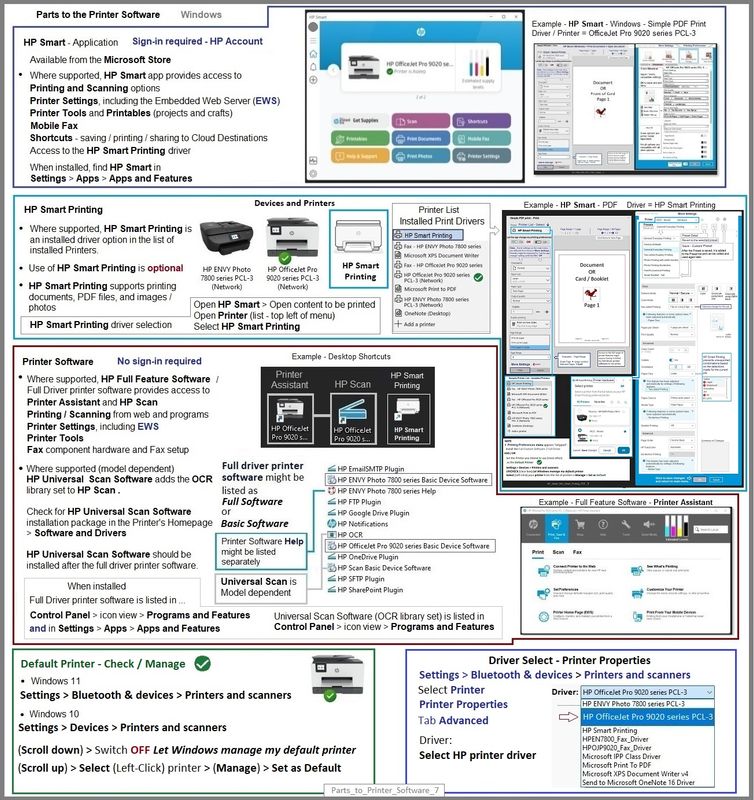
Example - Windows - Parts to the Printer Software - FYI only

Parts_to_Printer_Software_7Parts_to_Printer_Software_7


=+=+=+=+=+=+=+=+=+=+=+=+=+=+=+=+=+=+=+=+=

HP Printer Home Page - References and Resources

Learn about your Printer  - Solve Problems

“Things that are your printer”

When the website support page opens, Select (as available) a Category > Topic Subtopic

NOTE:  Content depends on device type and Operating System

Categories:  Alerts, Access to the Print and Scan Doctor (Windows), Warranty Check, HP Drivers / Software / Firmware Updates, How-to Videos, Bulletins/Notices, Lots of How-to Documents, Troubleshooting, Manuals > User Guides, Product Information (Specifications), Supplies, and more

Open

HP OfficeJet 5255 All-in-One Printer 


Thank you for participating in the HP Community --

People who own, use, and support HP devices.

Click Yes to say Thank You

Question / Concern Answered, Click "Accept as Solution"

🌲


Dragon-Fur

† The opinions expressed above are the personal opinions of the authors, not of HP. By using this site, you accept the <a href="https://www8.hp.com/us/en/terms-of-use.html" class="udrlinesmall">Terms of Use</a> and <a href="/t5/custom/page/page-id/hp.rulespage" class="udrlinesmall"> Rules of Participation</a>.