
-
×InformationNeed Windows 11 help?Check documents on compatibility, FAQs, upgrade information and available fixes.
Windows 11 Support Center. -
-
×InformationNeed Windows 11 help?Check documents on compatibility, FAQs, upgrade information and available fixes.
Windows 11 Support Center. -
- HP Community
- Printers
- Scanning, Faxing, and Copying
- Re: Vertical colored lines

Create an account on the HP Community to personalize your profile and ask a question
Your account also allows you to connect with HP support faster, access a personal dashboard to manage all of your devices in one place, view warranty information, case status and more.
Common problems HP Solution Center not working : Adobe Flash Player Error and Unable to scan
We would like to share some of the most frequently asked questions about HP Solution Center not working : Adobe Flash Player Error and Unable to Scan.

It has been a while since anyone has replied. Simply ask a new question if you would like to start the discussion again.

01-08-2018 11:19 AM
 HP Recommended
Product: HP Officejet Pro 8620 e-All-in-One Printer series
Operating System: Microsoft Windows 8.1 (64-bit)
Hi,
I've been scanning for a year using my 8260. During a scan the last 4 pages had vertical colored lines. I reset to defaults and restarted the printer and the computer. After restart i was able to see the left side of the scan but I still have a yellow vertical line. Any help??
Solved! Go to Solution.
1 ACCEPTED SOLUTION
Accepted Solutions


01-09-2018 03:18 PM
HP Recommended
Hi @Bubba60 ,
If that's the case, I'd request you to contact HP's phone support team for further assistance.
HP Support can be reached by clicking on the following link: Open link: www.hp.com/contacthp/
Enter Product number or select to auto detect.Scroll down to "Still need help?
Complete the form to select your contact options". Scroll down and click on HP contact options - click on Get a Case & phone number.
They will be happy to assist you immediately. If the unit is under warranty repair services under the manufacturer's warranty will be free of charge.
Best regards,
Barachiel
I am an HP Employee
5 REPLIES 5
01-09-2018 12:25 PM
HP Recommended
Hi @Bubba60 ,
Thank you for posting on HP Forums,
The Barachiel is at your service.
I understand you are in need of support,
I'll be glad to help you out, however, for an accurate solution I will need more details:
Have you attempted any steps on your own before posting on the HP Forums?
When was the last time it worked without these issues?
In the meantime, please try the steps mentioned on this link: Click here
Please reply with the details for further assistance.
Eager to help!
Barachiel
I am an HP Employee
01-09-2018 01:42 PM
HP Recommended
The last time I had a (normal) scan was January 6, 2018. I had scanned over 200 pages that day when scanning a catalog a group of vertical lines appeared on the last 4 pages. These lines ranged in many colors including gray and black. One third of the scanned page was not viewable. I did the complete cleaning, scan area, both pick up rollers and cleaned out dust, scanned again with the same results. I set the 8620 back to defaults and restarted both 8620 and computer. After all that I can now see a fuul page with a yellow streak through the whole image. Can you help???
01-09-2018 02:17 PM
HP Recommended
Hi @Bubba60 ,
Thank you for responding,
It's great to have you back 😉
Follow the steps given below:
Step 7 is very important. 🙂
-
Gather the following materials:
-
A clean, lint-free cloth, or any cloth that does not come apart or leave fibers
-
Distilled, filtered, or bottled water (tap water might damage the printer)
-
-
Remove the original document from the ADF.
-
Turn off the printer.
-
Disconnect the power cord from the rear of the printer.
-
Open the ADF cover.
-
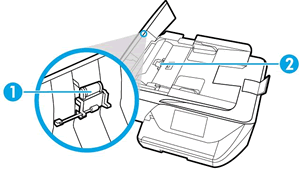
Find the paper pick rollers and the separator pad inside the ADF.
Figure : Example of the paper pick rollers and separator pad in a LaserJet printer
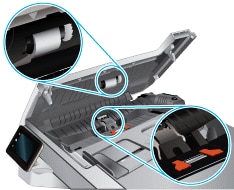
Figure : Example of the paper pick rollers and separator pad in a OfficeJet printer
-
Lightly dampen a clean, lint-free cloth with filtered or distilled water, then squeeze any excess liquid from the cloth.
-
Use the damp cloth to wipe any residue off the paper pick rollers and the separator pad.
-
Leave the ADF cover open for two minutes to allow the paper pick rollers and separator pad to dry.
-
Close the ADF cover.
Let me know how that pans out. 🙂
I hope you have a good day ahead,
And Feel free to ask any other queries as well,
Considering, this forum has some of the best people in the world available and ready to help. 😉
Barachiel
I am an HP Employee
01-09-2018 03:18 PM
HP Recommended
Hi @Bubba60 ,
If that's the case, I'd request you to contact HP's phone support team for further assistance.
HP Support can be reached by clicking on the following link: Open link: www.hp.com/contacthp/
Enter Product number or select to auto detect.Scroll down to "Still need help?
Complete the form to select your contact options". Scroll down and click on HP contact options - click on Get a Case & phone number.
They will be happy to assist you immediately. If the unit is under warranty repair services under the manufacturer's warranty will be free of charge.
Best regards,
Barachiel
I am an HP Employee

Be alert for scammers posting fake support phone numbers and/or email addresses on the community.
If you think you have received a fake HP Support message, please report it to us by clicking on "Flag Post".
† The opinions expressed above are the personal opinions of the authors, not of HP. By using this site, you accept the Terms of Use and Rules of Participation.


Didn't find what you were looking for?
Ask the community
† The opinions expressed above are the personal opinions of the authors, not of HP. By using this site, you accept the <a href="https://www8.hp.com/us/en/terms-of-use.html" class="udrlinesmall">Terms of Use</a> and <a href="/t5/custom/page/page-id/hp.rulespage" class="udrlinesmall"> Rules of Participation</a>.