• ×
    Information
    Need Windows 11 help?
    Check documents on compatibility, FAQs, upgrade information and available fixes.
    Windows 11 Support Center.
  • post a message
  • ×
    Information
    Need Windows 11 help?
    Check documents on compatibility, FAQs, upgrade information and available fixes.
    Windows 11 Support Center.
  • post a message
Guidelines
Is your HP DeskJet 3830 series scanner not working? Here is the solution Click here to view the instructions!
Common problems HP Solution Center not working : Adobe Flash Player Error and Unable to scan
We would like to share some of the most frequently asked questions about HP Solution Center not working : Adobe Flash Player Error and Unable to Scan.
HP Recommended
HP Deskjet GT 5810

HP Deskjet gt 5810 scans good but now when HP has forcefully changed its software and given us the only option to use HP smart app, it got messy. Now it scans handwritten documents in B&W only. How to resolve it?

1 REPLY 1
HP Recommended

@Manoj447 


Welcome to the HP Community Forum.


@Manoj447 wrote:

Subject:  Why I am unable to scan written pages in color in new HP smart app? The old software was good.

Product:   HP DeskJet GT 5810 All-in-One Printer series 

Operating System:  Unknown

Software / Application:  Unknown

Connection Type:  Unknown


HP Deskjet gt 5810 scans good but now when HP has forcefully changed its software and given us the only option to use HP smart app, it got messy. Now it scans handwritten documents in B&W only. How to resolve it?


The full driver printer software is available for supported versions of Windows.


Try / Consider:

Try to fix HP Smart

and / or

Install the Full Feature Software > Use HP Scan


==============================

Printer Application - HP Smart - Windows -


At this writing:  The HP Smart app version was recently updated (March 2023).


If there are any general connection issues at all, updating the app (by Windows Store) can occasionally result in breaking the HP Smart login.


Yes, the Restart everything can usually fix connection errors.


Next  --

Consider --

Resetting the application removes your personal data from the application setup.

True - you do have to add your printer after the reset.


In order...


If using, switch VPN to OFF


Check / Run Windows Updates > Install any pending updates


Next,

Restart everything, including the router that controls your network.


Open and Check HP Smart


If the HP Smart opens but does not work or hangs partly open > Close the HP Smart App.

If you cannot stop HP Smart, Restart the computer and log in > Do not restart HP Smart yet.


No Joy?

Reset HP Smart Application - Windows


Next,

Reset the HP Smart application - This action removes the app data.


Windows 10 -

Settings > Apps > Apps and Features


Windows 11 - 

Settings > Apps > Installed Apps


Search and Find HP Smart in the apps list

Open Advanced options > Reset the app


Restart the computer and log in

Open HP Smart > Sign in > Add Printer(s)


If the app Reset does not work by itself,

Next,

Uninstall the HP Smart App from Settings > Apps > Apps and Features / Installed Apps

Restart the computer and log in

“Get” a new copy of the HP Smart application from the Microsoft Store

Open HP Smart > Sign in > Add Printer(s)

= = = = = = = = = = = = = = = = = = = = = = = = = = =


Example - HP Smart - Application Reset

HP_Smart_Win_Apps-and-Features_ Reset_5HP_Smart_Win_Apps-and-Features_ Reset_5


==============================

Printer Software - Full Feature Software


Go another way...


If your Desktop is running a supported version of Windows,

Consider installing the Full Feature Software / full driver printer software.

Doing so does not fix HP Smart -- the full driver does provide tools to use your printer for scan and print.


Full Feature Software includes access to the printer features.

At least Two shortcuts are added to the Desktop:

Printer Assistant > Print, Scan, Tools -- The Desktop shortcut is named for the Printer.

HP Scan > Scan to PDF, Photo, Email -- The Desktop shortcut is named for the Printer.


Installing the HP full driver printer software (also) provides a foundation that supports installing and using additional software and applications, including those programs and applications that are capable of providing features and options not available in the HP software.


==============================

Printer Software - Install - Full Feature Software


If you have not done so, consider


If the software is already installed and you want to "reinstall":

Uninstall the printer software from Programs and Features

Restart the computer and log in

Check that all the pieces of the printer software have been removed - if anything is deleted, Restart computer and log in


Next,

Download, Save, (then) Install new copy of the printer software

After the software in installed, Restart the computer and log in


Details Page - Driver - For your Printer

>>> Full Feature Software - Web Pack Installation Package - Information - Download  <<<

HP DeskJet GT 5810 All-in-One Print and Scan Driver and Accessories 


At this writing, the listed software package supports the following OS versions.


Operating Systems:
Microsoft Windows 10 (32-bit)
Microsoft Windows 10 (64-bit)
Microsoft Windows 11
Microsoft Windows 7 (32-bit)
Microsoft Windows 7 (64-bit)
Microsoft Windows 8 (32-bit)
Microsoft Windows 8 (64-bit)
Microsoft Windows 8.1 (32-bit)
Microsoft Windows 8.1 (64-bit)
Microsoft Windows Vista (32-bit)
Microsoft Windows Vista (64-bit)
Microsoft Windows XP (32-bit)


=+=+=+=+=+=+=+=+=+=+=+=+=+=+=+=+=+=+=+=+=+=


References / Resources / Examples


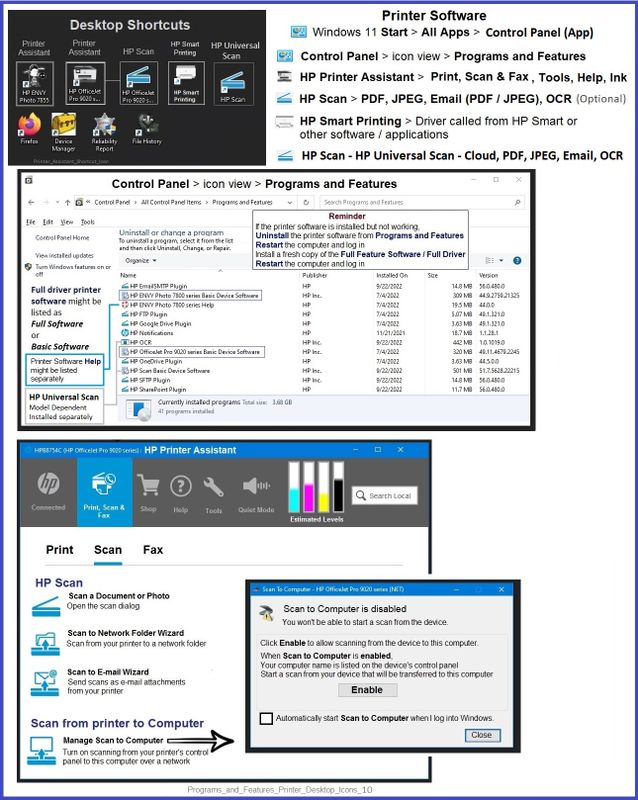
Example - Windows - Full Feature Software - Installed

Programs_and_Features_Printer_Desktop_Icons_10Programs_and_Features_Printer_Desktop_Icons_10


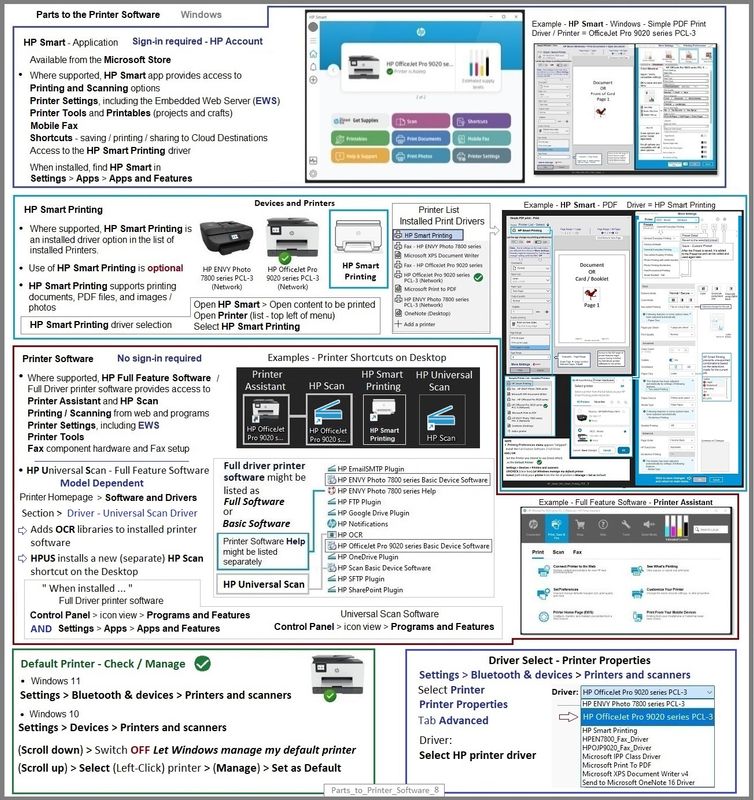
Example - Windows - HP Print Software - Parts

Parts_to_Printer_Software_8Parts_to_Printer_Software_8


HP Printer Home Page - References and Resources

Learn about your Printer  - Solve Problems

“Things that are your printer”

When the website support page opens, Select (as available) a Category > Topic Subtopic

NOTE:  Content depends on device type and Operating System

Categories Alerts, Access to the Print and Scan Doctor (Windows), Warranty Check, HP Drivers / Software / Firmware Updates, How-to Videos, Bulletins/Notices, Lots of How-to Documents, Troubleshooting, Manuals > User Guides, Product Information (Specifications), Supplies, and more

Open

HP DeskJet GT 5810 All-in-One Printer series 


Thank you for participating in the HP Community --

People who own, use, and support HP devices.

Click Yes to say Thank You

Question / Concern Answered, Click "Accept as Solution"

Dragon-Fur

† The opinions expressed above are the personal opinions of the authors, not of HP. By using this site, you accept the <a href="https://www8.hp.com/us/en/terms-of-use.html" class="udrlinesmall">Terms of Use</a> and <a href="/t5/custom/page/page-id/hp.rulespage" class="udrlinesmall"> Rules of Participation</a>.