
-
×InformationNeed Windows 11 help?Check documents on compatibility, FAQs, upgrade information and available fixes.
Windows 11 Support Center. -
-
×InformationNeed Windows 11 help?Check documents on compatibility, FAQs, upgrade information and available fixes.
Windows 11 Support Center. -
- HP Community
- Printers
- Scanning, Faxing, and Copying
- scanner error message

Create an account on the HP Community to personalize your profile and ask a question
Your account also allows you to connect with HP support faster, access a personal dashboard to manage all of your devices in one place, view warranty information, case status and more.
Common problems HP Solution Center not working : Adobe Flash Player Error and Unable to scan
We would like to share some of the most frequently asked questions about HP Solution Center not working : Adobe Flash Player Error and Unable to Scan.

It has been a while since anyone has replied. Simply ask a new question if you would like to start the discussion again.

01-15-2020 08:13 AM - edited 01-15-2020 08:15 AM
 HP Recommended
Product: HP Deskjet 3050A all in one J611 series
Operating System: Microsoft Windows 8.1 (64-bit)
how to fix scanner problems with my printer? having error message: computer not found ensure HP software is installed on computer. I have no idea why this is happening because the scanner was working fine 6 months ago and the printer showed my computer in the panel window but now it is not jut showing that error message, can someone help me ? thank you I have a HP Deskjet 3050A all in one J611 series printer with windows 8.1
Solved! Go to Solution.
1 ACCEPTED SOLUTION
Accepted Solutions


01-17-2020 10:26 AM
HP Recommended
Welcome to HP support community.
Check Windows Image Acquisition settings
-
In Windows, search for and open View local services.
-
In the Services window, scroll down the list and find Windows Image Acquisition (WIA).
-
Look at the Status and Startup Type values.
-
If the status is Started or Running and the Startup Type is Automatic, WIA is running correctly. Skip to the next step.
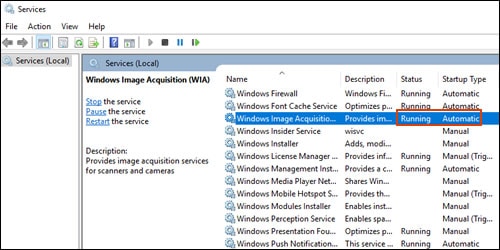
-
If the status is Disabled or no status displays, right-click Windows Image Acquisition (WIA), click Properties, click the General tab, select Automatic from the Startup type dropdown menu, and then click Start.
If the Start button is grayed out, go back to the Services menu, make sure Remote Procedure Call, Shell Hardware Detection, RPC Endpoint Mapper, and DCOM Server Process Launcher are running and set as Automatic, and then start WIA.
-
You can refer this HP document for more assistance:- Click here
I hope that helps.
To thank me for my efforts to help you, please mark my post as an accepted solution so that it benefits several others.
Cheers.
Sandytechy20
I am an HP Employee
4 REPLIES 4
01-17-2020 10:26 AM
HP Recommended
Welcome to HP support community.
Check Windows Image Acquisition settings
-
In Windows, search for and open View local services.
-
In the Services window, scroll down the list and find Windows Image Acquisition (WIA).
-
Look at the Status and Startup Type values.
-
If the status is Started or Running and the Startup Type is Automatic, WIA is running correctly. Skip to the next step.
-
If the status is Disabled or no status displays, right-click Windows Image Acquisition (WIA), click Properties, click the General tab, select Automatic from the Startup type dropdown menu, and then click Start.
If the Start button is grayed out, go back to the Services menu, make sure Remote Procedure Call, Shell Hardware Detection, RPC Endpoint Mapper, and DCOM Server Process Launcher are running and set as Automatic, and then start WIA.
-
You can refer this HP document for more assistance:- Click here
I hope that helps.
To thank me for my efforts to help you, please mark my post as an accepted solution so that it benefits several others.
Cheers.
Sandytechy20
I am an HP Employee

01-24-2020 01:39 PM
HP Recommended
thank you Sandy, it was a wonderful idea but I still cant set my scanner to work. It has worked for the past 3 years.
I am wondering if it is goofy to have this many printers listed I only have one all in one HP printer I am trying to attach a snip of my printer options but it isn't working but I must have 7 different ones.

01-25-2020 05:33 AM
HP Recommended
Hi @MiLi3
Welcome to the HP Support Community. To assist you better, I would like to know the following:
- Which model printer are you using?
- To which device are you trying to scan?
- How is the printer connected?
For now, let us try these steps:
Run HP Print and Scan Doctor to diagnose and fix any driver issue (Win PC)
Click here to download the file. Once downloaded, make sure to run the file to start the installation and click on 'Fix Scanning'.
If the issue persists, proceed to the next step.
Use HP Smart app to scan and check if the issue persists
Click here to download and know more about the app.
Hope this helps! Keep me posted.
Please click “Accept as Solution” if you feel my post solved your issue, it will help others find the solution.
Click the “Kudos, Thumbs Up" on the bottom right to say “Thanks” for helping!
Have a great day!
KUMAR0307
I am an HP Employee

Be alert for scammers posting fake support phone numbers and/or email addresses on the community.
If you think you have received a fake HP Support message, please report it to us by clicking on "Flag Post".
† The opinions expressed above are the personal opinions of the authors, not of HP. By using this site, you accept the Terms of Use and Rules of Participation.


Didn't find what you were looking for?
Ask the community
† The opinions expressed above are the personal opinions of the authors, not of HP. By using this site, you accept the <a href="https://www8.hp.com/us/en/terms-of-use.html" class="udrlinesmall">Terms of Use</a> and <a href="/t5/custom/page/page-id/hp.rulespage" class="udrlinesmall"> Rules of Participation</a>.