• ×
    Information
    Need Windows 11 help?
    Check documents on compatibility, FAQs, upgrade information and available fixes.
    Windows 11 Support Center.
  • post a message
  • ×
    Information
    Need Windows 11 help?
    Check documents on compatibility, FAQs, upgrade information and available fixes.
    Windows 11 Support Center.
  • post a message
Guidelines
Join the HP Community Solve‑a‑thon | Help Others & Share Your Solutions | Live on Zoom | 2:30 PM to 2:30 AM IST | Every Wednesday Click here to know more
Common problems HP Solution Center not working : Adobe Flash Player Error and Unable to scan
We would like to share some of the most frequently asked questions about HP Solution Center not working : Adobe Flash Player Error and Unable to Scan.
HP Recommended

How can I scan a 8X14 document on 8710. When I put the documents in the ADF it does not give me the option to change to a legal size document.

1 REPLY 1
HP Recommended

@19-shack 


This printer supports Legal size (8.5 x 14 inches) in ADF for single sided 

Specifications 

Paper Handling > Supported Paper Sizes

and

Scanning specifications


Load the paper in the ADF as instructed in the User Guide


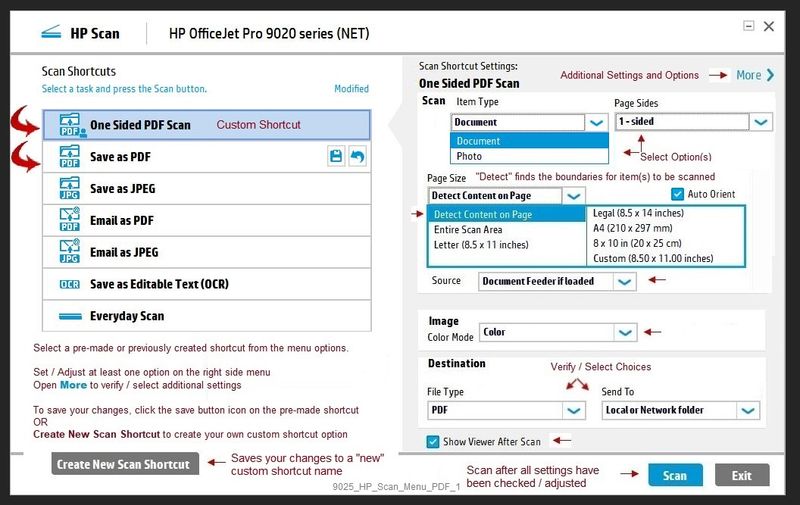
Scan options differ according to the software used to scan the object and submit the job to the printer.

Example, HP Scan

9025_HP_Scan_Menu_PDF_19025_HP_Scan_Menu_PDF_1


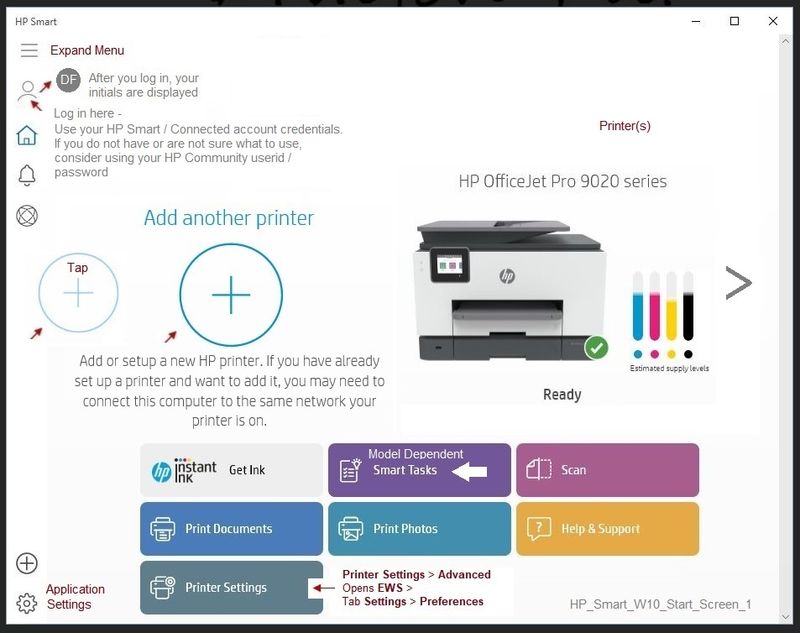
HP Smart for Windows provides the Page Size on the main scan menu (after having selected Scan documents)

HP_Smart_W10_Start_Screen_1HP_Smart_W10_Start_Screen_1


HP_Smart_W10_Scan_Document_Screen_1HP_Smart_W10_Scan_Document_Screen_1


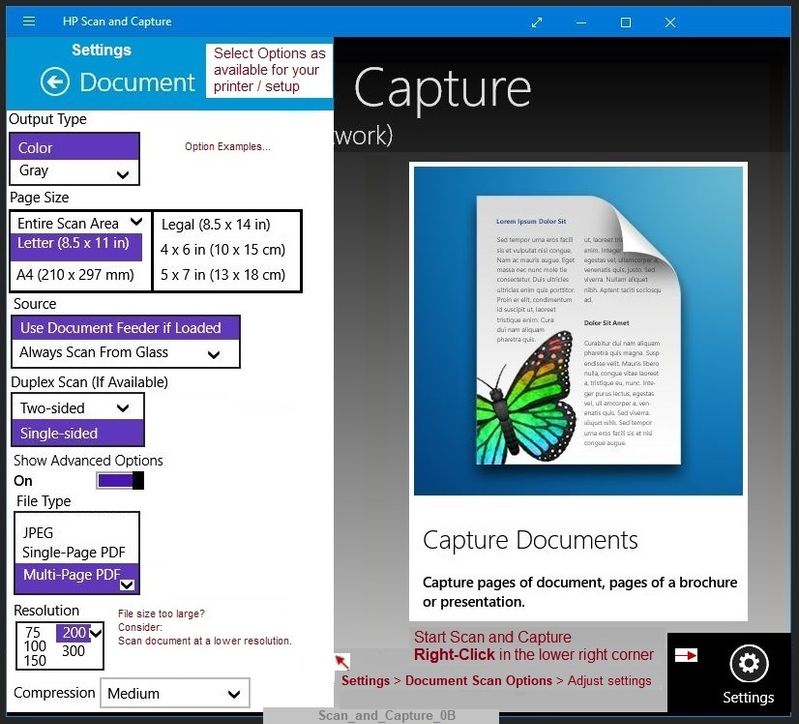
HP Scan and Capture provides the Page Size in the Settings menu for Documents

Scan_and_Capture_0BScan_and_Capture_0B


Side Bar

If / When you are trying to print on Legal size paper (User Guide, Page 24) and / or you have changed the paper in the tray, some printers require that you tell the printer control panel about the changes 


example...

Check / Adjust / Retain the Paper at the Printer Panel


Open Printer Tray,

If you have not yet done so, add desired paper type

Close Tray

IF applicable for your printer:

Look for a message on the Printer Control Panel,

Click Modify (wording varies), set the paper size and type, Click OK


NOTE:  If the size of the Paper Size is not in the Drop-down menu, Select Custom (likely the last selection in the list)


Set the Preferences - Windows


  1. The following assumes the Full Feature Software has been installed.
  2. Check / enable the printer as the “Default Printer”
  3. Select and adjust settings in each category for the Media (kind of paper), source (tray), and paper size.


Control Panel > icon view > Devices and Printers > Right-Click on your printer > Set as Default


Control Panel > icon view > Devices and Printers > Right-Click on your printer > Printing Preferences >

Tab Printing Shortcuts > Click / Highlight preferred shortcut > Click Apply > Click OK to exit


If the printer software supports the feature, change the settings as desired, then use “Save as” to create a Custom Shortcut.


OR

Windows key + S (search for) Printers and Scanners

Left-Click on (your) Printer > Manage >

Printing Preferences

Select a shortcut and / or set “preferred settings” for paper, source (tray), other settings

Optional (if / as supported on the printer): Save As > enter a name for your custom shortcut

Click OK to save the preferences


References


Full Feature Software / Print and Scan Driver (HP Scan included)

HP OfficeJet Pro 8710 All-in-One Print and Scan Driver and Accessories


HP Smart for Windows

HP Smart is an application available from the Windows Store.

Learn how to use HP Smart on your Windows 10 computer.

Open the Software and Drivers Support Website for your printer > Check the Box Get the App

OR

HP Printers - Using the HP Smart App (Windows 10)

NOTE:  Website includes the HP Smart software for Windows and Mobile devices, plus an FAQ section to assist with questions / issues


HP Scan and Capture - Windows Store - Requires Windows 8 or higher


Reference and Resources – (More) Places to find help, solve problems, and learn how to use your Printer

Printer Homepage – “Things that are your printer”

NOTE:  Content depends on device type and Operating System

Categories:  Alerts, Access to the Print and Scan Doctor (Windows), Warranty Check, HP Drivers / Software / Firmware Updates, How-to Videos, Bulletins/Notices, Lots of How-to Documents, Troubleshooting, User Guides / Manuals, Product Information (Specifications), more

When the website support page opens, Select (as available) a Category > Topic > Subtopic

HP OfficeJet Pro 8710 All-in-One Printer series


Thank you for participating in the HP Community Forum.

We are a world community of volunteers dedicated to supporting HP technology


Dragon-Fur

† The opinions expressed above are the personal opinions of the authors, not of HP. By using this site, you accept the <a href="https://www8.hp.com/us/en/terms-of-use.html" class="udrlinesmall">Terms of Use</a> and <a href="/t5/custom/page/page-id/hp.rulespage" class="udrlinesmall"> Rules of Participation</a>.