
-
×InformationNeed Windows 11 help?Check documents on compatibility, FAQs, upgrade information and available fixes.
Windows 11 Support Center. -
-
×InformationNeed Windows 11 help?Check documents on compatibility, FAQs, upgrade information and available fixes.
Windows 11 Support Center. -
- HP Community
- Printers
- Scanning, Faxing, and Copying
- HP Photosmart 5510 Series

Create an account on the HP Community to personalize your profile and ask a question
Your account also allows you to connect with HP support faster, access a personal dashboard to manage all of your devices in one place, view warranty information, case status and more.
Common problems HP Solution Center not working : Adobe Flash Player Error and Unable to scan
We would like to share some of the most frequently asked questions about HP Solution Center not working : Adobe Flash Player Error and Unable to Scan.

It has been a while since anyone has replied. Simply ask a new question if you would like to start the discussion again.

02-22-2018 12:54 PM
 HP Recommended
Product: HP Photosmart 5510
Operating System: Microsoft Windows 10 (64-bit)
Recently I used non-HP ink cartridges. The message appreard on the screen that NON-HP ink was detected.
I have since purchased and inserted HP ink cardridges.
The screen is now reading GENUINE HP INK CARTRIDGES INSTALLED.
I cannot return to the home screen so that I can copy, scan as well as print.
Can this be rectified?
Bigsteph
Solved! Go to Solution.
1 ACCEPTED SOLUTION
Accepted Solutions


02-23-2018 03:35 PM
HP Recommended
@ Bigsteph
Welcome to the HP Forums, this is a great location to get assistance! I read your post and see that you are getting cartridge error on HP Photosmart 5510 Printer. I would like to help you resolve this issue.
Make sure that the cartridges are inserted correctly
-
If the printer is off, press the Power button to turn it on.
-
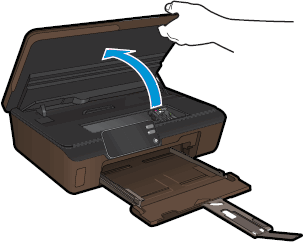
Open the cartridge access door. The carriage moves to the access area.
Figure: Open the cartridge access door
-
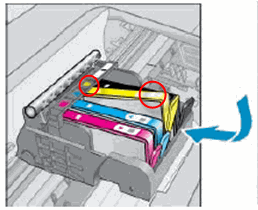
Make sure that the color icon on each cartridge label matches the color icon on the carriage slot.
Figure : Match the colored icons
-
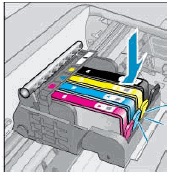
Run your finger along the top of the cartridges to check for any unseated cartridges in the carriage. Press down on any cartridge that is higher than the others to firmly snap the cartridge into its slot.
Figure : Snap the cartridge into its slot
-
If the cartridge does not snap into place, or does not seat properly, remove the cartridge from the carriage. Gently bend the tab away from the cartridge, and then reinsert the cartridge into the carriage.
CAUTION:
Be careful not to bend the tab out more than 1.27 cm (0.5 in). Moving the tab too far might damage the cartridge or cause the tab to break off.
Figure : Example of bending the tab away from the cartridge
-
Bend the tab away from the cartridge
-
Do not bend the tab more than 1.27 cm (0.5 in)
-
-
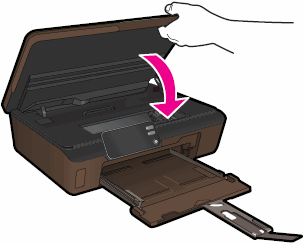
Close the cartridge access door.
Figure : Close the cartridge access door
Clean the cartridge contacts
-
Gather the following materials:
-
Clean, lint-free swabs that will not come apart or leave fibers
-
A sheet of paper to place the cartridges on
-
-
Press the Power button to turn on the printer.
-
Open the cartridge access door. The carriage moves to the access area.
Figure : Open the cartridge access door
-
Disconnect the power cord from the rear of the printer.
-
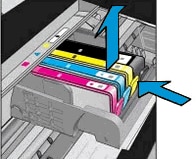
Press the tab on the front of the cartridge in to release it, and then pull up on the cartridge to remove it from the slot.
Figure : Remove the cartridge from the slot
-
Hold the cartridge by its sides, and then find the electrical contacts on the bottom of the cartridge. The electrical contacts are four small rectangles of copper-colored metal.
Figure : Cartridge contacts
-
Cartridge contacts
-
-
Inspect the contacts for ink and debris buildup.
-
Wipe the contacts with a swab until no debris remains on them.
CAUTION:
Be careful to wipe only the contacts. Do not smear any ink or debris elsewhere on the cartridge.
-
Turn the cartridge on its side, and then place it onto the sheet of paper.
-
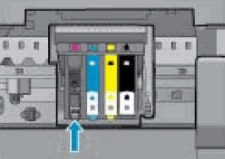
Locate the electrical contacts in the cartridge slot. The contacts are four copper-colored pins.
Figure : Location of the cartridge slot contacts
-
Wipe the contacts with a swab until no debris remains on them.
-
With the contacts facing down, slide the cartridge into its slot. Press down on the cartridge until it clicks into place.
Figure : Insert the cartridge

-
Repeat these steps to clean and reinsert any of the other cartridges.
-
Close the cartridge access door.
Figure : Close the cartridge access door
-
Reconnect the power cord to the rear of the printer.
-
Press the Power button to turn on the printer if it does not turn on automatically.
Restart the printer
-
Press the Power button (
 ) to turn on the product.
 -
With the product turned on, disconnect the power cord from the rear of the product.
-
Unplug the power cord from the wall outlet.
-
Wait at least 15 seconds.
-
Plug the power cord back into the wall outlet.
-
Reconnect the power cord to the rear of the product.
-
If the product does not turn on by itself, press the Power button (
) to turn it on.
Click here and refer the HP document for more assistance.
Let me know if that helps.
Cheers.
Sandytechy20
I am an HP Employee
3 REPLIES 3
02-23-2018 03:35 PM
HP Recommended
@ Bigsteph
Welcome to the HP Forums, this is a great location to get assistance! I read your post and see that you are getting cartridge error on HP Photosmart 5510 Printer. I would like to help you resolve this issue.
Make sure that the cartridges are inserted correctly
-
If the printer is off, press the Power button to turn it on.
-
Open the cartridge access door. The carriage moves to the access area.
Figure: Open the cartridge access door
-
Make sure that the color icon on each cartridge label matches the color icon on the carriage slot.
Figure : Match the colored icons
-
Run your finger along the top of the cartridges to check for any unseated cartridges in the carriage. Press down on any cartridge that is higher than the others to firmly snap the cartridge into its slot.
Figure : Snap the cartridge into its slot
-
If the cartridge does not snap into place, or does not seat properly, remove the cartridge from the carriage. Gently bend the tab away from the cartridge, and then reinsert the cartridge into the carriage.
CAUTION:
Be careful not to bend the tab out more than 1.27 cm (0.5 in). Moving the tab too far might damage the cartridge or cause the tab to break off.
Figure : Example of bending the tab away from the cartridge
-
Bend the tab away from the cartridge
-
Do not bend the tab more than 1.27 cm (0.5 in)
-
-
Close the cartridge access door.
Figure : Close the cartridge access door
Clean the cartridge contacts
-
Gather the following materials:
-
Clean, lint-free swabs that will not come apart or leave fibers
-
A sheet of paper to place the cartridges on
-
-
Press the Power button to turn on the printer.
-
Open the cartridge access door. The carriage moves to the access area.
Figure : Open the cartridge access door
-
Disconnect the power cord from the rear of the printer.
-
Press the tab on the front of the cartridge in to release it, and then pull up on the cartridge to remove it from the slot.
Figure : Remove the cartridge from the slot
-
Hold the cartridge by its sides, and then find the electrical contacts on the bottom of the cartridge. The electrical contacts are four small rectangles of copper-colored metal.
Figure : Cartridge contacts
-
Cartridge contacts
-
-
Inspect the contacts for ink and debris buildup.
-
Wipe the contacts with a swab until no debris remains on them.
CAUTION:
Be careful to wipe only the contacts. Do not smear any ink or debris elsewhere on the cartridge.
-
Turn the cartridge on its side, and then place it onto the sheet of paper.
-
Locate the electrical contacts in the cartridge slot. The contacts are four copper-colored pins.
Figure : Location of the cartridge slot contacts
-
Wipe the contacts with a swab until no debris remains on them.
-
With the contacts facing down, slide the cartridge into its slot. Press down on the cartridge until it clicks into place.
Figure : Insert the cartridge
-
Repeat these steps to clean and reinsert any of the other cartridges.
-
Close the cartridge access door.
Figure : Close the cartridge access door
-
Reconnect the power cord to the rear of the printer.
-
Press the Power button to turn on the printer if it does not turn on automatically.
Restart the printer
-
Press the Power button (
) to turn on the product. -
With the product turned on, disconnect the power cord from the rear of the product.
-
Unplug the power cord from the wall outlet.
-
Wait at least 15 seconds.
-
Plug the power cord back into the wall outlet.
-
Reconnect the power cord to the rear of the product.
-
If the product does not turn on by itself, press the Power button (
) to turn it on.
Click here and refer the HP document for more assistance.
Let me know if that helps.
Cheers.
Sandytechy20
I am an HP Employee
02-26-2018 08:57 AM
HP Recommended
Thanks for the reply.
I appreciate your time and effort.
Good to know that issue is resolved.
Feel free to contact us in feature if you need any assistance.
Cheers.
Sandytechy20
I am an HP Employee

Be alert for scammers posting fake support phone numbers and/or email addresses on the community.
If you think you have received a fake HP Support message, please report it to us by clicking on "Flag Post".
† The opinions expressed above are the personal opinions of the authors, not of HP. By using this site, you accept the Terms of Use and Rules of Participation.


Didn't find what you were looking for?
Ask the community
† The opinions expressed above are the personal opinions of the authors, not of HP. By using this site, you accept the <a href="https://www8.hp.com/us/en/terms-of-use.html" class="udrlinesmall">Terms of Use</a> and <a href="/t5/custom/page/page-id/hp.rulespage" class="udrlinesmall"> Rules of Participation</a>.