• ×
    Information
    Need Windows 11 help?
    Check documents on compatibility, FAQs, upgrade information and available fixes.
    Windows 11 Support Center.
  • post a message
  • ×
    Information
    Need Windows 11 help?
    Check documents on compatibility, FAQs, upgrade information and available fixes.
    Windows 11 Support Center.
  • post a message
Guidelines
Meet the All-New HP App: One App for All Your HP Devices replacing HP Smart App Click here to view the Details!
Check some of the most frequent questions about Instant Ink: HP INSTANT INK, HP+ PLANS: INK AND TONER.


Check out our WINDOWS 11 Support Center info about: OPTIMIZATION, KNOWN ISSUES, FAQs AND MORE.
HP Recommended
macbook pro
macOS 10.13 High Sierra

printer will wireless print from my iphone and ipad but wont from the mac. drivers downloaded wyfi is on and buue tooth is on . computer cant pick up printer

3 REPLIES 3
HP Recommended

@gary151


Welcome to HP Support Forums. 

I came across your post and would like to assist. 


I understand that your HP OfficeJet 5252 All-in-One Printer prints wirelessly from your iPad and iPhone but not from your Mac. Not to worry, I'll be glad to assist you with this case.


The fact that the printer is able to print wirelessly from the iPad and iPhone indicates that the printer is well connected to the wireless network. So please ensure that the Mac computer is connected to the wireless network too.


If the Mac is also connected to the wireless network then let us remove and add the printer Airprint. The following steps will help:


Step 1: Remove multiple printers from the printer list

Check for multiple devices in the Printers list, and then remove any extra entries other than one in idle status.

  1. Search the Mac for Print, and then click Print & Fax, Print & Scan, or Printers & Scanners in the list of results.

  2. Find the printer names that match your printer from the list of devices.

    Figure : Printers and Scanner window with multiple names of a printer in the list

     Printers and Scanner window with multiple names of HP Photosmart 7520 printers shown  in the list
  3. If you see multiple printer queues for the same printer, remove all extra printers by selecting them one at a time, and then clicking the minus button  at the bottom of the list. Leave one 'idle' printer in the list that matches your printer if available and use this printer as the Default printer.

  4. Try printing again.

    • If the printer prints, you can stop troubleshooting.

    • If the printer remains offline or displays an error, continue to the next step.

Step 2: Delete the existing print queue and add the printer

Remove the printer queue from the list of printers, and then add it again. Doing so creates a new printing session.

  1. Make sure your Mac is connected to the Internet.

  2. In the Printers list, click your HP printer, and then click the Minus button  to delete it.

  3. Click the Add button .

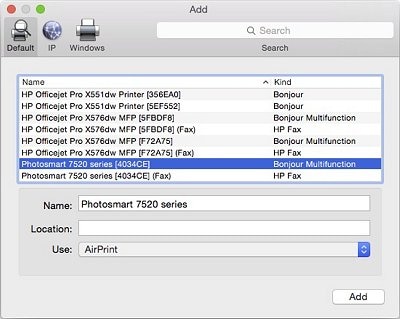
  4. Find and select the name of your printer from the Printer list, and then click Add to add your printer. Do not select an HP Fax driver.

       NOTE: If your printer does not display in the list, make sure the printer is connected, turned on, has power, and is ready to print.

    Figure : Example of the printer selection list

    Image: The Add window showing a selection of printers with one model selected.
  5. Click Print Using or Use.

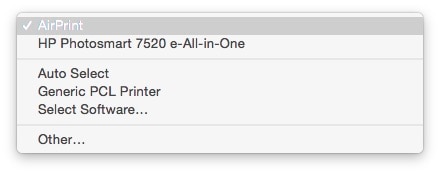
  6. Select AirPrint.

    Figure : Menu showing AirPrint selected

    Image: Menu showing AirPrint selected

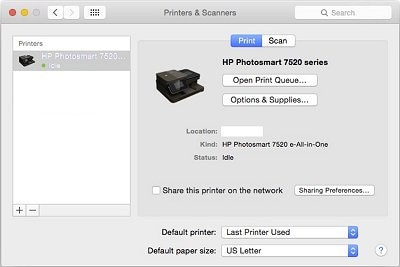
    Your new printer queue displays in the Printers list in an Idle status .

    Figure : Example of a newly added printer in the Printers & Scanners list

    Image: The printers and scanners windows with one printer in the printers list
  7. Try printing again.

    • If the printer prints, you can stop troubleshooting.

Hope this information helps. Feel free to let me know how this goes. 


All the best! 

HP Recommended

followed all directions still no luck. printer list empty

HP Recommended

Hi @gary151, I am the Mr.Robot. It looks like you were interacting with @MKazi, but he is out of the office today, so I'll take over from here.


I appriciate your efforts for trying out the steps.


As you mentioned the issue still persists after trying out the steps.


Have you replaced the router recently?


Do you have any wireless interferences between the router and MAC?


Is your printer and MAC connected to the same wireless network?


Try updating the printer and router firmware to the latest version and check if it helps.


Make sure your network is working correctly and that the printer is ready for the network setup.


If you are using a wireless router, check your router’s documentation or support site to make sure it meets the following requirements:

  • Check the router band: Many routers can operate in both 2.4 GHz and 5.0 GHz frequency bands, but not all HP printers support both bands. Make sure the 2.4 GHz router band is enabled and broadcasting. If the router broadcasts separate network names (SSIDs) for each band, connect the printer to the 2.4 GHz band SSID.

  • Bonjour support: HP recommends routers that support Bonjour, Apple's network discovery software. Connecting with Bonjour is the best way to find the printer and support wireless printing.


Also, try the steps recommended below.


Connect the printer to your network with the Wireless Setup Wizard so the HP installer can find the printer during the installation.

  1. From the home screen on the printer control panel, touch the Wireless icon .

  2. Touch the Setup icon .

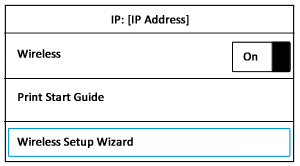
  3. Touch Wireless Setup Wizard.

    Wireless Settings display

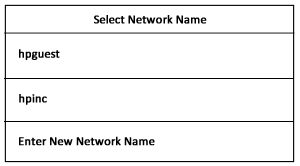
  4. Touch the name of your network in the list of available networks, and then touch OK.

    Example of network names

  5. If the list does not contain your network name, touch Enter New Network Name, and then follow the on-screen instructions to enter your network name.

  6. If prompted, type the WEP or WPA key (network password), and then touch Done.

    A summary screen displays.

  7. Touch OK to return to the home screen.

       NOTE:

    If a connection error message displays, make sure you typed the uppercase (capital) and lowercase (small) letters for the network name and password exactly. Follow the prompts to type the information again.

Refer this article to know more information about wireless printer setup. Click Here


Let me know if this helps!

Take Care! 🙂


Please click “Accept as Solution” if you feel my post solved your issue, it will help others find the solution.

Click the “Kudos, Thumbs Up" on the bottom right to say “Thanks” for helping!

A4Apollo
I am an HP Employee

† The opinions expressed above are the personal opinions of the authors, not of HP. By using this site, you accept the <a href="https://www8.hp.com/us/en/terms-of-use.html" class="udrlinesmall">Terms of Use</a> and <a href="/t5/custom/page/page-id/hp.rulespage" class="udrlinesmall"> Rules of Participation</a>.