• ×
    Information
    Need Windows 11 help?
    Check documents on compatibility, FAQs, upgrade information and available fixes.
    Windows 11 Support Center.
  • post a message
  • ×
    Information
    Need Windows 11 help?
    Check documents on compatibility, FAQs, upgrade information and available fixes.
    Windows 11 Support Center.
  • post a message
Guidelines
Join the HP Community Solve‑a‑thon | Help Others & Share Your Solutions | Live on Zoom | 2:30 PM to 2:30 AM IST | Every Wednesday Click here to know more
Check some of the most frequent questions about Instant Ink: HP INSTANT INK, HP+ PLANS: INK AND TONER.


Check out our Black or Color Ink Not Printing, Other Print Quality Issues info about: Print quality and Cartridge Issues.
HP Recommended
HP DeskJet 2732 All-in-One Printer

I’m having an issue where if I can get the printer to print it is so light you can’t really read it or it acts like it’s printing but the page comes out blank?  What can I do about this?

1 REPLY 1
HP Recommended

@GinHay


Welcome to the HP support community.


I understand that you are getting print quality issues, I am glad to assist you.

Manually clean the area around the ink nozzles

  1. Gather the following materials:

    • Dry foam-rubber swabs, lint-free cloth, or any soft material that does not come apart or leave fibers (coffee filters work well)

    • Distilled, filtered, or bottled water (tap water might contain contaminants that can damage the ink cartridges)

         CAUTION: 

      Do not use platen cleaners or alcohol to clean the ink cartridge contacts. These can damage the ink cartridge or the printer.

  2. Press the Power button  to turn on the printer, if it is not already on.
  3. Open the ink cartridge access door.

  4. Wait until the printer is idle and silent before you continue.

  5. Lightly press down on the ink cartridge to release it, and then pull the ink cartridge out of its slot.

    Removing the ink cartridgeDo not remove both ink cartridges at the same time. Remove and
clean each ink cartridge one at a time. Do not leave an ink cartridge outside
the printer for more than 30 minutes.
  6. Lightly press down on one of the ink cartridges to release it, and then pull the ink cartridge toward you out of its slot.

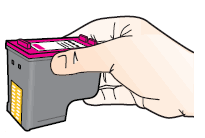
  7. Hold the ink cartridge by its sides.

    Image of holding the ink cartridge by its sides

  8. Inspect the ink cartridge contacts for ink and debris buildup.

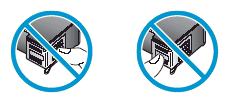
       CAUTION: 

    Do not touch the copper-colored contacts or the ink nozzles. Handling these parts can result in clogs, ink failure, and bad electrical connections.

    Image of not touching the contacts or nozzles

  9. Lightly moisten a foam-rubber swab or lint-free cloth with distilled water, and then squeeze any excess water from it.

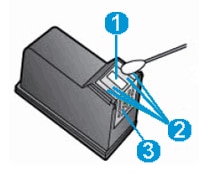
  10. Clean the face and edges around the ink nozzle with the swab.

       CAUTION: 

    Do not clean the ink nozzle plate.

    Image of the ink nozzle and ink cartridge contacts

    1. Nozzle plate - Do not clean

    2. Area surrounding ink nozzle - Do clean

    3. Ink cartridge contacts - Do not clean

  11. Either let the ink cartridge sit for 10 minutes to allow the cleaned area to dry, or use a new swab to dry it.

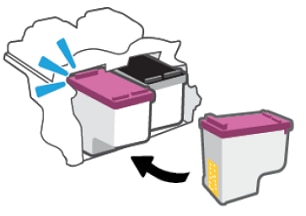
  12. Slide each ink cartridge at a slight upward angle into the empty slot, and then gently push up on each ink cartridge until it snaps into place.

    Snapping the ink  cartridge into place

  13. Repeat these steps to clean around the nozzles on the other ink cartridge.

Refer to the HP support community for further assistance:- Click here


Keep me posted.

If this helps, please mark the public post as an accepted solution so that it benefits several others.

Cheers.

Sandytechy20
I am an HP Employee

† The opinions expressed above are the personal opinions of the authors, not of HP. By using this site, you accept the <a href="https://www8.hp.com/us/en/terms-of-use.html" class="udrlinesmall">Terms of Use</a> and <a href="/t5/custom/page/page-id/hp.rulespage" class="udrlinesmall"> Rules of Participation</a>.