• ×
    Information
    Need Windows 11 help?
    Check documents on compatibility, FAQs, upgrade information and available fixes.
    Windows 11 Support Center.
  • post a message
  • ×
    Information
    Need Windows 11 help?
    Check documents on compatibility, FAQs, upgrade information and available fixes.
    Windows 11 Support Center.
  • post a message
Guidelines
Printing Blank Pages via USB OTG? Here’s How to Fix Your OfficeJet! Click here to check it out!
Check some of the most frequent questions about Instant Ink: HP INSTANT INK, HP+ PLANS: INK AND TONER.


Check out our Black or Color Ink Not Printing, Other Print Quality Issues info about: Print quality and Cartridge Issues.
HP Recommended

I bought a HP Deskjet 3520 in 2015/16 and it worked for a short time until I bought new cartridges (the correct brand) which never worked properly. All of the functions of the printer seem to work fine and I can connect my HP app to it. The issue is that it only prints in pink / orange colour and not in black. When I touch the ink part or the black cartridge it is fully black so it’s not dried out. I have tried all the troubleshoot options so my question is do I buy new cartridges or is there something else I need to try? Thanks in advance! 

1 REPLY 1
HP Recommended

@Aine-1974


Welcome to the HP support community.


I understand that you are getting print quality issues, I am glad to assist you.

Make sure the ink cartridges are properly vented

  • Check the vents on the top of the ink cartridges. If they are clogged or obstructed, the ink cartridges might not work properly.
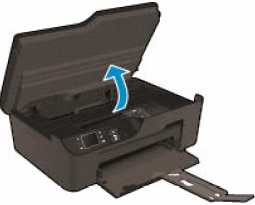
  • Open the ink cartridge access door. The carriage moves to the access area.
  • Open the ink cartridge access door
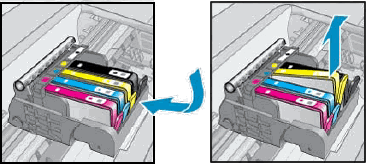
  • Press the tab on the front of the ink cartridge inward to release it, and then pull up on the ink cartridge to remove it from the slot.
  • If the error message mentions a specific ink cartridge, locate that ink cartridge, remove it from the carriage, and then continue with the next step.
  • If the error message does not mention a specific ink cartridge, remove all the ink cartridges, one at a time, and then continue with the next step.
  • Remove the ink cartridge
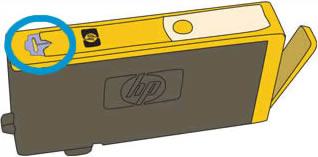
  • Examine the vent area on each ink cartridge, above the HP logo on the top of the ink cartridge.
  • Image of the ink cartridge vent area
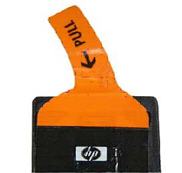
  • If the ink cartridge still has the orange pull-tab attached, pull to remove it.
  • Orange pull tab
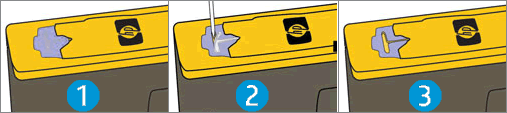
  • If the vent is clogged, use a straight pin to gently remove excess adhesive from the vent.
  • Clean the clogged vent with a pin
  • Clogged vent
  • With a straight pin, gently remove excess adhesive from the vent
  • Unclogged vent
  • With the nozzle and the contacts facing down, push the ink cartridge into its slot. Press down on the ink cartridge until it clicks into place. Make sure that the color icon on the ink cartridge label matches the color icon on the slot.
  • Insert the ink cartridge
  • Repeat these steps to inspect the vents on each of the ink cartridges.
  • Make sure each ink cartridge is firmly in place in its slot. Run your finger along the top of the ink cartridges to feel for any that are protruding, and if any are, press down firmly until each ink cartridge snaps into place.
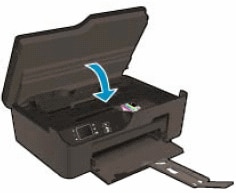
  • Close the ink cartridge access door.
  • Close the ink cartridge access door
  • Try the print job again.

Refer to this HP document for further assistance:- Click here


Keep me posted.

If this helps, please mark the public post as an accepted solution so that it benefits several others.

Cheers.

Sandytechy20
I am an HP Employee

† The opinions expressed above are the personal opinions of the authors, not of HP. By using this site, you accept the <a href="https://www8.hp.com/us/en/terms-of-use.html" class="udrlinesmall">Terms of Use</a> and <a href="/t5/custom/page/page-id/hp.rulespage" class="udrlinesmall"> Rules of Participation</a>.