• ×
    Information
    Need Windows 11 help?
    Check documents on compatibility, FAQs, upgrade information and available fixes.
    Windows 11 Support Center.
  • post a message
  • ×
    Information
    Need Windows 11 help?
    Check documents on compatibility, FAQs, upgrade information and available fixes.
    Windows 11 Support Center.
  • post a message
Guidelines
Printing Blank Pages via USB OTG? Here’s How to Fix Your OfficeJet! Click here to check it out!
Check some of the most frequent questions about Instant Ink: HP INSTANT INK, HP+ PLANS: INK AND TONER.


Check out our Black or Color Ink Not Printing, Other Print Quality Issues info about: Print quality and Cartridge Issues.
HP Recommended
envy 6000
Microsoft Windows 10 (64-bit)

The dianostics paper have a lot of lines in the colored areas, and text is  only printed in half line-height..

I have cleaned and recleaned and ajusted, but nothing helps.

I think i must send the printer back, because it has warranty yet.

1 REPLY 1
HP Recommended

@pynte


Welcome to the HP support community.


I understand that you are getting print quality issues, follow these steps to fix the issue.


Manually clean the area around the ink nozzles

  1. Gather the following materials:

    • A clean, lint-free cloth or a clean, dry cotton swab

    • Distilled or bottled water

         CAUTION: 

      Do not use tap water as it might contain contaminants that can damage the printhead.

  2. Lift the ink cartridge access door by using the recessed areas on the sides of the printer until it locks into place.

    The carriage moves slightly to the left.

  3. Wait until the carriage is idle and silent before you continue.

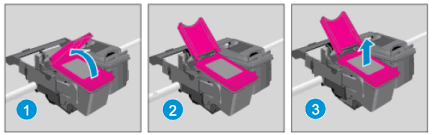
  4. Lift up the lid on the ink cartridge slot, and then pull up on the ink cartridge to remove it from the slot.

    1.  

      Removing the ink cartridge.

      Lift the lid
    2. Gently push the lid back

    3. Pull up on the ink cartridge

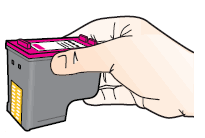
  5. Remove the new ink cartridge from its package. Be careful to only touch the black plastic on the ink cartridge.

    Holding the ink cartridge by its sides.

  6. Lightly dampen a clean, lint-free cloth or swab with bottled or distilled water.

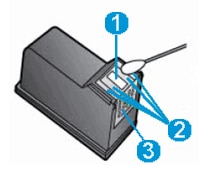
  7. Clean the face and edges around the ink nozzle with the cloth or swab.

       CAUTION: 

    Do not clean the ink nozzle plate.

    Image of the ink nozzle and ink cartridge contacts

    1. Nozzle plate - do not clean

    2. Area surrounding ink nozzle - clean

    3. Ink cartridge contacts - do not clean

  8. Wait for the cleaned area to dry before you continue (approximately 10 minutes).

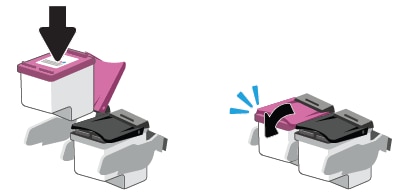
  9. With the nozzles toward the printer, insert the ink cartridge into its slot until it snaps into place.

    NOTE: 

    Install the color ink cartridge on the left and the black ink cartridge on the right.

    Inserting the ink cartridge.

  10. Close the lid on the ink cartridge slot to secure the ink cartridge into place.

  11. Repeat these steps to clean around the nozzles on the other ink cartridge.

  12. Close the ink cartridge access door.

You can refer to this HP support community:- Click here


Let me know how it goes.

To thank me for my efforts to help you, please mark my post as an accepted solution so that it benefits several others.

Cheers.

Sandytechy20
I am an HP Employee

† The opinions expressed above are the personal opinions of the authors, not of HP. By using this site, you accept the <a href="https://www8.hp.com/us/en/terms-of-use.html" class="udrlinesmall">Terms of Use</a> and <a href="/t5/custom/page/page-id/hp.rulespage" class="udrlinesmall"> Rules of Participation</a>.