• ×
    Information
    Need Windows 11 help?
    Check documents on compatibility, FAQs, upgrade information and available fixes.
    Windows 11 Support Center.
  • post a message
  • ×
    Information
    Need Windows 11 help?
    Check documents on compatibility, FAQs, upgrade information and available fixes.
    Windows 11 Support Center.
  • post a message
Guidelines
Printing Blank Pages via USB OTG? Here’s How to Fix Your OfficeJet! Click here to check it out!
Check some of the most frequent questions about Instant Ink: HP INSTANT INK, HP+ PLANS: INK AND TONER.


Check out our Black or Color Ink Not Printing, Other Print Quality Issues info about: Print quality and Cartridge Issues.
HP Recommended
HP Officejet 4632 e-All-in-One Printer

I purchased both a HP color and black ink cartridge required for my printer.  My printer recognizes the black cartridge but not the color cartridge.  Any suggestions on how to fix this issue.

2 REPLIES 2
HP Recommended

Hi @Chocktaw


Welcome to the HP Support Community. 


I'd like to help!


Perform the steps mentioned below and see how it goes. 


Solution one: Remove the black ink cartridge

If you just set up your printer and you notice that black ink is missing or faded on your printouts, follow these steps to remove the black ink cartridge and print only with the tri-color ink cartridge. This allows the printer to operate in single-cartridge mode, which creates composite black from the tri-color ink cartridge.

Press the Power button to turn on the printer, if it is not already on.

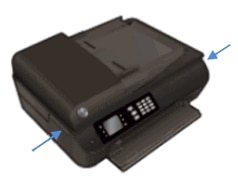
Locate the slots on the left and right sides of the printer.

Image: Locate the slots on the sides of the printer

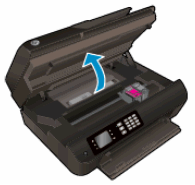
Slide your fingers into the two slots, and then gently lift up to open the ink cartridge access door. The carriage moves to the ink cartridge access area. Wait until the carriage is idle and silent before you continue.

Image: Open the ink cartridge access door

To release the ink cartridge, lift the lid on the ink cartridge slot, and then gently push the lid back until it stops.

Pull up on the black ink cartridge to remove it from the slot.

Lift the lid

Gently push the lid back

Pull up on the ink cartridge

Set the black ink cartridge aside, with the nozzles facing up.

Image: Ink cartridge with nozzles facing up

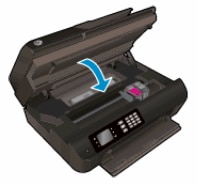
Close the ink cartridge access door.

Image: Close the ink cartridge access door.

Try the print job again.

If the printer operates correctly in single-cartridge mode, let the black ink cartridge rest with the nozzles facing up for several hours or overnight, reinstall it, and then try to print again. If you are satisfied with the print quality, you can stop troubleshooting.

  • If the printer does not operate correctly in single-cartridge mode or you are not satisfied with the print quality after you reinstall the black ink cartridge, continue to the next solution.

Click here for the remaining steps. 

Update the firmware


Hope this helps! Keep me posted for further assistance.
Please click “Accepted Solution” if you feel my post solved your issue, it will help others find the solution. Click the “Kudos/Thumbs Up" on the bottom right to say “Thanks” for helping!

Nal_NR-
HP Community Moderator


HP Recommended

Hi @Chocktaw,


We haven’t heard from you, this post is in reference to the thread you created on your friendly neighborhood (HP Support Community).


I would like to know if the resolution we provided worked for you.


If you have any other queries, feel free to reach out to us.


Give us some reinforcement by clicking the Accepted Solution button, that'll help us and others see that we've got the answers and did reply to you!

Nal_NR-
HP Community Moderator


† The opinions expressed above are the personal opinions of the authors, not of HP. By using this site, you accept the <a href="https://www8.hp.com/us/en/terms-of-use.html" class="udrlinesmall">Terms of Use</a> and <a href="/t5/custom/page/page-id/hp.rulespage" class="udrlinesmall"> Rules of Participation</a>.