• ×
    Information
    Need Windows 11 help?
    Check documents on compatibility, FAQs, upgrade information and available fixes.
    Windows 11 Support Center.
  • post a message
  • ×
    Information
    Need Windows 11 help?
    Check documents on compatibility, FAQs, upgrade information and available fixes.
    Windows 11 Support Center.
  • post a message
Guidelines
Seize the moment! nominate yourself or a tech enthusiast you admire & join the HP Community Experts!
Check some of the most frequent questions about Instant Ink: HP INSTANT INK, HP+ PLANS: INK AND TONER.


Check out our Black or Color Ink Not Printing, Other Print Quality Issues info about: Print quality and Cartridge Issues.
HP Recommended
hp c7280
macOS 10.15 Catalina

Get "Ink cartridge problem" with my yellow hp 02 cartridge. So replaced, same issue. Rebooted, cleaned heads on most recent cartridge. Problem persists. Thinking the connectivity issue might be with the prongs on the printer for the yellow cartridge? Any advice?


1 REPLY 1
HP Recommended

@Shawn1dave


Welocme to the HP support community.


Update the printer firmware

Here are the steps:- Click here


Clean the cartridge contacts

  1. Turn the printer on.

  2. Open the door to access the cartridges.

    Opening the cartridge access door

  3. Squeeze and lift the cartridge latch for the cartridge indicated in the error message.

    Opening the cartridge latch

  4. Remove the cartridge.

       CAUTION: 

    Remove and clean each cartridge one at a time. Do not leave a cartridge outside the printer for more than 30 minutes.

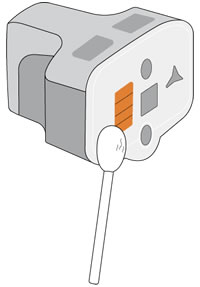
  5. Lightly dampen a cotton swab with distilled water, and then clean only the copper-colored contacts on the cartridge.

       CAUTION: 

    Hold the cartridge by its handle. Do not touch the copper-colored contacts with your hands.

    Cleaning the cartridge contacts

  6. Wait 10 minutes for the contacts to dry.

  7. Place the cartridge back into its color-coded slot, and then press down on the gray latch until it snaps into place.

    Inserting a cartridge

  8. Repeat these steps for any other cartridges indicated in the error message.

  9. Close the cartridge door.

You can refer this HP document for more assistance:- Click here


I hope that helps.

To thank me for my efforts to help you, please mark my post as an accepted solution so that it benefits several others.

Cheers.

Sandytechy20
I am an HP Employee

† The opinions expressed above are the personal opinions of the authors, not of HP. By using this site, you accept the <a href="https://www8.hp.com/us/en/terms-of-use.html" class="udrlinesmall">Terms of Use</a> and <a href="/t5/custom/page/page-id/hp.rulespage" class="udrlinesmall"> Rules of Participation</a>.