• ×
    Information
    Need Windows 11 help?
    Check documents on compatibility, FAQs, upgrade information and available fixes.
    Windows 11 Support Center.
  • post a message
  • ×
    Information
    Need Windows 11 help?
    Check documents on compatibility, FAQs, upgrade information and available fixes.
    Windows 11 Support Center.
  • post a message
Guidelines
Join the HP Community Solve‑a‑thon | Help Others & Share Your Solutions | Live on Zoom | 2:30 PM to 2:30 AM IST | Every Wednesday Click here to know more
Check some of the most frequent questions about Instant Ink: HP INSTANT INK, HP+ PLANS: INK AND TONER.


Check out our Black or Color Ink Not Printing, Other Print Quality Issues info about: Print quality and Cartridge Issues.
HP Recommended
HP Officejet Pro 8600 e-All-in-One Printer - N911a

I continue to receive the error; “There is a problem with the printer or ink system. Turn printer off, then on. If problem persists, contact, HP. I have put in fresh ink cartridges and have tried to reboot the printer several times. I received this error even when I’m trying to make a copy or even when trying to print a test report for the ink. 

1 REPLY 1
HP Recommended

Hi @Schmej,


Welcome to the HP Support Community


I understand you are facing a Printer or Ink System Error issue with your HP Officejet Pro 8600 E-All-In-One Printer - N911a. Not to worry I will help you to get a resolution to resolve the issue.


Let's perform a power drain: 

  • With the printer turned on, disconnect the power cord from the rear of the printer and also unplug the power cord from the wall outlet.
  • Remove the USB cable, if present.
  • Wait for 2-3 minutes, press and hold the power button on your printer for about 30 seconds to remove any additional charge.
  • Now plug back the power cable straight to a wall outlet without any surge protector or an extension cord (This is important) and then plug back the power cord to the printer.
  • Turn on the printer and wait till the warm-up period finishes and the printer is idle

Update the printer firmware 


  • Click here to download and install the latest printer firmware from your product
  • Click here to know different methods of updating the printer firmware.

If you have trouble viewing the video or to view the video in a different size, play the video on YouTube.


Press the Power button to turn on the printer, if it is not already on.

Slip your fingers into the slot on the left side of the printer, and then pull forward to open the cartridge access door. The carriage moves to the left side of the printer. Wait until the carriage is idle and silent before you proceed.

Slot for opening the cartridge access door

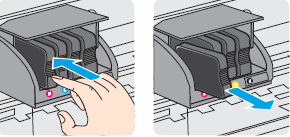
Push in on the front of the cartridge to release it, and then pull it toward you to remove it from its slot.

Figure : Remove the cartridge from its slot

Image: Remove the cartridge from its slot.

Remove the new cartridge from its packaging.

Hold the cartridge so that the cartridge contacts are facing toward the printer.

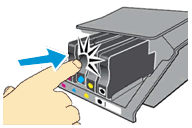
Slide the new cartridge into its slot, and then gently push it forward until it clicks into place.

NOTE:

Make sure that the colored dot on the cartridge label matches the colored dot on the slot.

Figure : Insert the cartridge into its color-coded slot

Image: Insert the cartridge into its color-coded slot.

  CAUTION:

Do not lift the latch handle on the carriage to insert cartridges. Doing so could cause the printhead or cartridges to be incorrectly seated, which could damage the print mechanism and cause printing problems.

Repeat these steps for other cartridges, if necessary.

Close the cartridge access door.

Wait until the warm-up sequence finishes and your printer is quiet before you proceed.

If the issue persists, then please follow the steps mentioned in this document:


Hope this helps! Keep me posted. 


Please click “Accepted Solution” if you feel my post solved your issue, it will help others find the solution. Click the “Kudos/Thumbs Up" on the bottom right to say “Thanks” for helping!


A_Gayathri
HP Support Community Administrator.
† The opinions expressed above are the personal opinions of the authors, not of HP. By using this site, you accept the <a href="https://www8.hp.com/us/en/terms-of-use.html" class="udrlinesmall">Terms of Use</a> and <a href="/t5/custom/page/page-id/hp.rulespage" class="udrlinesmall"> Rules of Participation</a>.