-
×InformationNeed Windows 11 help?Check documents on compatibility, FAQs, upgrade information and available fixes.
Windows 11 Support Center. -

-
×InformationNeed Windows 11 help?Check documents on compatibility, FAQs, upgrade information and available fixes.
Windows 11 Support Center. -
- HP Community
- Printers
- Printer Ink Cartridges & Print Quality
- after i changed my cartridge, the printer is showing some er...

Create an account on the HP Community to personalize your profile and ask a question
08-01-2023 10:29 PM
i am facing error after changing my new cartridge. the color level is showing nil and there is a error light on. Not sure about what? can someone help on what to do? For information... if i change back to my old cartridge this goes, and printer works.
08-04-2023 02:13 PM
@suparno
Welcome to the HP support community.
I understand that the cartridge lights are blinking, I am glad to assist you.
Remove, inspect, and then reseat the ink cartridges
- If the printer is off, press the Power button to turn on the printer.
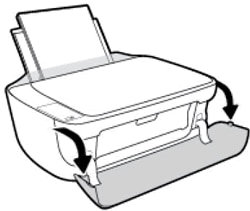
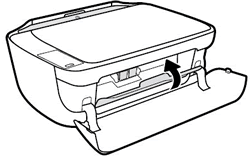
- Open the exterior door.
- Figure : Open the exterior door

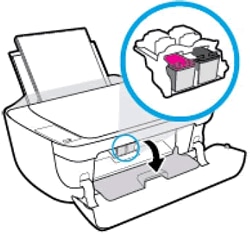
- Open the ink cartridge access door.
- The carriage moves to the center of the printer. Wait until the carriage is idle and silent before continuing.
- Figure : Open the ink cartridge access door

- Press down on the ink cartridge to release it, and then pull the ink cartridge out to remove it from its slot.
- Figure : Remove the ink cartridge

- CAUTION: Do not touch the copper-colored contacts or the ink nozzles. Touching these parts can result in clogs, ink failure, and bad electrical connections.
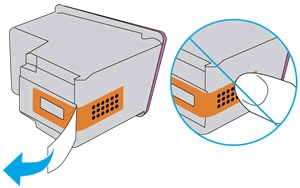
- Remove any protective tape that still might be on the nozzles.
- CAUTION: Do not try to remove the copper electrical strip.
- Figure : Remove the plastic tape

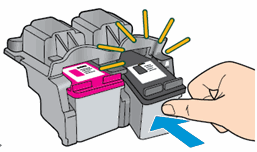
- Hold the ink cartridge by its sides with the nozzles toward the printer, and then insert the ink cartridge into its slot. Make sure that the ink cartridge is inserted in the correct slot.
- The tri-color ink cartridge (
) goes in the slot on the left. - The black ink cartridge (
) goes in the slot on the right. - Figure : Reinsert the ink cartridge

- Push the ink cartridge forward into its slot until it snaps into place.
- Repeat these steps to replace the other ink cartridge, if necessary.
- Close the ink cartridge access door.
- Figure : Close the ink cartridge access door

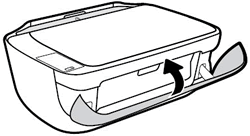
- Close the exterior door.
- Figure : Close the exterior door

Refer to this HP document for more assistance:- Click here
Keep me posted.
If this helps, please mark the public post as an accepted solution so that it benefits several others.
Cheers.
Sandytechy20
I am an HP Employee