-
×InformationNeed Windows 11 help?Check documents on compatibility, FAQs, upgrade information and available fixes.
Windows 11 Support Center. -

-
×InformationNeed Windows 11 help?Check documents on compatibility, FAQs, upgrade information and available fixes.
Windows 11 Support Center. -
- HP Community
- Printers
- Printer Ink Cartridges & Print Quality
- jammed cartridge

Create an account on the HP Community to personalize your profile and ask a question
02-24-2025 08:42 AM
- When trying to set up my new printer after inserting both cartridges and trying to close the door it couldn't shut. Trying to remove the cartridges only one came out and the other won't budge
03-01-2025 05:05 AM
Hi @tjautumn25,
Welcome to HP Support Community.
Thank you for posting your query, I will be glad to help you.
Hi there! Sorry to see you're having issues removing a cartridge. Just in case, here are the official steps:
Follow these steps to replace one or both of the cartridges.
NOTE:
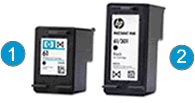
If you are enrolled in the Instant Ink program, you receive special Instant Ink cartridges. Instant Ink cartridges are larger than standard cartridges, but they fit in the carriage in the same way.
Figure: Standard and Instant Ink cartridges

1. Standard cartridge
2. Instant Ink cartridge
- Press the Power button to turn on the printer, if it is not already on.
- Open the scanner lid.
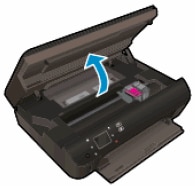
- Open the cartridge access door. The carriage moves to the cartridge access area.
Figure : Open the cartridge access door

4. Wait until the carriage is idle and silent before you continue.
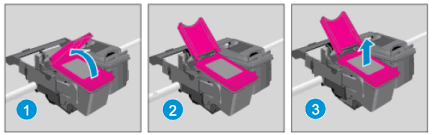
5. To release the cartridge, lift the lid on the cartridge slot, and then gently push the lid back until it stops.
6. Pull up on the cartridge to remove it from the slot.
WARNING:
To avoid the risk of injury, replace the ink cartridge within five minutes of opening the ink cartridge access door. After five minutes, the carriage automatically moves to the side of the printer.
Figure : Remove the cartridge

- Lift the lid
- Gently push the lid back
- Pull up on the cartridge
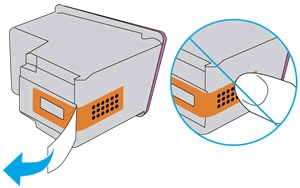
7. Remove the new cartridge from its packaging, and then pull the pull tab to remove the plastic tape.
Figure : Remove the plastic tape

8. Hold the cartridge at a slight upward angle with the cartridge contacts facing the rear of the printer, and then slide the cartridge into the empty slot.
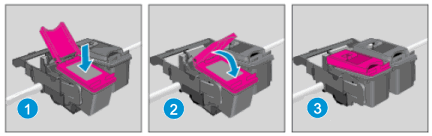
9. Close the lid on the cartridge slot to secure the cartridge into place.
NOTE:
Insert the color cartridge in the slot on the left. Insert the black cartridge in the slot on the right.
Figure: Insert the cartridge

1. Insert the cartridge
2. Close the lid
3. The color cartridge is on the left, and the black cartridge is on the right
10. Repeat the previous steps to install the other cartridge, if necessary.
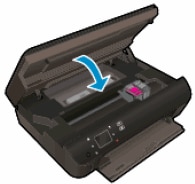
11. Close the cartridge access door.
Figure: Close the cartridge access door

12. Close the scanner lid.
13. Follow the instructions on the control panel to start the cartridge alignment. The printer aligns the cartridges and prints an alignment page.
I hope this helps.
Take care and have a good day.
Please click “Accepted Solution” if you feel my post solved your issue, it will help others find the solution. Click the “Kudos/Thumbs Up" on the bottom right to say “Thanks” for helping!
VikramTheGreat
HP Support
03-01-2025 05:09 AM
Hi @tjautumn25,
Welcome to HP Support Community.
Thank you for posting your query, I will be glad to help you.
Hi there! Sorry to see you're having issues removing a cartridge. Just in case, here are the official steps:
Follow these steps to replace one or both of the cartridges.
NOTE:
If you are enrolled in the Instant Ink program, you receive special Instant Ink cartridges. Instant Ink cartridges are larger than standard cartridges, but they fit in the carriage in the same way.
Figure: Standard and Instant Ink cartridges

1. Standard cartridge
2. Instant Ink cartridge
- Press the Power button to turn on the printer, if it is not already on.
- Open the scanner lid.
- Open the cartridge access door. The carriage moves to the cartridge access area.
Figure: Open the cartridge access door

4. Wait until the carriage is idle and silent before you continue.
5. To release the cartridge, lift the lid on the cartridge slot, and then gently push the lid back until it stops.
6. Pull up on the cartridge to remove it from the slot.
WARNING:
To avoid the risk of injury, replace the ink cartridge within five minutes of opening the ink cartridge access door. After five minutes, the carriage automatically moves to the side of the printer.
Figure: Remove the cartridge

- Lift the lid
- Gently push the lid back
- Pull up on the cartridge
7. Remove the new cartridge from its packaging, and then pull the pull tab to remove the plastic tape.
Figure : Remove the plastic tape

8. Hold the cartridge at a slight upward angle with the cartridge contacts facing the rear of the printer, and then slide the cartridge into the empty slot.
9. Close the lid on the cartridge slot to secure the cartridge into place.
NOTE:
Insert the color cartridge in the slot on the left. Insert the black cartridge in the slot on the right.
Please try the rest of the steps on the next post
03-01-2025 05:10 AM
Hi @tjautumn25,
Figure: Insert the cartridge

1. Insert the cartridge
2. Close the lid
3. The color cartridge is on the left, and the black cartridge is on the right
10. Repeat the previous steps to install the other cartridge, if necessary.
11. Close the cartridge access door.
Figure: Close the cartridge access door

12. Close the scanner lid.
13. Follow the instructions on the control panel to start the cartridge alignment. The printer aligns the cartridges and prints an alignment page.
I hope this helps.
Take care and have a good day.
Please click “Accepted Solution” if you feel my post solved your issue, it will help others find the solution. Click the “Kudos/Thumbs Up" on the bottom right to say “Thanks” for helping!
VikramTheGreat
HP Support