-
×InformationNeed Windows 11 help?Check documents on compatibility, FAQs, upgrade information and available fixes.
Windows 11 Support Center. -

-
×InformationNeed Windows 11 help?Check documents on compatibility, FAQs, upgrade information and available fixes.
Windows 11 Support Center. -
- HP Community
- Printers
- Printer Setup, Software & Drivers
- How to correct envelope address placement

Create an account on the HP Community to personalize your profile and ask a question
09-13-2017 03:55 PM
The to and from addresses are shifted to the left when I print an envelope.
I have uninstalled the printer and re-installed - no change.
The preview for the envelopes look good - but shifts to the left when printing.
Solved! Go to Solution.
Accepted Solutions
09-14-2017 06:42 PM
Welcome to the HP Forums, this is a great location to get assistance! I read your post and see that you are getting issues while printing envelops. I would like to help you resolve this issue.
Tray adjustment for short media.
-
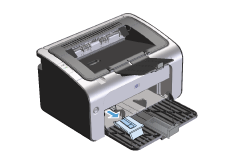
Remove the short media extender tool from the storage slot on the left side of the media input area.
Figure : Remove Short Media Extender

-
Attach the tool to the adjustable media guide.
Figure : Attach Short Media Extender

-
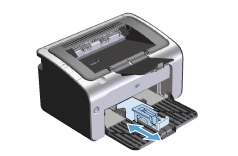
Insert the media into the product until it stops, and then slide the adjustable media guide, with the tool attached to support the media.
Figure : Adjust Short Media Extender

-
When finished printing with short media, remove the short media extender tool, and then place it back in the storage slot.
Let me know if that helps.
Cheers.
Sandytechy20
I am an HP Employee
09-14-2017 06:42 PM
Welcome to the HP Forums, this is a great location to get assistance! I read your post and see that you are getting issues while printing envelops. I would like to help you resolve this issue.
Tray adjustment for short media.
-
Remove the short media extender tool from the storage slot on the left side of the media input area.
Figure : Remove Short Media Extender

-
Attach the tool to the adjustable media guide.
Figure : Attach Short Media Extender

-
Insert the media into the product until it stops, and then slide the adjustable media guide, with the tool attached to support the media.
Figure : Adjust Short Media Extender

-
When finished printing with short media, remove the short media extender tool, and then place it back in the storage slot.
Let me know if that helps.
Cheers.
Sandytechy20
I am an HP Employee