• ×
    Information
    Need Windows 11 help?
    Check documents on compatibility, FAQs, upgrade information and available fixes.
    Windows 11 Support Center.
  • post a message
  • ×
    Information
    Need Windows 11 help?
    Check documents on compatibility, FAQs, upgrade information and available fixes.
    Windows 11 Support Center.
  • post a message
Guidelines
Here is the solution for the error: "Encryption Credentials have expired" when attempting to print or scan from Mac OS or iOS devices: Click here to view the troubleshooting steps!
Check some of the most frequent questions about Instant Ink: HP INSTANT INK, HP+ PLANS: INK AND TONER.


Check out our WINDOWS 11 Support Center info about: OPTIMIZATION, KNOWN ISSUES, FAQs AND MORE.
HP Recommended
OfficeJet 7110
Microsoft Windows 10 (64-bit)

My OfficeJet 7110 will consistently not delete the print jobs from the queue after the printer is done with printing the document. The document will remain in the queue with status "printing", and it appears as if not all the data has been sent to the printer (the "size" tab will display for example:  "49.8 MB / 51.6 MB"). This issue persists over multiple PC's and will not go away with complete driver uninstall (including registry settings ecc) and re-installation. The issue appeared after switching OS to Windows 10.  

The document will remain stuck in queue indefinitely, and will re-start printing after a system boot. 

If the print job is cancelled manually from the queue, it will delete after about 10 minutes. 
All this looks to me as if the printer could not communicate correctly with the OS that all data was received and that the document was printed correctly. 


3 REPLIES 3
HP Recommended

@1NN


Welcome to the HP Support Community!


Step 1: Run HP Print and Scan Doctor

Click here to download the tool. Once downloaded make sure to run the file and click on 'Fix printing'.


Step 2: Delete print job files and restart spooler

  1. Manually delete all the pending print jobs from the print queue.

  2. Turn off the printer using the power button and then unplug the printer power cord from the power outlet.

  3. In Windows, search for and open Services.

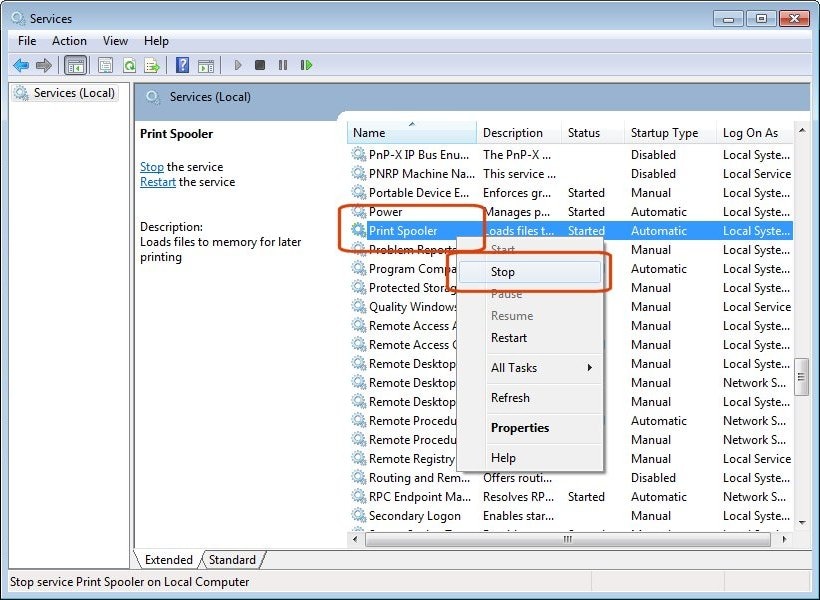
  4. In the Services window, right-click Print Spooler, and then select Stop.

     Service window the Print Spooler service selected from the Name list and the Stop selection called out.

  5. After the service stops, close the Services window.

  6. Press Windows Key + R for Run Command – Type 'spool' – Open Printers folder – Delete all files in the PRINTERS folder.

  7. Shut down your computer.

  8. Connect the printer power cord to the power outlet, and then turn on the printer.

  9. Turn on the computer, and then try to print.

Let me know how this goes.


Please click “Accept as Solution” if you feel my post solved your issue, it will help others find the solution. Click the “Kudos/Thumbs Up" on the bottom right to say “Thanks” for helping!

KUMAR0307
I am an HP Employee

HP Recommended

Hi Kumar, thank you fro your reply.  I did all these steps but I still have to manually delete any job before they are removed from the Queue. 

Sometimes, after a very very long time (some hours), the print jobs will eventually delete, but it is unpractical since normally I will send several print jobs and have to have them printed in a reasonable time.

HP Recommended

@1NN


Let us try installing the printer using a TCP/IP port that will fix any connectivity issues due to which the print jobs get stuck in the print queue.

  • Obtain the IP address of the printer by clicking on the wireless iconhttps://support.hp.com/document/attachments/images/162/c02131772.gif   at the bottom of the printer screen.
  •  Input the IP address in the topmost box of a browser and hit search. If you get a security notification, click on proceed to this website.
  •  If you are able to view the EWS page of the printer, then proceed to the next step.

Install the printer by adding a new TCP/IP port

  1. Turn on the printer, if it is not already on.
  2. Search Windows for devices and printers, and then select Devices and Printers from the list of results.
  3. Click Add a printer.
  4. Click The printer that I want isn't listed.
  5. Select Add a printer using TCP/IP address or hostname, and then click Next.
  6. Select TCP/IP Device in the Device type drop-down menu.
  7. Type the printer IP address in the Hostname or IP address box. 
  8. Deselect the Query the printer and automatically select the driver to use box, and then click Next.
  9. The computer detects the TCP/IP port.
  10. On the Install the printer driver window, click Windows Update.
  11. After the update completes, select HP in the Manufacturer list, select your printer in the Printers list, and then click Next.
  12. Try to print.

Keep me posted.


Please click “Accept as Solution” if you feel my post solved your issue, it will help others find the solution. Click the “Kudos/Thumbs Up" on the bottom right to say “Thanks” for helping!

KUMAR0307
I am an HP Employee

† The opinions expressed above are the personal opinions of the authors, not of HP. By using this site, you accept the <a href="https://www8.hp.com/us/en/terms-of-use.html" class="udrlinesmall">Terms of Use</a> and <a href="/t5/custom/page/page-id/hp.rulespage" class="udrlinesmall"> Rules of Participation</a>.