
-
×InformationNeed Windows 11 help?Check documents on compatibility, FAQs, upgrade information and available fixes.
Windows 11 Support Center. -
-
×InformationNeed Windows 11 help?Check documents on compatibility, FAQs, upgrade information and available fixes.
Windows 11 Support Center. -
- HP Community
- Printers
- Printer Wireless, Networking & Internet
- Re: 8035e looses wireless connection after every use

Create an account on the HP Community to personalize your profile and ask a question
Your account also allows you to connect with HP support faster, access a personal dashboard to manage all of your devices in one place, view warranty information, case status and more.
Common problems for Connectivity Issues
We would like to share some of the most frequently asked questions about Printer Wi-Fi, Connectivity Issues and Offline Status. Check out this link: HP printer is offline or unavailable.

It has been a while since anyone has replied. Simply ask a new question if you would like to start the discussion again.

08-02-2021 12:46 PM
 HP Recommended
Product: HP OfficeJet Pro8035e
Operating System: Microsoft Windows 10 (32-bit)
I have had this printer for over 2 months with no issues. No changes to our internet or router in a large office and no other printers or computers are having wifi issues. For a week now when I print a document, the printer receives the print request, prepares the paper to print and then I get an error message on the printer screen (attached here) when I click ok then the document will print (If I dont click it it will not print). If I open the app it will say the printer is not connected to the wifi and then when I tap the printer icon to open it in the hpsmart app it will connect. If I want to print something immediately after or hours later the exact same issue will come up. I have deleted the printer from the network, re-added it, deleted the app and reinstalled. Nothing is fixing this and it is truly the most annoying issue

5 REPLIES 5


08-06-2021 01:13 AM - edited 08-06-2021 01:13 AM
HP Recommended
Welcome to the HP support community.
I understand that you are getting printer drops connection after every print, follow these steps to fix the issue.
Use HP Print and Scan Doctor to fix connectivity and printing issues.
Download HP Print and Scan Doctor.
Run HPPSdr.exe from the download location on your computer.
Once HP Print and Scan Doctor opens, click Start, and then select your printer.
If your printer is not in the list, turn it off and on, and then click Retry.
If there is a connection problem, follow the instructions in HP Print and Scan Doctor.
If a screen prompts you to turn on printer updates, click Yes.
If a screen prompts you to make your printer the default printer, click Yes.
Try to print.
Assign a manual IP address and that should fix the issue.
Find the printer IP address to assign it manually.
Load plain white paper into the input tray.
On the printer control panel, touch the Wireless icon
 , and then touch the Settings icon
  .
.Touch Print Reports, and then touch Network Configuration Page.
A Network Configuration Page prints.
Setting a Static IP Address
Once you know your printer’s IP address from the page you printed, entering it is pretty easy. Here’s what you do:
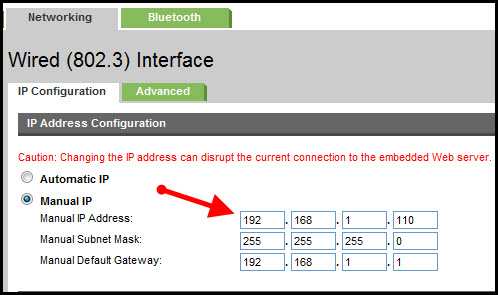
- Run your Web browser.
- In the Web browser’s address bar, type the IP address of your printer and press Enter. Assuming you entered the right address, the HP printer control panel should appear.
- Click the Networking tab.
- Under Connections, click Wireless.
- Under IP Address Configuration, click Manual IP.
- Enter the IP address, subnet mask, and default gateway in the appropriate boxes.
- Click Apply.
You can refer to this HP document for more assistance:- Click here
Let me know how it goes.
To thank me for my efforts to help you, please mark my post as an accepted solution so that it benefits several others.
Cheers.
Sandytechy20
I am an HP Employee
08-22-2021 03:50 AM
HP Recommended
Update the printer firmware
Here are the steps:- Click here
Let me know how it goes.
To thank me for my efforts to help you, please mark my post as an accepted solution so that it benefits several others.
Cheers.
Sandytechy20
I am an HP Employee
08-23-2021 07:12 AM
HP Recommended
Your direction did not work at all. the only way to make it work was to un enroll in the Instant Ink and pay for my own. What a great con HP has going on. Promise free or lowered ink when purchasing a new printer and then make the printer not work properly unless not signed up for it
08-26-2021 05:06 AM
HP Recommended
I have brought your issue to the attention of an appropriate team within HP. They will likely request information from you in order to look up your case details or product serial number. Please look for a private message from an identified HP contact. Additionally, keep in mind not to publicly post personal information (serial numbers and case details).
If you are unfamiliar with how the Community's private message capability works, you can learn about that here.
Thank you for visiting the HP Support Community.
Sandytechy20
I am an HP Employee

Be alert for scammers posting fake support phone numbers and/or email addresses on the community.
If you think you have received a fake HP Support message, please report it to us by clicking on "Flag Post".
† The opinions expressed above are the personal opinions of the authors, not of HP. By using this site, you accept the Terms of Use and Rules of Participation.


Didn't find what you were looking for?
Ask the community
† The opinions expressed above are the personal opinions of the authors, not of HP. By using this site, you accept the <a href="https://www8.hp.com/us/en/terms-of-use.html" class="udrlinesmall">Terms of Use</a> and <a href="/t5/custom/page/page-id/hp.rulespage" class="udrlinesmall"> Rules of Participation</a>.