
-
×InformationNeed Windows 11 help?Check documents on compatibility, FAQs, upgrade information and available fixes.
Windows 11 Support Center. -
-
×InformationNeed Windows 11 help?Check documents on compatibility, FAQs, upgrade information and available fixes.
Windows 11 Support Center. -
- HP Community
- Printers
- Printing Errors or Lights & Stuck Print Jobs
- Re: Am getting message printer failure.

Create an account on the HP Community to personalize your profile and ask a question
Your account also allows you to connect with HP support faster, access a personal dashboard to manage all of your devices in one place, view warranty information, case status and more.
Check some of the most frequent questions about Instant Ink: HP INSTANT INK, HP+ PLANS: INK AND TONER.
Check out our Black or Color Ink Not Printing, Other Print Quality Issues info about: Print quality and Cartridge Issues.

It has been a while since anyone has replied. Simply ask a new question if you would like to start the discussion again.

01-02-2019 12:44 PM
 HP Recommended
Product: office jet 8610
Operating System: macOS 10.14 Mojave
Printer was working fine and then got an error message - printer failure and ink issue. Turned computer on and off and still got the message. Went to preferences - and added and subtracted printer. Message went away but when i tried to print message came on again. Am able to use the scanner.
Solved! Go to Solution.
1 ACCEPTED SOLUTION
Accepted Solutions


01-03-2019 04:40 PM
HP Recommended
Welcome to HP forums, I see that you are getting printer failure error.
Reset the printer.
-
Turn the printer on, if it is not already on.
-
Wait until the printer is idle and silent before you continue.
-
With the printer turned on, disconnect the power cord from the rear of the printer.
-
Unplug the power cord from the wall outlet.
-
Wait at least 60 seconds.
-
Plug the power cord back into the wall outlet.
NOTE:
HP recommends connecting the printer power cord directly to the wall outlet.
-
Reconnect the power cord to the rear of the printer.
-
Turn on the printer, if it does not automatically turn on.
-
Wait until the printer is idle and silent before you proceed.
Update the printer firmware.
-
From the home screen on the printer control panel, touch the ePrint icon (
 ).
). -
Wait for the printer to connect to the ePrint server. The ePrint status displays.
-
Touch Settings on the bottom left corner of the screen.
-
Touch Printer Update, and then touch Check for Update Now.
Reseat the printhead up to three times
Step 1: Remove the printhead
Open the ink cartridge access door, disconnect the power cord from the rear of the printer, and then remove the printhead.
-
Press the Power button to turn on the printer, if it is not already on. Wait until the warm-up period finishes and your printer is idle and silent before you proceed.
-
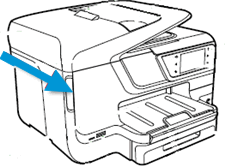
Place your fingers into the slot on the left side of the printer, and then pull to open the cartridge access door. Allow the carriage to move to the cartridge access area, and the carriage stops moving.
Figure : The slot on the side of the printer
-
Disconnect the power cord from the rear of the printer. Unplugging the printer prevents the carriage from moving.
WARNING:
You must disconnect the power cord before reaching inside the printer to avoid risk of injuries or electric shock.
-
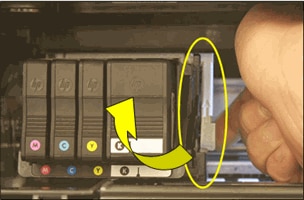
Lift the carriage latch.
Figure : Lift the carriage latch
-
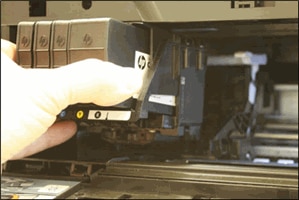
Grasp the sides of the printhead, gently lift and remove the printhead from the carriage.
NOTE:
Do not remove the cartridges from the printhead. You can safely remove the printhead with all of the cartridges inserted.
Figure : Remove the printhead
CAUTION:
The nozzle area on the bottom of the printhead is fragile! Make sure that the bottom of the printhead does not bump or rub on the printer. Do not touch the nozzles or electrical contacts. Touching these areas can cause electrical failures or print quality problems.
Figure : Nozzles and electrical contacts
-
-
Nozzles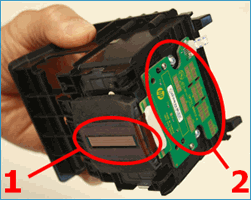
-
Electrical contacts
-
-
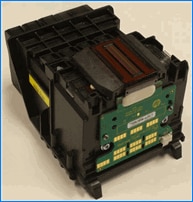
Place the printhead assembly (with the cartridges still installed) upside down on a clean sheet of paper.
CAUTION:
Do not leave the printhead assembly outside of the printer for an extended period. Doing so can result in damage to the printhead or the printer.
Figure : Printhead upside down on a clean sheet of paper
Step 2: Inspect the carriage path inside the printer
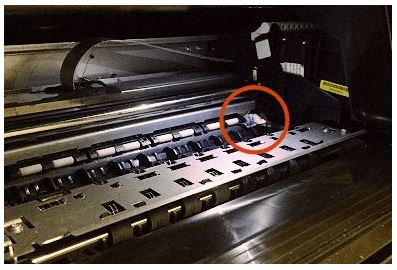
Inside the printer, look for and remove any obstructions from the printhead compartment. If necessary, use a flashlight to thoroughly check for any obstructions.
Figure : Check for paper jammed in the carriage path
Step 3: Reinsert the printhead, and then lower the carriage latch
After checking the carriage path for jammed paper, reinsert the printhead into the carriage, and then lower the carriage latch.
-
Grasp the sides of the printhead and turn it right side up with the nozzles facing down and the electrical contacts facing away from you.
-
On the front of the printer, insert the printhead into the carriage, ensuring that the electrical contacts face the inside of the printer. As you guide the printhead into the carriage, it lowers into the carriage as it seats.
CAUTION:
The nozzle area on the bottom of the printhead is fragile! Make sure that the bottom of the printhead does not bump or rub on the printer. Do not touch the nozzles or electrical contacts. Touching these areas can cause electrical failures or print quality problems.
Figure : Insert the printhead
-
Gently rock the printhead to the left and right to make sure that the printhead fully seats in the carriage.
-
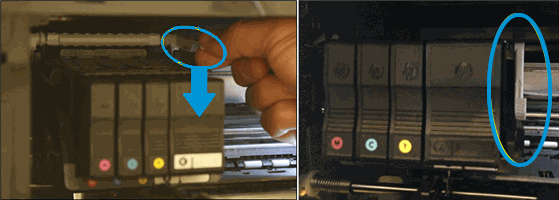
Carefully lower the carriage latch to secure the printhead.
Figure : Lower the carriage latch
-
Verify that the carriage latch is down.
Figure : Carriage latch positions
-
-
Carriage latch is up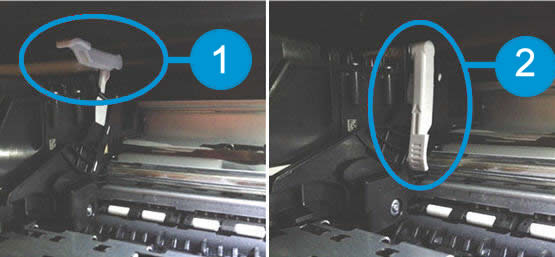
-
Carriage latch is down
-
-
Close the cartridge access door.
-
Reconnect the power cord to the rear of the printer.
-
If the printer does not turn on by itself, press the Power button to turn it on.
NOTE:
The printer might go through a warm-up period. The printer lights might flash, and the carriage might move.
-
Wait until the warm-up period finishes and your printer is idle and silent before you proceed.
You can refer to this HP document for more assistance:- Click here
Let me know how it goes.
To thank me for my efforts to help you, please mark my post as an accepted solution so that it benefits several others.
Cheers.
Sandytechy20
I am an HP Employee
4 REPLIES 4
01-03-2019 04:40 PM
HP Recommended
Welcome to HP forums, I see that you are getting printer failure error.
Reset the printer.
-
Turn the printer on, if it is not already on.
-
Wait until the printer is idle and silent before you continue.
-
With the printer turned on, disconnect the power cord from the rear of the printer.
-
Unplug the power cord from the wall outlet.
-
Wait at least 60 seconds.
-
Plug the power cord back into the wall outlet.
NOTE:
HP recommends connecting the printer power cord directly to the wall outlet.
-
Reconnect the power cord to the rear of the printer.
-
Turn on the printer, if it does not automatically turn on.
-
Wait until the printer is idle and silent before you proceed.
Update the printer firmware.
-
From the home screen on the printer control panel, touch the ePrint icon (
). -
Wait for the printer to connect to the ePrint server. The ePrint status displays.
-
Touch Settings on the bottom left corner of the screen.
-
Touch Printer Update, and then touch Check for Update Now.
Reseat the printhead up to three times
Step 1: Remove the printhead
Open the ink cartridge access door, disconnect the power cord from the rear of the printer, and then remove the printhead.
-
Press the Power button to turn on the printer, if it is not already on. Wait until the warm-up period finishes and your printer is idle and silent before you proceed.
-
Place your fingers into the slot on the left side of the printer, and then pull to open the cartridge access door. Allow the carriage to move to the cartridge access area, and the carriage stops moving.
Figure : The slot on the side of the printer
-
Disconnect the power cord from the rear of the printer. Unplugging the printer prevents the carriage from moving.
WARNING:
You must disconnect the power cord before reaching inside the printer to avoid risk of injuries or electric shock.
-
Lift the carriage latch.
Figure : Lift the carriage latch
-
Grasp the sides of the printhead, gently lift and remove the printhead from the carriage.
NOTE:
Do not remove the cartridges from the printhead. You can safely remove the printhead with all of the cartridges inserted.
Figure : Remove the printhead
CAUTION:
The nozzle area on the bottom of the printhead is fragile! Make sure that the bottom of the printhead does not bump or rub on the printer. Do not touch the nozzles or electrical contacts. Touching these areas can cause electrical failures or print quality problems.
Figure : Nozzles and electrical contacts
-
-
Nozzles -
Electrical contacts
-
-
Place the printhead assembly (with the cartridges still installed) upside down on a clean sheet of paper.
CAUTION:
Do not leave the printhead assembly outside of the printer for an extended period. Doing so can result in damage to the printhead or the printer.
Figure : Printhead upside down on a clean sheet of paper
Step 2: Inspect the carriage path inside the printer
Inside the printer, look for and remove any obstructions from the printhead compartment. If necessary, use a flashlight to thoroughly check for any obstructions.
Figure : Check for paper jammed in the carriage path
Step 3: Reinsert the printhead, and then lower the carriage latch
After checking the carriage path for jammed paper, reinsert the printhead into the carriage, and then lower the carriage latch.
-
Grasp the sides of the printhead and turn it right side up with the nozzles facing down and the electrical contacts facing away from you.
-
On the front of the printer, insert the printhead into the carriage, ensuring that the electrical contacts face the inside of the printer. As you guide the printhead into the carriage, it lowers into the carriage as it seats.
CAUTION:
The nozzle area on the bottom of the printhead is fragile! Make sure that the bottom of the printhead does not bump or rub on the printer. Do not touch the nozzles or electrical contacts. Touching these areas can cause electrical failures or print quality problems.
Figure : Insert the printhead
-
Gently rock the printhead to the left and right to make sure that the printhead fully seats in the carriage.
-
Carefully lower the carriage latch to secure the printhead.
Figure : Lower the carriage latch
-
Verify that the carriage latch is down.
Figure : Carriage latch positions
-
-
Carriage latch is up -
Carriage latch is down
-
-
Close the cartridge access door.
-
Reconnect the power cord to the rear of the printer.
-
If the printer does not turn on by itself, press the Power button to turn it on.
NOTE:
The printer might go through a warm-up period. The printer lights might flash, and the carriage might move.
-
Wait until the warm-up period finishes and your printer is idle and silent before you proceed.
You can refer to this HP document for more assistance:- Click here
Let me know how it goes.
To thank me for my efforts to help you, please mark my post as an accepted solution so that it benefits several others.
Cheers.
Sandytechy20
I am an HP Employee
01-06-2019 11:24 AM
HP Recommended
Thanks for the reply.
I appreciate your time and effort.
Good to know that the issue is resolved.
Feel free to contact us in future if you need any assistance in the future.
Cheers.
Sandytechy20
I am an HP Employee

01-30-2019 07:46 PM
HP Recommended
I cannot try this right now because I didn't know it would be so involved to fix; however, I plan to try this and I will give post the results as soon as I am able to try it. I am glad to have found someone that has a solution though because I had just bought new ink cartridges when I received this message and didn't want to lose the money I had just spent. Plus, I like my printer.

Be alert for scammers posting fake support phone numbers and/or email addresses on the community.
If you think you have received a fake HP Support message, please report it to us by clicking on "Flag Post".
† The opinions expressed above are the personal opinions of the authors, not of HP. By using this site, you accept the Terms of Use and Rules of Participation.


Didn't find what you were looking for?
Ask the community
† The opinions expressed above are the personal opinions of the authors, not of HP. By using this site, you accept the <a href="https://www8.hp.com/us/en/terms-of-use.html" class="udrlinesmall">Terms of Use</a> and <a href="/t5/custom/page/page-id/hp.rulespage" class="udrlinesmall"> Rules of Participation</a>.