
-
×InformationNeed Windows 11 help?Check documents on compatibility, FAQs, upgrade information and available fixes.
Windows 11 Support Center. -
-
×InformationNeed Windows 11 help?Check documents on compatibility, FAQs, upgrade information and available fixes.
Windows 11 Support Center. -
- HP Community
- Printers
- Printing Errors or Lights & Stuck Print Jobs
- Delete Custom Paper Size

Create an account on the HP Community to personalize your profile and ask a question
Your account also allows you to connect with HP support faster, access a personal dashboard to manage all of your devices in one place, view warranty information, case status and more.
Check some of the most frequent questions about Instant Ink: HP INSTANT INK, HP+ PLANS: INK AND TONER.
Check out our Black or Color Ink Not Printing, Other Print Quality Issues info about: Print quality and Cartridge Issues.

It has been a while since anyone has replied. Simply ask a new question if you would like to start the discussion again.

01-05-2019 01:04 PM
 HP Recommended
Product: HP8720
Operating System: macOS 10.14 Mojave
How do you delte custom paper size if you have a MAc
Solved! Go to Solution.
1 ACCEPTED SOLUTION
Accepted Solutions


01-24-2019 11:51 AM
HP Recommended
It looks like you were interacting with senan6806, but he is out for the day & I'll be glad to help you out.
I'm Raj1788 & I'm at your service.
Let's update the printer firmware and Mac software:
Restart the printer and the MAC
Then, follow the below steps to remove the printer and add the printer as AirPrint.
Step 1: Remove multiple printers from the printer list
Check for multiple devices in the Printers list, and then remove any extra entries other than one in idle status.
-
Search the Mac for Print, and then click Print & Fax, Print & Scan, or Printers & Scanners in the list of results.
-
Find the printer names that match your printer from the list of devices.
Figure : Printers and Scanner window with multiple names of a printer in the list

-
If you see multiple printer queues for the same printer, remove all extra printers by selecting them one at a time, and then clicking the minus button
 at the bottom of the list. Leave one 'idle' printer in the list that matches your printer if available and use this printer as the Default printer.
 -
Try printing again.
-
If the printer prints, you can stop troubleshooting.
-
If the printer remains offline or displays an error, continue to the next step.
-
Step 2: Delete the existing print queue and add the printer
Remove the printer queue from the list of printers, and then add it again. Doing so creates a new printing session.
-
Make sure your Mac is connected to the Internet.
-
In the Printers list, click your HP printer, and then click the Minus button
to delete it. -
Click the Add button
 .
. -
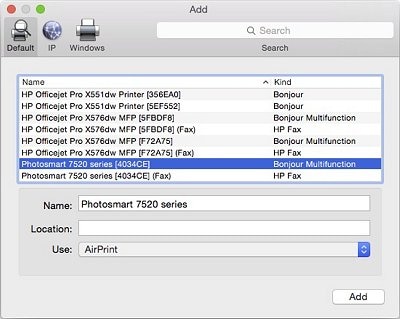
Find and select the name of your printer from the Printer list, and then click Add to add your printer. Do not select an HP Fax driver.
Figure : Example of the printer selection list
-
Click Print Using or Use.
-
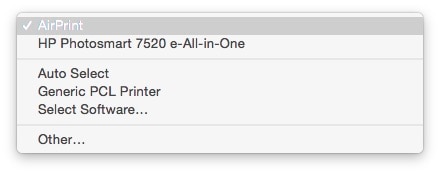
Select the name of your printer (if available) or AirPrint.
Figure : Menu showing AirPrint selected
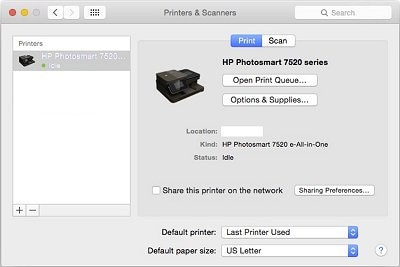
Your new printer queue displays in the Printers list in an Idle status
 .
.Figure : Example of a newly added printer in the Printers & Scanners list
-
Try printing again.
Keep me posted, how it goes!
If the information I've provided was helpful, give us some reinforcement by clicking the Accepted Solution Button, that'll help us and others see that we've got the answers!
Have a great day!
Cheers:)
Raj1788
I am an HP Employee
5 REPLIES 5

01-07-2019 05:31 AM - edited 01-07-2019 05:31 AM
HP Recommended
A warm welcome to HP Forums! This is a great place to get support, find answers and tips to your technical queries.
I believe we can delete a custom paper size from the Custom Paper Sizes window. Let's try these steps:
1.) Open the item you want to print.
2.) Click File, and then select Page Setup.
3.) In Paper Size, select Manage Custom Sizes.
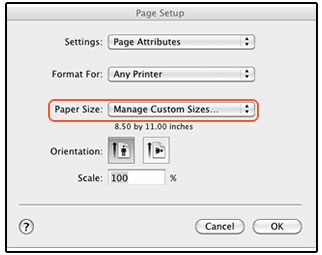
4.) In the Custom Paper Sizes window, select the custom size that you want to delete and click the minus sign to delete the paper size.

Let me know how it goes!
If the information I've provided was helpful, give us some reinforcement by clicking the Accepted Solution and Kudos buttons, that'll help us and others see that we've got the answers!
Have a great day!
Senan6806
I am an HP Employee
01-10-2019 04:45 AM
HP Recommended
Were you not able to delete the custom paper size using the steps I suggested in my previous post?
Could you also elaborate the issue so that I can locate an accurate solution for you.
Senan6806
I am an HP Employee
01-23-2019 07:58 PM
HP Recommended
The issue appears when I am tryig to print from the web brower the paper size for som ereason ios appering as index card - letter 8.5 x 11 (which somehow appears to be a modificatino of the orignal 8.5 x 11 that may have been accidenently created by someone attempting t create anew paper size) and wont print 2 sided unless a do a work around by opening up the "print usng sysstem dialog" . There is no page setup option under file.
01-24-2019 11:51 AM
HP Recommended
It looks like you were interacting with senan6806, but he is out for the day & I'll be glad to help you out.
I'm Raj1788 & I'm at your service.
Let's update the printer firmware and Mac software:
Restart the printer and the MAC
Then, follow the below steps to remove the printer and add the printer as AirPrint.
Step 1: Remove multiple printers from the printer list
Check for multiple devices in the Printers list, and then remove any extra entries other than one in idle status.
-
Search the Mac for Print, and then click Print & Fax, Print & Scan, or Printers & Scanners in the list of results.
-
Find the printer names that match your printer from the list of devices.
Figure : Printers and Scanner window with multiple names of a printer in the list
-
If you see multiple printer queues for the same printer, remove all extra printers by selecting them one at a time, and then clicking the minus button
at the bottom of the list. Leave one 'idle' printer in the list that matches your printer if available and use this printer as the Default printer. -
Try printing again.
-
If the printer prints, you can stop troubleshooting.
-
If the printer remains offline or displays an error, continue to the next step.
-
Step 2: Delete the existing print queue and add the printer
Remove the printer queue from the list of printers, and then add it again. Doing so creates a new printing session.
-
Make sure your Mac is connected to the Internet.
-
In the Printers list, click your HP printer, and then click the Minus button
to delete it. -
Click the Add button
. -
Find and select the name of your printer from the Printer list, and then click Add to add your printer. Do not select an HP Fax driver.
Figure : Example of the printer selection list
-
Click Print Using or Use.
-
Select the name of your printer (if available) or AirPrint.
Figure : Menu showing AirPrint selected
Your new printer queue displays in the Printers list in an Idle status
.Figure : Example of a newly added printer in the Printers & Scanners list
-
Try printing again.
Keep me posted, how it goes!
If the information I've provided was helpful, give us some reinforcement by clicking the Accepted Solution Button, that'll help us and others see that we've got the answers!
Have a great day!
Cheers:)
Raj1788
I am an HP Employee

Be alert for scammers posting fake support phone numbers and/or email addresses on the community.
If you think you have received a fake HP Support message, please report it to us by clicking on "Flag Post".
† The opinions expressed above are the personal opinions of the authors, not of HP. By using this site, you accept the Terms of Use and Rules of Participation.


Didn't find what you were looking for?
Ask the community
† The opinions expressed above are the personal opinions of the authors, not of HP. By using this site, you accept the <a href="https://www8.hp.com/us/en/terms-of-use.html" class="udrlinesmall">Terms of Use</a> and <a href="/t5/custom/page/page-id/hp.rulespage" class="udrlinesmall"> Rules of Participation</a>.