• ×
    Information
    Need Windows 11 help?
    Check documents on compatibility, FAQs, upgrade information and available fixes.
    Windows 11 Support Center.
  • post a message
  • ×
    Information
    Need Windows 11 help?
    Check documents on compatibility, FAQs, upgrade information and available fixes.
    Windows 11 Support Center.
  • post a message
Guidelines
Here is the solution for Blue screen error 83C0000B on HP OfficeJet Pro 8010e, 9020e Printer Series: Click here to view.
Check some of the most frequent questions about Instant Ink: HP INSTANT INK, HP+ PLANS: INK AND TONER.


Check out our Black or Color Ink Not Printing, Other Print Quality Issues info about: Print quality and Cartridge Issues.
HP Recommended

All of a sudden I can no longer print in color and there are no options to set anything but Grayscale (which is turned OFF).  I'm very frustrated.  I've followed many instructions but reached a dead end. See below.


Following instructions to get to the "printui.exe /s" I then tried to delete the drivers and package of HP Envy but received this message:  Failed to remove driver HP ENVY 4500 series. The specified printer driver is currently in use.
Failed to remove package hpvyt11.inf. Driver package is in use.


I deleted the device and it is no longer listed in my programs.  HP Envy is no longer in my Devices nor is it in my Programs! How is it "in use"??

1 REPLY 1
HP Recommended

@SNashB,


Thanks for reaching out to the HP Support community!


Let's try these steps:


Step 1: Stop Spooler Services and Delete installed printers.

  • Turn off the printer using the power button and then unplug the printer power cord from the power outlet.
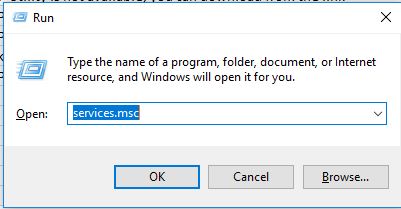
  • In Windows, Open up the run command with the "Windows key + R" key combo.
  • Type 'services.msc' in the text field and click ok.


  • In the Services window, right-click Print Spooler, and then select Stop.


  • After the service stops, close the Services window.
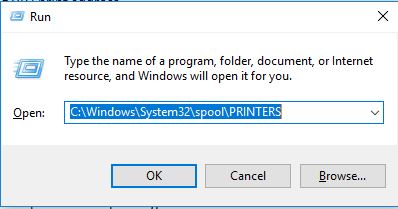
  • In Windows, Open up the run command with the "Windows key + R" key combo.
  • Type ''C:\Windows\System32\spool\PRINTERS' ' in the text field and click ok.


  • Delete all files in the PRINTERS folder.
  • Shut down your computer.
  • Connect the printer power cord to the power outlet, and then turn on the printer.
  • Turn on the computer.

Step 2: Uninstall and re-install the printer driver

  • In Windows, search for 'Control Panel' and open 'Programs' or 'Programs and features' and select 'Uninstall a Program'.
  • Select your HP Printer.
  • Select Uninstall.
  • In Windows, search for 'Control Panel' and look for 'View devices and printers'option under 'Hardware and Sound'.
  • In the Devices and Printers window look for your HP printer. If you see it listed right-click on it and choose 'Delete' or 'Remove Device'.
  • Open up the run command with the "Windows key + R" key combo.
  • Type printui.exe /s and click Ok. (Note: there is a space in between “printui.exe” and “/s”)
  • Click on the "Drivers" tab.
  • Look for HP Printer driver. If you see it Click on it and click Remove at the bottom.
  • Select Ok.
  • Select Apply and Ok on the Print Server Properties windows.
  • Close Devices and Printers.
  • Open up the run command with the "Windows key + R" key combo.
  • Type c:/programdata and click Ok. Go to Hewlett Packard folder, remove any printer related folders & files.
  • Restart the computer.
  • Download the printer driver and install it from this link or manually search for drivers from https://support.hp.com/us-en/drivers/printers.
  • Open the downloaded file, follow onscreen instructions and complete installation
  • Try printing from your PC again and check if you can print in color.


Let me know if this information helps. 


Please click “Accept as Solution” if you feel my post solved your issue, it will help others find the solution.

Click the “KudosThumbs Up" on the bottom right to say “Thanks” for helping.


ATHARVA_GP
I am an HP Employee

† The opinions expressed above are the personal opinions of the authors, not of HP. By using this site, you accept the <a href="https://www8.hp.com/us/en/terms-of-use.html" class="udrlinesmall">Terms of Use</a> and <a href="/t5/custom/page/page-id/hp.rulespage" class="udrlinesmall"> Rules of Participation</a>.