• ×
    Information
    Need Windows 11 help?
    Check documents on compatibility, FAQs, upgrade information and available fixes.
    Windows 11 Support Center.
  • post a message
  • ×
    Information
    Need Windows 11 help?
    Check documents on compatibility, FAQs, upgrade information and available fixes.
    Windows 11 Support Center.
  • post a message
Guidelines
Seize the moment! nominate yourself or a tech enthusiast you admire & join the HP Community Experts!
Check some of the most frequent questions about Instant Ink: HP INSTANT INK, HP+ PLANS: INK AND TONER.


Check out our Black or Color Ink Not Printing, Other Print Quality Issues info about: Print quality and Cartridge Issues.
HP Recommended
Officejet 8600 Plus
Microsoft Windows 10 (64-bit)

I have had my HP Officejetjet 8600 plus for quite some time.  It is connected to my computer via my home wired network. When I first installed it, the time from when I hit print until the first page started printing was almost immediate. No more than 1-2 seconds. LIFE WAS GOOD!


Several months ago, (6-8 maybe) The time from when I hit print until the first page started to print increased DRAMATICALLY. Now it takes 15-20 seconds for the first page to start to print.


Please note that the issue is only the delay until the first page begins to print. Once the printing begins, the printer is as fast as it ever was. Scanning, copying, and faxing are all fine for my needs.


I've tried the the following solutions to no avail:

* Rebooting the computer.

* Rebooting the router.

* Rebooting the printer.

* Uninstalling and reinstalling the printer.

* Uninstalling and reinstalling the printer drivers.

* Updating the printer firmware (not needed).

* Running the Windows printer troubleshooter.

* Running the HP printer troubleshooter.

* Setting a manual IP address

* Adjusted spooling settings in the printer properties


I have read several forum articles about this problem, but have never seen a successful answer.


Any help will be appreciated, Thanks


1 ACCEPTED SOLUTION

Accepted Solutions
HP Recommended

The_Fossette


Thank you for providing the contact number for tech support. They were very helpful and my problem has been resolved.


As it turns out, none of the previous suggestions were the answer.


After checking to see that the printer's firmware was current, the agent checked


Settings->Devices->Printers & Scanners->HP Officejet Pro 8600 (Network)->Manage->Printer Properties->Ports


The Printer was connected to a port with a name that was the same as the serial number


He selected add port->standard tcp/ip port->then new port, which started the "welcome to the add Standard TCP/IP Printer Port Wizard


Clicked next and input the ip address of the printer (from the printer status report we printed out previously) and completed the wizard.


The lag time between clicking print and the printer starting to print the first page is gone.


tonyski100 is now a happy camper again.


hope this helps anyone who has had the same issue!

Best Wishes all!

View solution in original post

11 REPLIES 11
HP Recommended

@tonyski100


Thank you for joining HP Forums. 

This is a great place to get support, find answers to your technical queries.


I understand that the printer is slow and its connected via WiFi, need not worry I'll be glad to assist you.


To provide you with an accurate solution, I'll need a few more details:

Are you facing this issue after an update?

Have you done any changes in the print settings?


However, I suggest you do a Hard Reset


Step 1: Hard Reset the printer


Resetting the printer can resolve some types of slow printing issues.

  1. Turn the printer on, if it is not already on.

  2. Wait until the printer is idle and silent before you continue.

  3. With the printer turned on, disconnect the power cord from the rear of the printer.

  4. Unplug the power cord from the wall outlet.

  5. Wait at least 60 seconds.

  6. Plug the power cord back into the wall outlet.

       NOTE:

    HP recommends connecting the printer power cord directly to the wall outlet.

  7. Reconnect the power cord to the rear of the printer.

  8. Turn on the printer, if it does not automatically turn on.

  9. Wait until the printer is idle and silent before you proceed.

Try to print. If the issue persists, continue to the next step.


Step 2: Check the print driver settings


Check the print driver settings. Selecting certain paper types or printing in Best quality can slow print speeds. Print with plain paper in Normal or Draft quality for faster print speeds.

  1. Search Windows for printers, and then click Devices and printers in the list of results.

  2. Double-click the icon for your printer.

  3. Double-click Set Preferences.

  4. Find the paper type information.

  5. In the Paper type area, make sure Plain Paper is selected.

  6. In the Quality Settings area, make sure Draft or Normal are selected.

  7. Click OK or Apply to confirm the changes, close the HP printer driver window, and then close the Devices and Printers window.

Try to print. If the issue persists, continue to the next step.


Step 3: Uninstall the print driver


Remove the print driver and software using the Uninstall a program tool in Windows Programs and Features. Uninstalling the print driver allows you to install the latest driver version.

  1. If your printer connects to the computer with a USB cable, disconnect the cable from the printer.

  2. Search Windows for programs and features, and then click Programs and Features in the list of results.

  3. In the list of installed programs, click your HP printer name, and then click Uninstall or Yes.

  4. Follow the on-screen instructions to complete the software removal.

  5. Restart the computer.

Step 4: Reinstall the print driver


After uninstalling the print driver, go to 123.hp.com, and then follow the on-screen instructions to download and install the latest driver.

Try to print. If the issue persists, continue to the next step.


Step 5: Update the printer firmware


Download available firmware updates from the HP website

   CAUTION:

Do not use or power off the printer or computer while the firmware update is in process.

  1. Make sure the printer is on and connected to the computer, either through your network or a USB cable.

  2. Go to HP Customer Support - Software and Driver Downloads, and then enter your printer model number.

  3. Select your operating system if required.

  4. Click Firmware, then click Download.

    If a firmware section is not listed, a firmware update is not available. Skip to the next step.

  5. Click Use HP Download and Install Assistant (Recommended), click Next, and then click Install now.

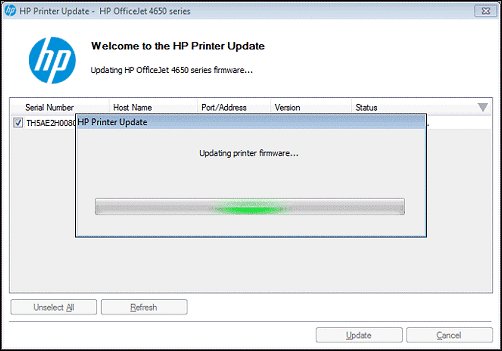
  6. Look in the HP Printer Update window to see if your printer serial number displays.

    • If the serial number is listed, select the printer serial number, and then click Update.

    • If the serial number is listed but status is not applicable (grayed out), the firmware does not need to be updated. Click Cancel.

    • If the serial number is not listed and your printer is using a network connection, connect a USB cable, wait 20 seconds, and then click Refresh.

    Figure : Updating the printer firmware (Windows version shown)

     The HP Printer Update utility window showing a serial number selected for an HP OfficeJet 4650 and an activity bar showing that the update is in progress.
  7. When the update is finished, click OK.

  8. If you connected a USB cable for your networked printer, then remove the USB driver that was added by Windows.

    1. Search Windows for Devices and Printers, and then open Device and Printers from the search results.

    2. Right-click the USB printer device that matches your printer model, and then select Remove Device.

    3. Disconnect the USB cable, and restart the computer.

Try to print. If the issue persists, continue to the next step.


Step 6: Check the network status (wired and wireless connections only)


If your printer is connected to a wired or wireless network, there are several tips that might resolve slow printing issues.

  • On your computer, check the wireless signal strength by clicking the wireless connection icon in the Windows task bar. If the signal strength is low, move the router, computer, and printer closer together.

  • Make sure there are no additional strains on your network, such as downloading or streaming services. Depending on your bandwidth, these activities can significantly affect print speed.

  • If the printer is connected to the network with an Ethernet cable, make sure the cable connections are secure.

  • Restart your router by unplugging it, waiting 10 seconds, and plugging it back in.

For detailed troubleshooting use this link: https://support.hp.com/in-en/product/hp-officejet-pro-8600-plus-e-all-in-one-printer-series-n911/432...


Keep me posted, how it goes! However, I'll try and follow up in next 24 to 48 hours to doublecheck on the issue.

If the information I've provided was helpful, give us some reinforcement by clicking the Accepted Solution and Kudos buttons, that'll help us and others see that we've got the answers!

Have a great day!

Cheers:)

Raj1788
I am an HP Employee 

HP Recommended

Raj1788 thank you for your reply but I must say, I am very disappointed. I tried to look for as many possible answers  as  I could before I posted my question and tried to be quite clear about my setup and the steps that I have already taken to try and troubleshoot my issue.

The third line of your reply makes me think that you didn't even read my post. Is this an automated reply?


I am not connected via WiFi and I am not experiencing slow printing.


I am experiencing a long delay from the time that I hit print on my computer until the printer actually starts printing.


My printer is connected to my home network via a Cat5 cable. My router only has one LAN port and so the printer is connected to the first switch that comes out of my router.


Now to your questions:


I can not say if the problem surfaced after any updates. So time passed between when I first noticed the problem and when I first started to troubleshoot it. This all began several months ago.


The only changes that I made in the print settings were after the problem surfaced and I tried to fix the problem.


Step 1 Hard reset - No Improvement


Step 2 print driver settings - Tried previously - Tried again - No Improvement


Step 3/4 Uninstall / reinstall print drive - Tried previously - Tried again - No Improvement


Step 5 Firmware update - None available for 8600


Step 6 Network status - It is a wired connection with a static IP address. We do have a number of security cameras that are IP cameras and use the same network, but there was no change in that system at the time that the problem surfaced. It has been unchanged before and since the printing delay started. I have tried other cables so that is not the issue. Restarting the router yields no improvement.


I look forward to your next reply.


Tony


HP Recommended

still waiting on help from HP


Does anyone else have any suggestions?

HP Recommended

@tonyski100


Thank you for your reply. 


I have read your post comprehensively and understand that the printer still takes a long time to react to the print command. You have been fabulous to work with considering your superb technical skills and valuable patience. Kudos to you for that. 


The next course of steps that I suggest you to perform is the semi full reset. This would completely restore the printer to its original factory condition. 

A private message has been sent to you with the semi full reset steps.


Hope this information helps. Let me know the outcome.


Good luck! 🙂

HP Recommended

Good Morning,


I tried to follow the instructions that you sent and could not get to the support menu. 


I googled "HP 8600 semi-full reset" and found a way to do it:


with power on, push the right arrow key

then puch the home key

then push the return arrow (it was not illuminated) 4 times


that got me to the support menu and I did the Semi-Full Reset

It did not improve the situation.


I also changed the switch that it is attached to and the cable, no improvement

Since a full reset seemed to be the next logical choice, I looked for that in the support menu. It ws not an option.  The only options were country/language, partial, semi-full


I would love to know what others are experiencing with their HP Officejet 8600's connected to their networks via a wired connection.


I am anxious to hear what i should try next. Thank you

HP Recommended

@tonyski100,


It is great to have you back and your patience is greatly appreciated.


I recommend you contact HP phone support to further diagnose the issue.


Here is how you can get in touch with the phone support.

  1. Click on this link – www.hp.com/contacthp/
  2. Click on “Continue as guest”.
  3. Enter the serial of your device.
  4. Select the country from the drop-down.
  5. Click on “Show Options”.
  6. Fill the web-form. A case number and phone number will now populate for you.

Let me know how it goes and you have a great day!


If you wish to show appreciation for my efforts, mark my post as Accept as Solution. Your feedback counts!


Cheers!

The_Fossette
I am an HP Employee

HP Recommended

The_Fossette


I followed the steps you listed.


Initially, the serial number was not sufficient and so there were a few more steps, but ultimately, there was no case number or phone number listed.


The site directed me to the user forum. Probably because it is out of warranty I guess.


This seems to have become a bit of a circular firing squad.


Any other advice?


ScreenShot001.jpg

HP Recommended

@tonyski100,


Thank you for keeping me posted.


Please let me know your location (Country) in a private message and I will send you the direct phone number to reach the tech support.


Awaiting your reply!


If you wish to show appreciation for my efforts, mark my post as Accept as Solution. Your feedback counts!


Good day! Take care 🙂


Cheers!

The_Fossette
I am an HP Employee

HP Recommended

The_Fossette


Thank you for providing the contact number for tech support. They were very helpful and my problem has been resolved.


As it turns out, none of the previous suggestions were the answer.


After checking to see that the printer's firmware was current, the agent checked


Settings->Devices->Printers & Scanners->HP Officejet Pro 8600 (Network)->Manage->Printer Properties->Ports


The Printer was connected to a port with a name that was the same as the serial number


He selected add port->standard tcp/ip port->then new port, which started the "welcome to the add Standard TCP/IP Printer Port Wizard


Clicked next and input the ip address of the printer (from the printer status report we printed out previously) and completed the wizard.


The lag time between clicking print and the printer starting to print the first page is gone.


tonyski100 is now a happy camper again.


hope this helps anyone who has had the same issue!

Best Wishes all!

† The opinions expressed above are the personal opinions of the authors, not of HP. By using this site, you accept the <a href="https://www8.hp.com/us/en/terms-of-use.html" class="udrlinesmall">Terms of Use</a> and <a href="/t5/custom/page/page-id/hp.rulespage" class="udrlinesmall"> Rules of Participation</a>.