
-
×InformationNeed Windows 11 help?Check documents on compatibility, FAQs, upgrade information and available fixes.
Windows 11 Support Center. -
-
×InformationNeed Windows 11 help?Check documents on compatibility, FAQs, upgrade information and available fixes.
Windows 11 Support Center. -
- HP Community
- Printers
- Printing Errors or Lights & Stuck Print Jobs
- Internet connection

Create an account on the HP Community to personalize your profile and ask a question
Your account also allows you to connect with HP support faster, access a personal dashboard to manage all of your devices in one place, view warranty information, case status and more.
Check some of the most frequent questions about Instant Ink: HP INSTANT INK, HP+ PLANS: INK AND TONER.
Check out our Black or Color Ink Not Printing, Other Print Quality Issues info about: Print quality and Cartridge Issues.

It has been a while since anyone has replied. Simply ask a new question if you would like to start the discussion again.

06-24-2018 04:20 PM
 HP Recommended
I just bought an hp stream laptop.
I use a modem at home for my internet.
ideally when i slot it into a new computer the set up is automatic it comes and you follow through for it to install and then you connect to the internet.
Unfortunately my new laptop though shows the device when i want to eject is not setting up the software and so i can not access the internet.
Does this laptop only use wifi or it works with a modem also to connect to the internet?
Is there a way i can resolve this.
Solved! Go to Solution.
1 ACCEPTED SOLUTION
Accepted Solutions


06-26-2018 05:17 PM
HP Recommended
You're welcome and thanks for the information.
I read tat you're using a USB modem to connect wirelessly to the internet.
The following steps should help:
The initial settings for Wi-Fi are determined by the options you chose when you first set up your PC with Windows 10. To change your Wi-Fi settings, use the following steps.
-
In the Windows search box, type Settings.
-
Open Settings from the results list.
-
Select Network & Internet, and then click Wi-Fi.
-
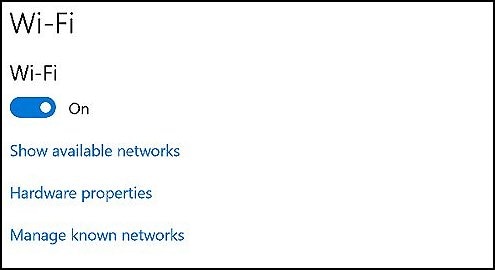
To turn Wi-Fi on or off, use the toggle button. For information about available networks, hardware properties, and management of known networks, click the appropriate link.
Figure : Wi-Fi settings
-
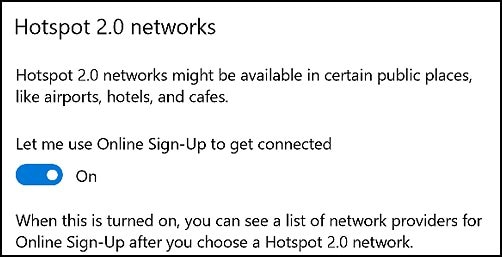
To use Hotspot 2.0 networks in public places like airports and cafes, turn on Let me use Online Sign-up to get connected. When this is turned on, you can see a list of network providers after you choose a Hotspot 2.0 network.
After successfully validating your credentials with Online Sign-Up, your device is connected to the Hotspot 2.0 network. The Online Sign-Up is used only once and you will be automatically connected to that network the next time your device is in range.
NOTE:
Hotspot 2.0 networks are a new wireless standard designed to make it easier and more secure to connect to public Wi-Fi hotspots.
Figure : Hotspot 2.0 networks
For additional information about connecting to wifi, you may refer to this HP document.
Hope this information helps. Let me know what happens.
Good luck! 🙂
5 REPLIES 5
06-25-2018 03:18 PM
HP Recommended
Thank you for posting on HP Forums, MKazi is at your service.
I understand that you have an HP Stream laptop and it doe snot connect the home internet. I read that you use a modem. Not to worry, I'll be glad to assist you with this case.
To assist you with accurate information I would require more information regarding this:
- What is the exact HP Stream laptop model number. This link will help in finding the model number: https://support.hp.com/in-en/document/c00033108
- Do you use a dial up modem?
This information will help me to assist you better.
Feel free to reply. Cheers! 🙂
06-26-2018 01:39 AM
HP Recommended
Thanks Mkazi,
The product name is HP Stream laptop 14-ax0XX
Product number is: 1TR75EA#ABU
Serial number is : 5CD7459MZX
The modem i am using is from my service provider and is USB stick/modem.
Hope this helps.
06-26-2018 05:17 PM
HP Recommended
You're welcome and thanks for the information.
I read tat you're using a USB modem to connect wirelessly to the internet.
The following steps should help:
The initial settings for Wi-Fi are determined by the options you chose when you first set up your PC with Windows 10. To change your Wi-Fi settings, use the following steps.
-
In the Windows search box, type Settings.
-
Open Settings from the results list.
-
Select Network & Internet, and then click Wi-Fi.
-
To turn Wi-Fi on or off, use the toggle button. For information about available networks, hardware properties, and management of known networks, click the appropriate link.
Figure : Wi-Fi settings
-
To use Hotspot 2.0 networks in public places like airports and cafes, turn on Let me use Online Sign-up to get connected. When this is turned on, you can see a list of network providers after you choose a Hotspot 2.0 network.
After successfully validating your credentials with Online Sign-Up, your device is connected to the Hotspot 2.0 network. The Online Sign-Up is used only once and you will be automatically connected to that network the next time your device is in range.
NOTE:
Hotspot 2.0 networks are a new wireless standard designed to make it easier and more secure to connect to public Wi-Fi hotspots.
Figure : Hotspot 2.0 networks
For additional information about connecting to wifi, you may refer to this HP document.
Hope this information helps. Let me know what happens.
Good luck! 🙂

Be alert for scammers posting fake support phone numbers and/or email addresses on the community.
If you think you have received a fake HP Support message, please report it to us by clicking on "Flag Post".
† The opinions expressed above are the personal opinions of the authors, not of HP. By using this site, you accept the Terms of Use and Rules of Participation.


Didn't find what you were looking for?
Ask the community
† The opinions expressed above are the personal opinions of the authors, not of HP. By using this site, you accept the <a href="https://www8.hp.com/us/en/terms-of-use.html" class="udrlinesmall">Terms of Use</a> and <a href="/t5/custom/page/page-id/hp.rulespage" class="udrlinesmall"> Rules of Participation</a>.