• ×
    Information
    Need Windows 11 help?
    Check documents on compatibility, FAQs, upgrade information and available fixes.
    Windows 11 Support Center.
  • post a message
  • ×
    Information
    Need Windows 11 help?
    Check documents on compatibility, FAQs, upgrade information and available fixes.
    Windows 11 Support Center.
  • post a message
Guidelines
Here is the solution for Blue screen error 83C0000B on HP OfficeJet Pro 8010e, 9020e Printer Series: Click here to view.
Check some of the most frequent questions about Instant Ink: HP INSTANT INK, HP+ PLANS: INK AND TONER.


Check out our Black or Color Ink Not Printing, Other Print Quality Issues info about: Print quality and Cartridge Issues.
HP Recommended
HP Office Jet Pro 6835
macOS 10.14 Mojave

My HP Office Jet Pro 6835 does not work well. I cannot print out any.  The message has shown up "The printer head has an issue" so I cleaned  up watiching the tutorial video but did not work.

Is there way I can fix this issue? If not, where can I drop this machinge for repair? I linve in Seattle. 

1 REPLY 1
HP Recommended

@NicoleA1


Welcome to HP forums, I see that you are getting printhead issue.


Clean the ink cartridge vents and contacts

  1. Gather the following materials:

    • A pin to clean any clogged vents

    • A clean, lint-free cloth

    • A clean, dry cotton swab

    • Distilled or bottled water

         CAUTION: 

      Do not use tap water because it might contain contaminants that might damage the printhead.

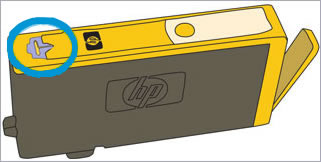
  2. Examine the vent area located on top of the ink cartridge, next to the HP logo.

  3. Image: Example of the venta area.

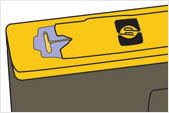
  4. If any of the ink cartridges have clogged vents, use a pin to clean the vents.

    Figure : Example of a clogged vent

    Image: Example of a clogged vent.

    Figure : Example of a clean vent

    Image: Example of a clean vent.
  5. Lightly dampen a fresh, lint-free cloth.

  6. Wipe any accumulated ink and debris on the copper-colored contact on the ink cartridge.

       CAUTION: 

    Be careful to wipe only the ink cartridge contacts. Do not smear any ink or debris elsewhere on the ink cartridge.

    1. Ink cartridge contacts

  7. Wipe the contact with a dry, lint-free cloth.

  8. Repeat the steps to clean each ink cartridge contact.

  9. Lightly dampen a lint-free swab.

  10. Wipe any accumulated ink and debris on the copper-colored contact on the printhead.

    Image: Example of the copper-colored contacts on the printhead

  11. Wipe the contact with a dry, lint-free swab.

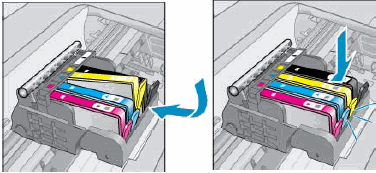
  12. Reinsert each of the ink cartridges into its slot, and then push the ink cartridge forward and down until it snaps into place.

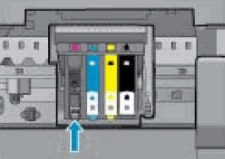
    Make sure each colored dot on the ink cartridge label matches the colored dot on the carriage.

    Image: Snapping the ink cartridge into place

  13. Run your finger along the top of the ink cartridges to make sure none of them protrude.

    If any ink cartridges protrude, press down firmly until each ink cartridge snaps into place.

  14. Close the ink cartridge access door.

  15. Check the printer control panel display for the error message.

    • If the message is to Replace the, or Ink Cartridge, remove the specified ink cartridge(s) and clean the copper-colored contact again, and then reinsert the ink cartridge(s).

Update the printer firmware.

  1. Make sure the printer is on and connected to the computer through your local network or USB cable.

  2. Go to HP Customer Support - Software and Driver Downloads.

  3. If a Let's identify your product to get started page displays, click Printer.

  4. Type your printer model number, and then click Submit.

    The software results page for your printer displays with the default operating system selected.

  5. If you need to change the version of macOS or OS X, click Change, select your version, and then click Change.

  6. Click Firmware, and then click Download.

    If a Firmware section is not listed, an update is not currently available for your printer.

  7. When the download is complete, open the [Printer_name].dmg file.

  8. Double-click HP Firmware Updater.

  9. Click the name of your printer, and then click Continue.

     Device Discovery window with printer selected

  10. The updater checks the firmware version installed on the printer, and then displays the results in the Update Information window.

    • If Device is ready to be reflashed displays, click Continue to update the firmware.

      When the update completes, click Done.

    • If This Firmware Updater does not contain upgrades for your device displays, the printer firmware is already updated to the most recent version. Click Cancel to exit the updater.

You can refer to this HP document for more assistance:- Click here


Let me know how it goes.

To thank me for my efforts to help you, please mark my post as an accepted solution so that it benefits several others.

Cheers.

Sandytechy20
I am an HP Employee

† The opinions expressed above are the personal opinions of the authors, not of HP. By using this site, you accept the <a href="https://www8.hp.com/us/en/terms-of-use.html" class="udrlinesmall">Terms of Use</a> and <a href="/t5/custom/page/page-id/hp.rulespage" class="udrlinesmall"> Rules of Participation</a>.