• ×
    Information
    Need Windows 11 help?
    Check documents on compatibility, FAQs, upgrade information and available fixes.
    Windows 11 Support Center.
  • post a message
  • ×
    Information
    Need Windows 11 help?
    Check documents on compatibility, FAQs, upgrade information and available fixes.
    Windows 11 Support Center.
  • post a message
Guidelines
Here is the solution for Blue screen error 83C0000B on HP OfficeJet Pro 8010e, 9020e Printer Series: Click here to view.
Check some of the most frequent questions about Instant Ink: HP INSTANT INK, HP+ PLANS: INK AND TONER.


Check out our Black or Color Ink Not Printing, Other Print Quality Issues info about: Print quality and Cartridge Issues.
HP Recommended
6500A Plus
Microsoft Windows 10 (64-bit)

General Error: 0x610000f6. I'm assuming my issue is related to the unit that pulls the paper into the printer. I noticed this module does release from the back of the printer. Not sure what the name of the module so I could possible replace.

1 REPLY 1
HP Recommended

@George_6500A


Welcome to HP support community.


Clean the rollers in the rear access area

  1. Gather the following materials:

    • A clean, lint-free cloth, or any cloth that will not come apart or leave fibers

    • Distilled, filtered, or bottled water (tap water might damage the product)

    • A clean, lint-free cotton swab

  2. Press the Power button () to turn off the product.

  3. Turn the product around to access the rear.

    Figure : Turn the product around

    Illustration: Turn the product around.
  4. Disconnect the power cord from the rear of the product.

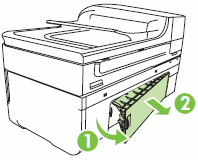
  5. Press in the tab on the side of the rear access door, and then pull the door away from the product to remove it.

    Figure : Remove the rear access door

    Illustration: Removing the rear access door
  6. Lightly dampen a clean, lint-free cloth with bottled or distilled water, and then squeeze any excess liquid from the cloth.

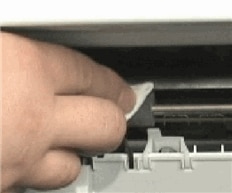
  7. Press the cloth against the rollers in the product, and then rotate them upwards with your fingers. Apply a moderate amount of pressure to remove any dust or dirt buildup.

    Figure : Clean the rollers in the product

    Photograph of cleaning the rollers in the product
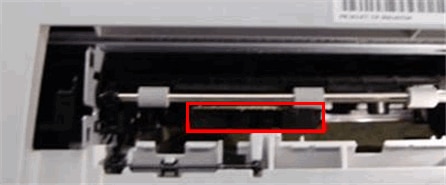
  8. Look inside the rear access area of the product to find the pick rollers. They are behind the paper feed rollers.

    NOTE: 

    You might need to use a flashlight to illuminate the pick rollers.

    Figure : Location of the pick rollers

    Photograph of location of the pick rollers when looking at the rear of the product

    Figure : The pick rollers

    Photograph of the pick rollers inside the product
  9. Lightly dampen a cotton swab, and then use it to clean the pick rollers.

  10. Allow the rollers to dry for 10 or 15 minutes.

  11. Reinstall the rear access door. Slide the tabs into the notches on the right side of the product, and then gently push the door forward until it snaps into place.

  12. Reconnect the power cord to the rear of the product.

  13. Press the Power button () to turn on the product.

Reset the product

  1. Press the Power button () to turn on the product.

  2. With the product turned on, disconnect the power cord from the rear of the product.

  3. Wait at least 30 seconds.

  4. Reconnect the power cord to the rear of the product.

  5. If the product does not turn on by itself, press the Power button () to turn it on.

You can refer this HP document for more assistance:- Click here


Let me know how it goes.

If this helps, please mark the public post as an accepted solution so that it benefits several others.

Cheers.

Sandytechy20
I am an HP Employee

† The opinions expressed above are the personal opinions of the authors, not of HP. By using this site, you accept the <a href="https://www8.hp.com/us/en/terms-of-use.html" class="udrlinesmall">Terms of Use</a> and <a href="/t5/custom/page/page-id/hp.rulespage" class="udrlinesmall"> Rules of Participation</a>.