• ×
    Information
    Need Windows 11 help?
    Check documents on compatibility, FAQs, upgrade information and available fixes.
    Windows 11 Support Center.
  • post a message
  • ×
    Information
    Need Windows 11 help?
    Check documents on compatibility, FAQs, upgrade information and available fixes.
    Windows 11 Support Center.
  • post a message
Guidelines
Here is the solution for Blue screen error 83C0000B on HP OfficeJet Pro 8010e, 9020e Printer Series: Click here to view.
Check some of the most frequent questions about Instant Ink: HP INSTANT INK, HP+ PLANS: INK AND TONER.


Check out our Black or Color Ink Not Printing, Other Print Quality Issues info about: Print quality and Cartridge Issues.
HP Recommended
HP Envy Photo 7155
Microsoft Windows 7 (64-bit)

The closest I could come to printing legal (8 1/2 x 14) paper is using the A4 size. 

Every printer I have had since the beginning of home computers has printed legal size paper.  So I never asked THAT question.

Excel does not offer the option of printing on legal when connected to t his printer so I can find no workaround.  I'm open to suggestions.

1 REPLY 1
HP Recommended

Hey there! @DRTD


By default, the printer does not support printing legal paper size. You need to change the settings to custom paper size and then try printing.


Refer the printer specifications page for more information. Click Here


Try the steps recommended below to create a custom paper size.


Create a custom paper size from Windows Devices and Printers.

Step 1: Create the new custom paper size

To set up the new custom paper size, create the new size option in the printer properties.

  1. Search Windows for control panel, select Control Panel from the list of results, and then click View devices and printers.

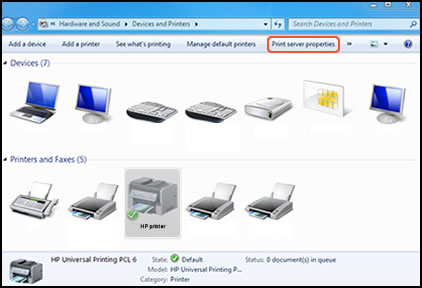
  2. Click the icon for your printer, and then click Print server properties.

     Location of Print server properties

    NOTE: 

    If Print server properties does not display, right-click an empty area in the Printers window, select Run as administrator from the drop-down menu, and then select Server Properties.

  3. If the User Account Control window displays, click Continue.

  4. On the Forms tab, select the Create a new form check box, and then type a name for the new paper size in the Form nametext box.

    NOTE: 

    You must choose a different, unique name for the new custom paper size. Do not use an existing paper size name.

    1. Create a new form

    2. Form name

  5. Select Metric or English, and then type the dimensions of your custom paper in the Width and Height text boxes.

    NOTE: 

    Leave the Printer area margins set at 0.00.

    1. Metric or English

    2. Width and Height

  6. Click Save Form, and then click OK or Close.

    NOTE: 

    Supported paper sizes vary by printer. If you input custom dimensions that your printer does not support, the new custom paper size does not display when you attempt to print. Check the printer specifications for your printer for more information on supported paper sizes..

Refer this article to know more information about creating a custom size paper. Click Here


Also, Try the steps recommended below.


Step 1: Open your spreadsheet in Excel.


Step 2: Click the Page Layout tab at the top of the window.

click the page layout tab


Step 3: Click the Size button in the Page Setup section of the ribbon at the top of the window, then click the Legal option.

how to print on legal paper in excel 2010


Refer the printer user guide to know more information about loading legal size paper on the printer. Click Here


Note: Refer page 18 for more information.


Hope this answers your query! 
Have a pleasant weekend ahead! 🙂


Please click “Accept as Solution” if you feel my post solved your issue, it will help others find the solution.

Click the “Kudos, Thumbs Up" on the bottom right to say “Thanks” for helping!

A4Apollo
I am an HP Employee

† The opinions expressed above are the personal opinions of the authors, not of HP. By using this site, you accept the <a href="https://www8.hp.com/us/en/terms-of-use.html" class="udrlinesmall">Terms of Use</a> and <a href="/t5/custom/page/page-id/hp.rulespage" class="udrlinesmall"> Rules of Participation</a>.