-
×InformationNeed Windows 11 help?Check documents on compatibility, FAQs, upgrade information and available fixes.
Windows 11 Support Center. -

-
×InformationNeed Windows 11 help?Check documents on compatibility, FAQs, upgrade information and available fixes.
Windows 11 Support Center. -
- HP Community
- Printers
- Printing Errors or Lights & Stuck Print Jobs
- Print Problem

Create an account on the HP Community to personalize your profile and ask a question
05-31-2020 11:38 AM
Hi,
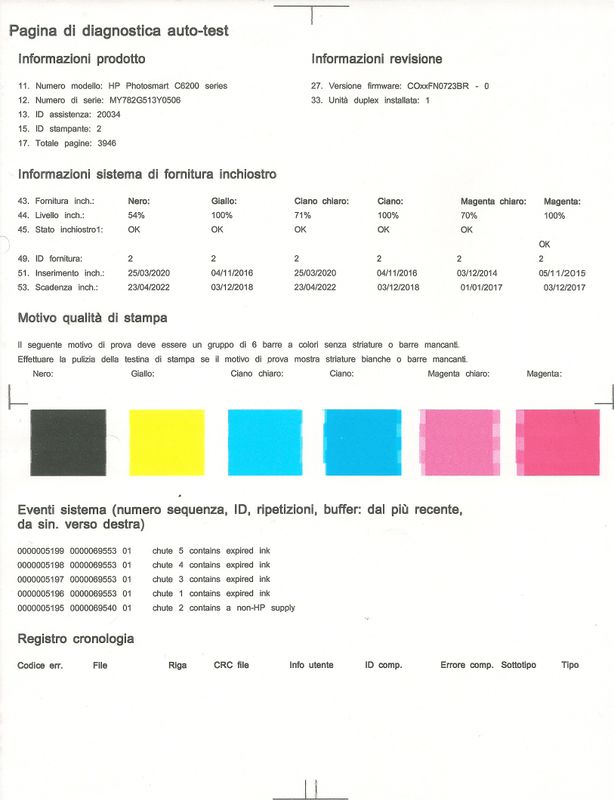
I have an old printer (2008) and recently when I print and photocopy in colours, the image is split as you can see in the following image. Could someone help me to solve this problem? Obviously I don't think it is a commonplace headprints allignment problem.
06-03-2020 11:09 AM
@DaybyDay Due to the current global COVID-19 situation, we're seeing an influx of customers coming in for support and we appreciate your patience.
That said, since the issue appears on photocopy as well, it points out a hardware malfunction, however, to confirm the same, I suggest you follow the below steps:
Step 1: Use genuine HP ink cartridges
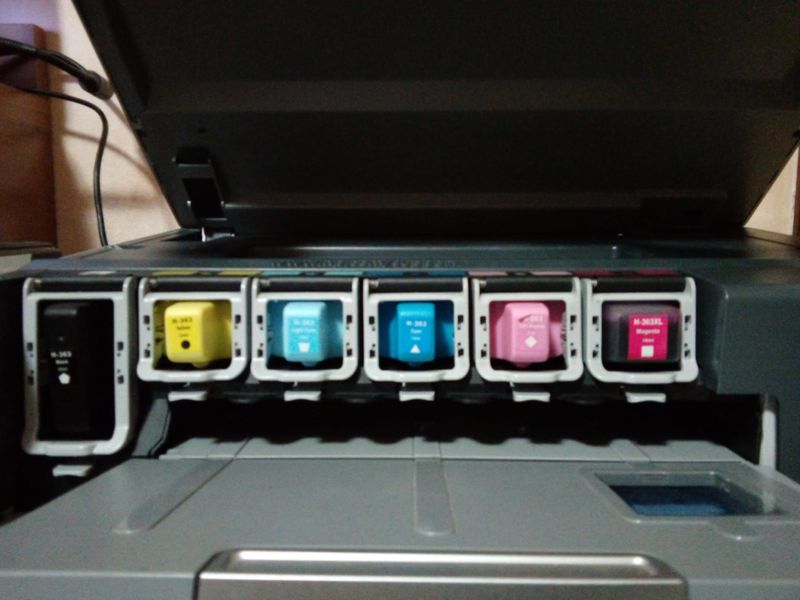
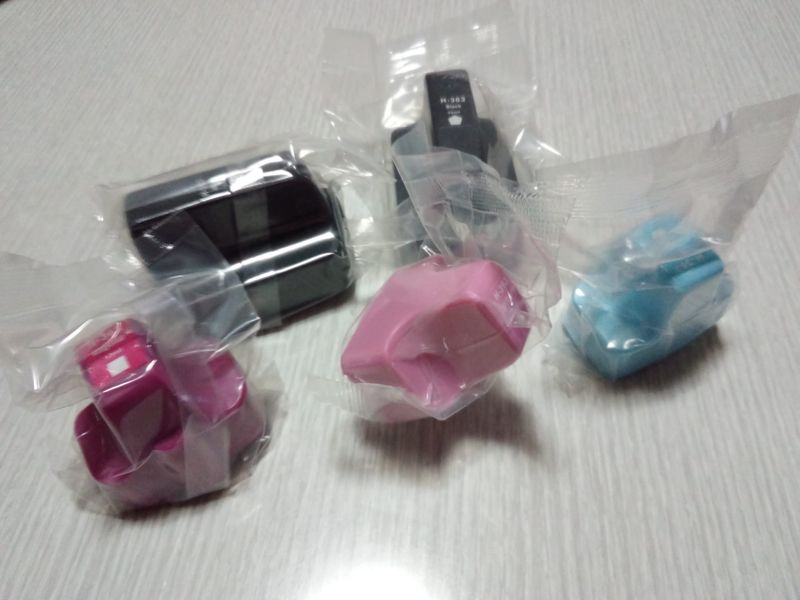
HP recommends that you use genuine HP ink or toner supplies. HP cannot guarantee the quality or reliability of non-HP or refilled cartridges. If you do not use genuine HP cartridges, the steps in this document might not resolve the issue. To check the authenticity of your cartridges, go to the HP anti-counterfeit webpage (in English).
Purchase replacement cartridges and other supplies from the HP Store or local retailers.
If installing genuine HP ink cartridges did not resolved the issue, continue to the next step.
Step 2: Make sure you are using the appropriate paper for your print job
Make sure the paper you are using is appropriate for the print job. If it is not, reload the printer with an appropriate paper type.
NOTE:To purchase paper in the United States and Canada, go to HP Home & Home Office.
-
Load the paper print side down in the input tray. Many papers have printing and nonprinting sides, such as photo paper and envelopes. Usually, the smoother side is the "print side," and sometimes the non-print side has a logo of the paper manufacturer on it.
-
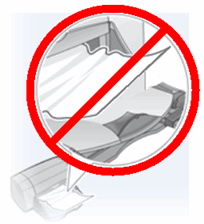
Do not use wrinkled or curled paper. Use only clean, wrinkle-free paper.

-
Use the correct paper type for your project.
-
For everyday text documents, plain paper with ColorLok technology works well. Paper with ColorLok technology is industry-standard paper that works well with HP ink.

-
For documents with dense printing, such as high contrast graphics or photos, use HP Advanced Photo Paper for best results.
-
Some paper might not absorb ink as well as others. If your prints smear easily, make sure you are using a recommended paper.
-
-
Store photo paper in its original packaging inside a resealable plastic bag. Store the paper on a flat surface in a cool, dry place. Load 10-20 sheets of photo paper only when you are ready to print, and then put the unused paper back in the packaging.
-
Try using a different paper. This determines if the problem is related to the paper.
Try to print again. If the print quality is unacceptable, continue to the next step.
FOR DETAILS & FURTHER INSTRUCTIONS, USE THIS LINK: CLICK HERE & Skip to Step 3: Check the print settings (onward)
(By the end of this article all the issues should be resolved)
P.S: Welcome to HP Community 😉
Let me know how that pans out,
If you feel I was helpful, simply click on Accept as Solution to help the community grow,
That said, I will have someone follow-up on this to ensure you've been helped,
Just in case you don't get back to us,
have a good day, ahead.
Riddle_Decipher
I am an HP Employee
Learning is a journey, not a destination.
Let's keep asking questions and growing together.
06-04-2020 02:39 PM
@DaybyDay Yes, if you've gone through all the steps and yet the issue persists, I suggest you talk to HP support and discuss your options as it's most likely a hardware malfunction, follow the below steps to get started:
1) Click on this link - http://www.hp.com/contacthp/
2) Click on Sign-in or select the product using the below step:
3) Enter the serial of your device.
4) Select the country from the drop-down.
5) Click on "Show Options".
Fill the web-form, to populate a case number and phone number for yourself!
Also, if you are having trouble navigating through the above options, it's most likely because the device is out of warranty, if yes? please send me a private message with the region you are contacting us from,
here's how private messages work: Click here for details
If you wish to thank me for my efforts, you could click on "Accept as solution" on my post as the solution should help others too.
Riddle_Decipher
I am an HP Employee
Learning is a journey, not a destination.
Let's keep asking questions and growing together.