
-
×InformationNeed Windows 11 help?Check documents on compatibility, FAQs, upgrade information and available fixes.
Windows 11 Support Center. -
-
×InformationNeed Windows 11 help?Check documents on compatibility, FAQs, upgrade information and available fixes.
Windows 11 Support Center. -
- HP Community
- Printers
- Printing Errors or Lights & Stuck Print Jobs
- Print quality when I changed black ink cartridge

Create an account on the HP Community to personalize your profile and ask a question
Your account also allows you to connect with HP support faster, access a personal dashboard to manage all of your devices in one place, view warranty information, case status and more.
Check some of the most frequent questions about Instant Ink: HP INSTANT INK, HP+ PLANS: INK AND TONER.
Check out our Black or Color Ink Not Printing, Other Print Quality Issues info about: Print quality and Cartridge Issues.

It has been a while since anyone has replied. Simply ask a new question if you would like to start the discussion again.

06-27-2018 08:59 PM
 HP Recommended
Product: ENVY 4500 all in one
Operating System: macOS 10.13 High Sierra
I just changed the black ink cartridge, and when it prints, it is a little fuzzy. Also, when it prints a large black space, there are horizontal white lines through the black. I haven't had this happen with this printer before. It prints nicer when I take the black ink cartridge out, but I have a large quantity to print, and I need the black ink. How can I fix this?
Solved! Go to Solution.
1 ACCEPTED SOLUTION
Accepted Solutions


06-28-2018 07:32 PM
HP Recommended
Welcome to the HP Forums 🙂
I would like to take a moment and thank you for using this forum, it is a great place to find answers & meet like minded tech enthusiasts!
As I understand the printer quality is poor while printing black since the black cartridge was changed,
No worries, as I'll be glad to help you, that said, I'll need a few more details to dissect your concern & provide an accurate solution:
- Have you ensured genuine HP Ink cartridges are being used?
- Check if the copier works fine as a stand alone printer?
While you respond to that, here's what you need to do:
Step 1: Use genuine HP ink cartridges
HP recommends that you use genuine HP ink or toner supplies. HP cannot guarantee the quality or reliability of non-HP or refilled cartridges. If you do not use genuine HP cartridges, the steps in this document might not resolve the issue. To check the authenticity of your cartridges, go to hp.com/go/anticounterfeit.
Purchase replacement cartridges and other supplies from the HP Store or local retailers.
NOTE:
Rough handling at the store or during installation can cause print quality problems with newly installed ink cartridges. If you see print problems with newly installed ink cartridges, wait for a few hours for the automatic servicing routine to complete, and then try to print again.
If using genuine HP ink cartridges did not resolve the issue, continue to the next step.
Step 2: Allow the printer to rest
A short period of printer inactivity can clear up some problems. If possible, let the printer sit idle for 40 minutes, and then try printing again.
If allowing the printer to rest did not resolve the issue, continue to the next step.
Step 3: Check the paper
Make sure the paper you are using is appropriate for the print job. If it is not, reload the printer with an appropriate paper type.
NOTE:
To purchase paper in the United States and Canada, go to HP Home & Home Office.
-
Load the paper print side down in the input tray. Many papers have printing and nonprinting sides, like photo paper and other special media. Usually, the smoother side is the "print side," and sometimes the non-print side has a logo of the paper manufacturer on it.
-
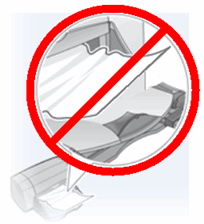
Do not use wrinkled or curled paper. Load only clean, wrinkle-free paper into the product.
-
Use the correct paper type for your project.
-
For everyday text documents, plain paper with ColorLok technology works well. Paper with ColorLok technology is industry-standard paper that works well with HP ink.

-
For documents with dense printing, such as high contrast graphics or photographs, use HP Advanced Photo Paper for the best results.
-
Some media may not absorb ink as well as others. If your prints smear easily, make sure you are using a recommended paper.
-
-
Store photo paper in its original packaging inside a resealable plastic bag. Store the paper on a flat surface in a cool, dry place. Load 10-20 sheets of photo paper only when you are ready to print, and then put the unused paper back in the packaging.
-
Try using a different paper. This determines if the problem is related to the paper.
NOTE:
If you see vertical streaks on your printed documents, the paper or print media might not have been handled or stored properly. Do not replace ink cartridges to fix vertical streaks.
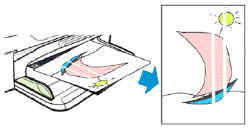
The following images show the difference between vertical and horizontal streaks.
Examples of horizontal streaks and vertical streaks in printout
Figure : Horizontal streaks in printout
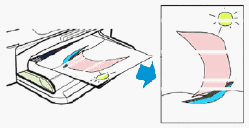
Figure : Vertical streaks in printout
Continue with the following troubleshooting steps if your printout contains horizontal streaks, or other print quality issues besides vertical streaks.
Do not replace cartridges for vertical streaks in a printout. Instead, check the paper as described earlier in this document, or search for a document that covers this issue.
After checking the paper, try to print again. If the print quality is unacceptable, continue to the next step.
CLICK HERE FOR DETAILS & FURTHER INSTRUCTIONS - STEP 4 ONWARD
(By the end of this article all the issues should be resolved)
Let me know how that pans out
I will have a colleague follow-up on this to ensure it's taken care off,
as I need to know if the issue has been resolved, to get proper sleep at night.
feel free to give me a virtual high-five by clicking the 'Thumbs Up' icon,
followed by clicking on 'Accepted as Solution' as it would help the community gain more knowledge,
And Have a great day Ahead!
Riddle_Decipher
I am an HP Employee
Learning is a journey, not a destination.
Let's keep asking questions and growing together.
3 REPLIES 3
06-28-2018 07:32 PM
HP Recommended
Welcome to the HP Forums 🙂
I would like to take a moment and thank you for using this forum, it is a great place to find answers & meet like minded tech enthusiasts!
As I understand the printer quality is poor while printing black since the black cartridge was changed,
No worries, as I'll be glad to help you, that said, I'll need a few more details to dissect your concern & provide an accurate solution:
- Have you ensured genuine HP Ink cartridges are being used?
- Check if the copier works fine as a stand alone printer?
While you respond to that, here's what you need to do:
Step 1: Use genuine HP ink cartridges
HP recommends that you use genuine HP ink or toner supplies. HP cannot guarantee the quality or reliability of non-HP or refilled cartridges. If you do not use genuine HP cartridges, the steps in this document might not resolve the issue. To check the authenticity of your cartridges, go to hp.com/go/anticounterfeit.
Purchase replacement cartridges and other supplies from the HP Store or local retailers.
NOTE:
Rough handling at the store or during installation can cause print quality problems with newly installed ink cartridges. If you see print problems with newly installed ink cartridges, wait for a few hours for the automatic servicing routine to complete, and then try to print again.
If using genuine HP ink cartridges did not resolve the issue, continue to the next step.
Step 2: Allow the printer to rest
A short period of printer inactivity can clear up some problems. If possible, let the printer sit idle for 40 minutes, and then try printing again.
If allowing the printer to rest did not resolve the issue, continue to the next step.
Step 3: Check the paper
Make sure the paper you are using is appropriate for the print job. If it is not, reload the printer with an appropriate paper type.
NOTE:
To purchase paper in the United States and Canada, go to HP Home & Home Office.
-
Load the paper print side down in the input tray. Many papers have printing and nonprinting sides, like photo paper and other special media. Usually, the smoother side is the "print side," and sometimes the non-print side has a logo of the paper manufacturer on it.
-
Do not use wrinkled or curled paper. Load only clean, wrinkle-free paper into the product.
-
Use the correct paper type for your project.
-
For everyday text documents, plain paper with ColorLok technology works well. Paper with ColorLok technology is industry-standard paper that works well with HP ink.
-
For documents with dense printing, such as high contrast graphics or photographs, use HP Advanced Photo Paper for the best results.
-
Some media may not absorb ink as well as others. If your prints smear easily, make sure you are using a recommended paper.
-
-
Store photo paper in its original packaging inside a resealable plastic bag. Store the paper on a flat surface in a cool, dry place. Load 10-20 sheets of photo paper only when you are ready to print, and then put the unused paper back in the packaging.
-
Try using a different paper. This determines if the problem is related to the paper.
NOTE:
If you see vertical streaks on your printed documents, the paper or print media might not have been handled or stored properly. Do not replace ink cartridges to fix vertical streaks.
The following images show the difference between vertical and horizontal streaks.
Examples of horizontal streaks and vertical streaks in printout
Figure : Horizontal streaks in printout
Figure : Vertical streaks in printout
Continue with the following troubleshooting steps if your printout contains horizontal streaks, or other print quality issues besides vertical streaks.
Do not replace cartridges for vertical streaks in a printout. Instead, check the paper as described earlier in this document, or search for a document that covers this issue.
After checking the paper, try to print again. If the print quality is unacceptable, continue to the next step.
CLICK HERE FOR DETAILS & FURTHER INSTRUCTIONS - STEP 4 ONWARD
(By the end of this article all the issues should be resolved)
Let me know how that pans out
I will have a colleague follow-up on this to ensure it's taken care off,
as I need to know if the issue has been resolved, to get proper sleep at night.
feel free to give me a virtual high-five by clicking the 'Thumbs Up' icon,
followed by clicking on 'Accepted as Solution' as it would help the community gain more knowledge,
And Have a great day Ahead!
Riddle_Decipher
I am an HP Employee
Learning is a journey, not a destination.
Let's keep asking questions and growing together.
08-01-2019 06:42 PM
HP Recommended
@jmeln38 That's awesome, I mean you are a little late but better late than never 😉
Thanks for responding, have an awesome day, ahead.
Riddle_Decipher
I am an HP Employee
Learning is a journey, not a destination.
Let's keep asking questions and growing together.

Be alert for scammers posting fake support phone numbers and/or email addresses on the community.
If you think you have received a fake HP Support message, please report it to us by clicking on "Flag Post".
† The opinions expressed above are the personal opinions of the authors, not of HP. By using this site, you accept the Terms of Use and Rules of Participation.


Didn't find what you were looking for?
Ask the community
† The opinions expressed above are the personal opinions of the authors, not of HP. By using this site, you accept the <a href="https://www8.hp.com/us/en/terms-of-use.html" class="udrlinesmall">Terms of Use</a> and <a href="/t5/custom/page/page-id/hp.rulespage" class="udrlinesmall"> Rules of Participation</a>.