• ×
    Information
    Need Windows 11 help?
    Check documents on compatibility, FAQs, upgrade information and available fixes.
    Windows 11 Support Center.
  • post a message
  • ×
    Information
    Need Windows 11 help?
    Check documents on compatibility, FAQs, upgrade information and available fixes.
    Windows 11 Support Center.
  • post a message
Guidelines
Here is the solution for Blue screen error 83C0000B on HP OfficeJet Pro 8010e, 9020e Printer Series: Click here to view.
Check some of the most frequent questions about Instant Ink: HP INSTANT INK, HP+ PLANS: INK AND TONER.


Check out our Black or Color Ink Not Printing, Other Print Quality Issues info about: Print quality and Cartridge Issues.
HP Recommended
HP 9020 Series
Microsoft Windows 10 (64-bit)

I just recently bought this wonderful printer, and I love it. The problem was, I didn't want to go through ink so fast, so I reduced the print quality to 300 dpi. Which has been great up until today. I received a fax that I could barely read and needed to reset the DPI. But I can't figure out for the life of me how to do it. Anyone with any suggestions please?

1 ACCEPTED SOLUTION

Accepted Solutions
HP Recommended

@Geminidreem 


Fax speed might impact quality though much has to do with whether the fax even gets to its destination.

?


Scan Options, including DPI can be changed in the HP Scan software (printer software).


NOTES

  1. Scan options, including available DPI settings, vary by printer model and printer software. 
  2. Scanning documents may provide different options than scanning the content as an Image.
  3. Higher DPI settings are typically reserved / available for image / photo scanning.


Open the printer software on the computer > select Scan a Document / Photo > HP Scan 

OR 

Open HP Scan directly from the folder:

C:\Program Files (x86)\HP\HP OfficeJet Pro 9020 series\bin\HPScan.exe


Select a Scan shortcut - set the options, including settings in "More"

Use Save-As , Save icon, or "Create New Scan Shortcut" to save any changes


NOTE:  Newer printers, including this one, might only require that you select a "starting shortcut" make changes to the settings and then click the tiny "save" icon that will show up next to the shortcut you have changed.  Alternatively, select a PDF / JPEG / OCR / "Other" scan option, make changes, and "Create New Scan Shortcut"


Leave that Shortcut as the "Preference" (default until you choose another shortcut).


Example

9025_HP_Scan_Menu_19025_HP_Scan_Menu_1


The printer options, that is, "things you can do On the printer"


Webscan works through EWS (Embedded Web Server) and requires no "extra" software to run.

Files are saved to your computer to a location of your choice.


The first time you use it, Webscan may not be "enabled".

Enable WebScan 

Open your favorite browser > type / enter Printer IP address into URL / Address bar

Tab Settings > Security > Administrator Settings

Find / Verify / Enable Webscan (Check box)

Click Apply to save any changes


Example

EWS_9025_Settings_Security_Administrator_WebscanEWS_9025_Settings_Security_Administrator_Webscan


Open your favorite browser > type / enter Printer IP address into URL / Address bar

Tab Scan > Scan to Computer > Webscan


NOTE

You have to select the "Glass" as the source to set the higher DPI


Example


EWS_9025_Webscan_1EWS_9025_Webscan_1


EWS_Webscan_1BEWS_Webscan_1B


Other Scan Options include and are not limited to:


Paint - scan from printer 


Paint (mspaint) can scan (using this printer) at 1200 DPI - it takes a while to complete the scan, of course - long seconds of waiting instead of almost instant service.  More setup than using Scan and Capture...


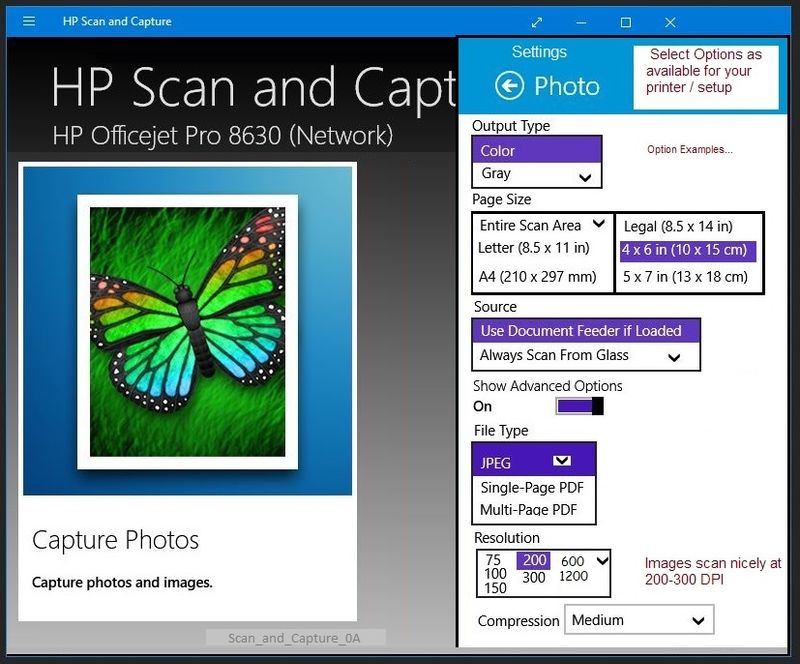
HP Scan and Capture can scan as JPEG (photo / image) files at higher DPIs.  Software is easy to use, too.

HP Scan and Capture - Windows Store - Requires Windows 8 or higher

Scan_and_Capture_0AScan_and_Capture_0A


Reference and Resources – Places to find (more) help and learn about your Printer

Clarification of terms and "what the printer can do" (Specifications)

Printer Homepage – “Things that are your printer”

NOTE:  Content depends on device type and Operating System

HP Drivers / Software / Firmware Updates, How-to Videos, Bulletins/Notices, Lots of How-to Documents, Troubleshooting, Access to the Print and Scan Doctor (Windows), User Guides, Product Information, more

When the website support page opens, Select (as available) a Category > Topic > Subtopic

HP OfficeJet Pro 9025 All-in-One Printer

Dragon-Fur

View solution in original post

1 REPLY 1
HP Recommended

@Geminidreem 


Fax speed might impact quality though much has to do with whether the fax even gets to its destination.

?


Scan Options, including DPI can be changed in the HP Scan software (printer software).


NOTES

  1. Scan options, including available DPI settings, vary by printer model and printer software. 
  2. Scanning documents may provide different options than scanning the content as an Image.
  3. Higher DPI settings are typically reserved / available for image / photo scanning.


Open the printer software on the computer > select Scan a Document / Photo > HP Scan 

OR 

Open HP Scan directly from the folder:

C:\Program Files (x86)\HP\HP OfficeJet Pro 9020 series\bin\HPScan.exe


Select a Scan shortcut - set the options, including settings in "More"

Use Save-As , Save icon, or "Create New Scan Shortcut" to save any changes


NOTE:  Newer printers, including this one, might only require that you select a "starting shortcut" make changes to the settings and then click the tiny "save" icon that will show up next to the shortcut you have changed.  Alternatively, select a PDF / JPEG / OCR / "Other" scan option, make changes, and "Create New Scan Shortcut"


Leave that Shortcut as the "Preference" (default until you choose another shortcut).


Example

9025_HP_Scan_Menu_19025_HP_Scan_Menu_1


The printer options, that is, "things you can do On the printer"


Webscan works through EWS (Embedded Web Server) and requires no "extra" software to run.

Files are saved to your computer to a location of your choice.


The first time you use it, Webscan may not be "enabled".

Enable WebScan 

Open your favorite browser > type / enter Printer IP address into URL / Address bar

Tab Settings > Security > Administrator Settings

Find / Verify / Enable Webscan (Check box)

Click Apply to save any changes


Example

EWS_9025_Settings_Security_Administrator_WebscanEWS_9025_Settings_Security_Administrator_Webscan


Open your favorite browser > type / enter Printer IP address into URL / Address bar

Tab Scan > Scan to Computer > Webscan


NOTE

You have to select the "Glass" as the source to set the higher DPI


Example


EWS_9025_Webscan_1EWS_9025_Webscan_1


EWS_Webscan_1BEWS_Webscan_1B


Other Scan Options include and are not limited to:


Paint - scan from printer 


Paint (mspaint) can scan (using this printer) at 1200 DPI - it takes a while to complete the scan, of course - long seconds of waiting instead of almost instant service.  More setup than using Scan and Capture...


HP Scan and Capture can scan as JPEG (photo / image) files at higher DPIs.  Software is easy to use, too.

HP Scan and Capture - Windows Store - Requires Windows 8 or higher

Scan_and_Capture_0AScan_and_Capture_0A


Reference and Resources – Places to find (more) help and learn about your Printer

Clarification of terms and "what the printer can do" (Specifications)

Printer Homepage – “Things that are your printer”

NOTE:  Content depends on device type and Operating System

HP Drivers / Software / Firmware Updates, How-to Videos, Bulletins/Notices, Lots of How-to Documents, Troubleshooting, Access to the Print and Scan Doctor (Windows), User Guides, Product Information, more

When the website support page opens, Select (as available) a Category > Topic > Subtopic

HP OfficeJet Pro 9025 All-in-One Printer

Dragon-Fur

† The opinions expressed above are the personal opinions of the authors, not of HP. By using this site, you accept the <a href="https://www8.hp.com/us/en/terms-of-use.html" class="udrlinesmall">Terms of Use</a> and <a href="/t5/custom/page/page-id/hp.rulespage" class="udrlinesmall"> Rules of Participation</a>.