• ×
    Information
    Need Windows 11 help?
    Check documents on compatibility, FAQs, upgrade information and available fixes.
    Windows 11 Support Center.
  • post a message
  • ×
    Information
    Need Windows 11 help?
    Check documents on compatibility, FAQs, upgrade information and available fixes.
    Windows 11 Support Center.
  • post a message
Guidelines
Here is the solution for Blue screen error 83C0000B on HP OfficeJet Pro 8010e, 9020e Printer Series: Click here to view.
Check some of the most frequent questions about Instant Ink: HP INSTANT INK, HP+ PLANS: INK AND TONER.


Check out our Black or Color Ink Not Printing, Other Print Quality Issues info about: Print quality and Cartridge Issues.
HP Recommended
HP 8625

I had some network issues and got an updated router (i think).  Whatever the cable guy did, he switched our internet boxes and then created a new network name.  The name is similar to our old network name (Free Wifi).  The new name is just Free Wifi-5G.  When I try to connect the printer, it still shows the old network - although it says that it can't connect.  It does not show the network name.  Also, when I try to manually enter the name EXACTLY and the password, it says it can't connect.


I do not have a USB cord to connect any other way.  All other devices in the house are working perfectly fine on the network.

1 REPLY 1
HP Recommended

@snfreeman 


This is one of those situations where you need to know and understand the equipment that comprises your network.


No worries.  Assuming you have access to the router, you can do this.  If you cannot access the router, contact your "cable guy", explain the solution, and ask for help.


Your old printer (and even many new models) does not support 5GHz (5G).  The printer must be connected to 2.4GHz (2.4G).


The solution:

Log into the router - make sure it is set to broadcast on both 5GHz and 2.4GHz.

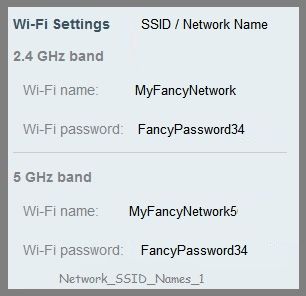
Each bandwidth should have its own SSID (network name).

The wireless password for both networks can be the same.


Example

SSID (network name) for 2.4G = MyFancyNetwork

SSID (network name) for 5G = MyFancyNetwork5


Wireless Password for both SSID networks:  FancyPassword34


Network_SSID_Names_1Network_SSID_Names_1    SSID_Dual_Band_Example_1SSID_Dual_Band_Example_1


Change the SSID / network on the printer.

The network settings can be set directly on the printer control panel - read how to do this in the  User Guide

Chapter 8 - Network setup - starting on Page 105

and

Chapter 10 - Solve a problem > subsection Solve network problems - starting on Page 150


and / or

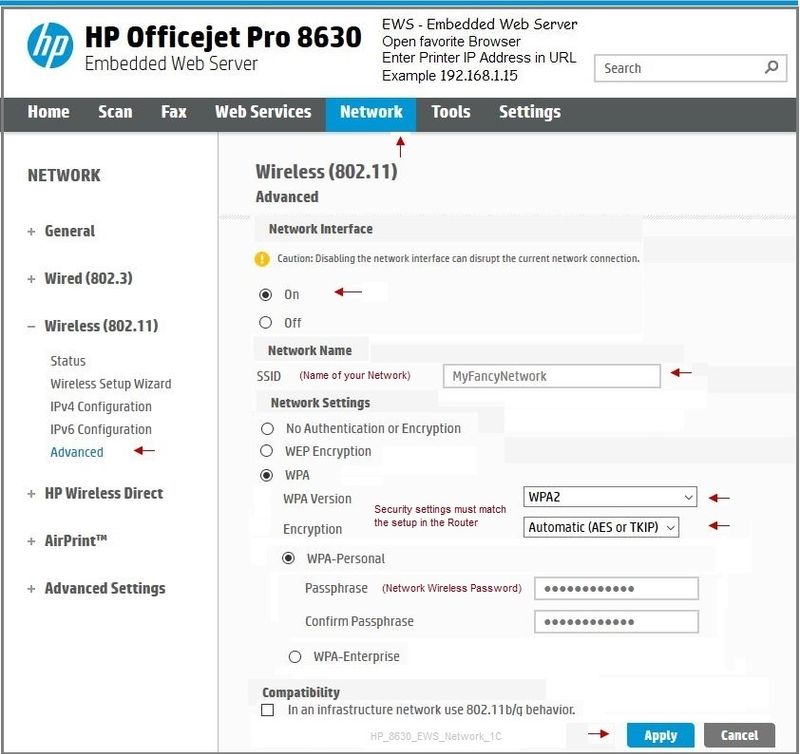
If the printer is on the network, use the Embedded Web Server (EWS) to configure / update the network settings.


Reminder:  After  you change the SSID / network and click Apply, the connection to the printer will break.  This is normal.  Wait a minute and then open a new EWS web page to see the updated entries.


Open your favorite browser > type / enter Printer IP address into URL / Address bar

Tab Network > Wireless (802.11)

Adjust settings, Click Apply to save changes


HP_8630_EWS_Network_1CHP_8630_EWS_Network_1C


FYI ONLY

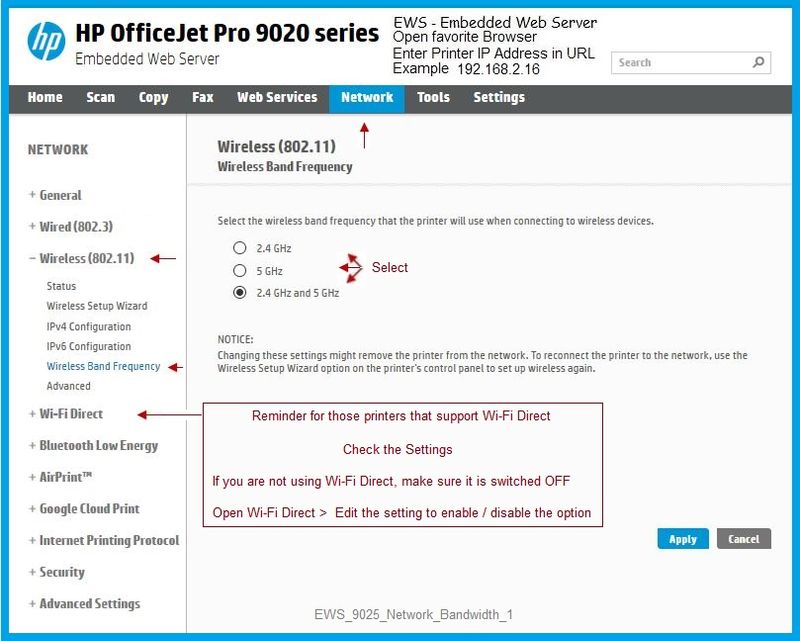
Note for "Dual Band" Setup / Configuration

Printers that support dual bandwidth will include a setting that can be adjusted.

Printers that do not support dual bandwidth (both 2.4 and 5G) do not include dual band option setting.


Example - Officejet Pro 9025 - Dual Band configuration

EWS_9025_Network_Bandwidth_1EWS_9025_Network_Bandwidth_1


References / How-to / Additional Resources


No Connection after Router or Wi-Fi Settings Change


 Find Your Wireless WEP, WPA, WPA2 Password


 User Guide


Reference and Resources – Places to find help and learn how to use your Printer

Clarification of terms and "what the printer can do" (Specifications)

Printer Homepage – “Things that are your printer”

NOTE:  Content depends on device type and Operating System

➡️  HP Drivers / Software / Firmware Updates, How-to Videos, Bulletins/Notices, Lots of How-to Documents, Troubleshooting, Access to the Print and Scan Doctor (Windows), User Guides, Product Information (Specifications), more

When the website support page opens, Select (as available) a Category > Topic > Subtopic

HP Officejet Pro 8625 e-All-in-One Printer


Thank you for participating in the HP Community Forum.

We are a world community of HP enthusiasts dedicated to supporting HP technology.


Dragon-Fur

† The opinions expressed above are the personal opinions of the authors, not of HP. By using this site, you accept the <a href="https://www8.hp.com/us/en/terms-of-use.html" class="udrlinesmall">Terms of Use</a> and <a href="/t5/custom/page/page-id/hp.rulespage" class="udrlinesmall"> Rules of Participation</a>.