• ×
    Information
    Need Windows 11 help?
    Check documents on compatibility, FAQs, upgrade information and available fixes.
    Windows 11 Support Center.
  • post a message
  • ×
    Information
    Need Windows 11 help?
    Check documents on compatibility, FAQs, upgrade information and available fixes.
    Windows 11 Support Center.
  • post a message
Guidelines
Here is the solution for Blue screen error 83C0000B on HP OfficeJet Pro 8010e, 9020e Printer Series: Click here to view.
Check some of the most frequent questions about Instant Ink: HP INSTANT INK, HP+ PLANS: INK AND TONER.


Check out our Black or Color Ink Not Printing, Other Print Quality Issues info about: Print quality and Cartridge Issues.
HP Recommended
HP OfficeJet 8022e All-in-One Printer
Microsoft Windows 10 (64-bit)

My brand new OJ8022eAIO is stuck in the #10 envelope detection after the Firmware update.  The only thing that clears it is to turn off and restart the printer :/. Even the Print Scan Dr. can't find any issues.  This is very annoying, especially for this printer because it goes through a multitude of self-tests when you restart it. Then when it goes to sleep I have the same problem. 

I had an OJ4630eAIO that I paid $99 on a holiday special that lasted for years with nary an issue. This printer costs 3x more and already it can not perform any better than the $99 printer 😕

Is there going to be an update to this?  

3 REPLIES 3
HP Recommended

@daveb40258 


Welcome to the HP User Community.


Not sure why the setting would get "stuck".

You should be able to set / adjust / update the paper size & type after the paper is changed.

The printer display panel or EWS can be used to edit / update / check the paper size & type.


Ideas


>> If not done, consider - Update the printer firmware

HP OfficeJet 8020/OfficeJet Pro 8020/OfficeJet Pro 8030 All-in-One Printer series Firmware Update 


>> Try a printer "Restart" as described in this document:

HP printer does not turn on

Note the instruction to have the printer plugged directly into a wall outlet (as opposed to a surge protector strip).


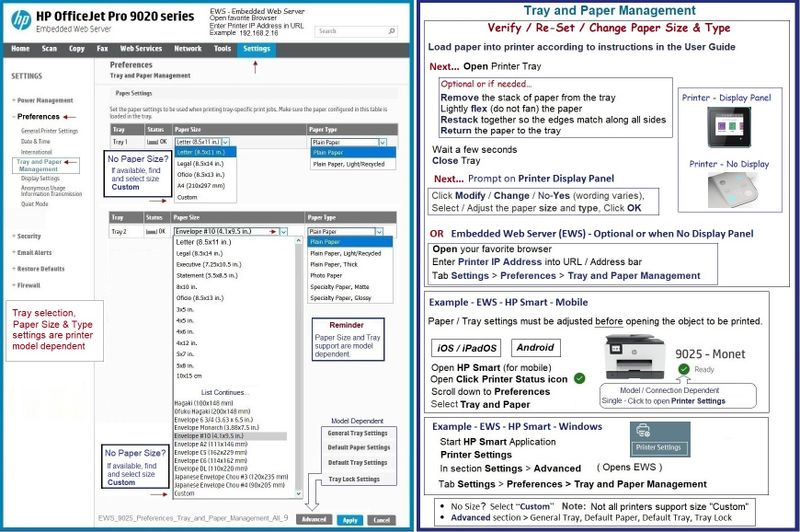
>> Check that the printer is aware of the paper that is loaded in the printer tray(s).


Example - Paper Size & Type - Printer Display / EWS >Tray and Paper Management

EWS_9025_Preferences_Tray_and_Paper_Management_All_9EWS_9025_Preferences_Tray_and_Paper_Management_All_9


What else?

FYI - Ignore / Use / Consider

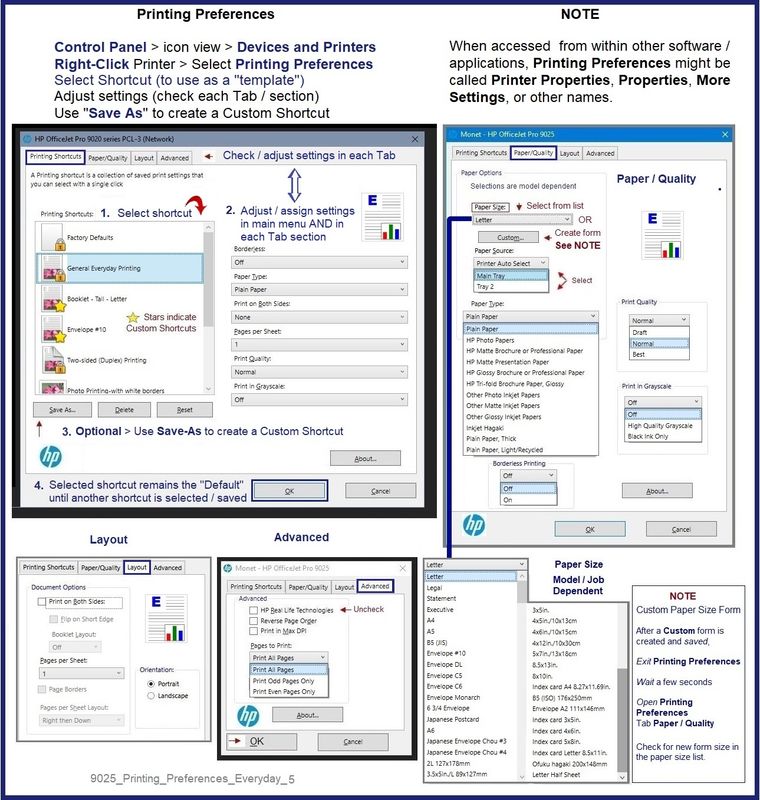
Check Printing Preferences - Select (and leave selected) your preferred "Default" shortcut

Selected shortcut generally "sticks" until changed to a different entry.


Example - Printing Preferences - Shortcut "Everyday Printing"

9025_Printing_Preferences_Everyday_59025_Printing_Preferences_Everyday_5


=+=+=+=+=+=+=+=+=+=+=+=+=+=+=+=+=+=+=+=+=+=+=+=+=+=+=+=+=+=+=+=+=+=+=+=+=+=+

HP Printer Home Page - References and Resources – Learn about your Printer  - Solve Problems

 “Things that are your printer”

When the website support page opens, Select (as available) a Category > Topic > Subtopic

NOTE:  Content depends on device type and Operating System

Categories:  Alerts, Access to the Print and Scan Doctor (Windows), Warranty Check, HP Drivers / Software / Firmware Updates, How-to Videos, Bulletins/Notices, Lots of How-to Documents, Troubleshooting, Manuals > User Guides, Product Information (Specifications), Supplies, and more

Open

HP OfficeJet 8022e All-in-One Printer 


Thank you for participating in the HP Community.

Our Community is comprised of volunteers - people who own and use HP devices.

Click Helpful = Yes to say Thank You

Question / Concern Answered, Click "Accept as Solution"


Dragon-Fur

HP Recommended

Ok well, nothing there was a help...maybe if I had a Hp 9020 printer.

I forgot to mention: When the print dialog box appears #10 envelope is the only option I have. Same with the OSD on the printer. I removed the tray I've run print doctor, and the link to the firmware update, the update says the printer is already up to date.

Like I said, restarting the printer is the only fix.

I appreciate the reply, but there is a deeper issue here. I will try to reinstall the driver and see what happens.....stay tuned. 🙂

DB


HP Recommended

@daveb40258 


Well, true - you had a 9025, you might not be in this boat.  That said, it appears that something is just stuck.

If the simpler Restart (described in the Power document) did not help,

If you reload the full driver printer software and that does not help,

Then the next step is a deeper reset, I think,


Update >> Add link to User Guide

Section Restore original factory defaults and settings - Starting on Page 169


Let us know if you need help to reinstall the full driver.


Thank you for participating in the HP Community.

Our Community is comprised of volunteers - people who own and use HP devices.

Click Helpful = Yes to say Thank You

Question / Concern Answered, Click "Accept as Solution"


Dragon-Fur

† The opinions expressed above are the personal opinions of the authors, not of HP. By using this site, you accept the <a href="https://www8.hp.com/us/en/terms-of-use.html" class="udrlinesmall">Terms of Use</a> and <a href="/t5/custom/page/page-id/hp.rulespage" class="udrlinesmall"> Rules of Participation</a>.