-
×InformationNeed Windows 11 help?Check documents on compatibility, FAQs, upgrade information and available fixes.
Windows 11 Support Center. -

-
×InformationNeed Windows 11 help?Check documents on compatibility, FAQs, upgrade information and available fixes.
Windows 11 Support Center. -
- HP Community
- Printers
- Printing Errors or Lights & Stuck Print Jobs
- Printhead error

Create an account on the HP Community to personalize your profile and ask a question
03-11-2023 11:04 PM
I just opened and set up this new printer. Everything was good until after the alignment page was printed. The page printed but when I placed it on the scanner to align, an error message popped up "the printhead is not intended for use on this printer or is damage". What happened? I removed the ink cartridges and reinstall them. I've even reset the printer but the same message pops up? How can that be? It's never been used. HELP!!
03-15-2023 10:25 AM
Hi @Notechie1122,
Welcome to the HP Support Community.
I'd like to help!
Step 1: Check for obstructions in the carriage path
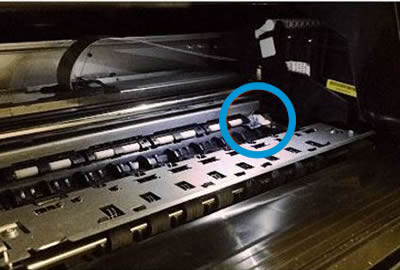
Clear obstructions from the carriage area inside the printer.
With the printer on, disconnect the power cord from the rear of the printer.
Open the door to access the carriage inside of the printer.
Look in the carriage path for debris such as crumpled paper or dislodged labels, and then remove any that you find.

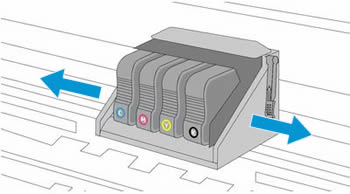
Use your hand to move the carriage to each side, making sure it moves freely. If the carriage is stalled or docked to one side of the printer and you cannot move it, continue with these steps.

Close the carriage access door.
Reconnect the power cord to the rear of the printer, and then turn the printer on.
If the error persists, continue to the next step.
Step 2: Reset the printer
Reset the printer to recover from printer failures.
With the printer turned on, disconnect the power cord from the printer.
Unplug the power cord from the power source.
Wait 60 seconds.
Reconnect the power cord to a wall outlet and to the printer.
NOTE:
HP recommends plugging the printer directly into a wall outlet.
If the error persists, continue to the next step.
Step 3: Service the printer
Service or replace your HP product if the issue persists after completing all the preceding steps.
Go to Contact HP Customer Support to schedule a product repair or replacement. If you are in Asia Pacific, you will be directed to a local service center in your area.
To confirm your warranty status, go to HP Product Warranty Check. Repair fees might apply for out-of-warranty products.
Hope this helps! Keep me posted for further assistance.
Please click “Accepted Solution” if you feel my post solved your issue, it will help others find the solution. Click the “Kudos/Thumbs Up" on the bottom right to say “Thanks” for helping!
Nal_NR-
HP Community Moderator
03-21-2023 08:15 AM
Hi @Notechie1122,
Thank you for performing the recommended steps, I see that it has not helped.
However, I see that you have already placed an order for a new printer, If you need further assistance, feel free to reach out to us.
Take care
Nal_NR-
HP Community Moderator