-
×InformationNeed Windows 11 help?Check documents on compatibility, FAQs, upgrade information and available fixes.
Windows 11 Support Center. -

-
×InformationNeed Windows 11 help?Check documents on compatibility, FAQs, upgrade information and available fixes.
Windows 11 Support Center. -
- HP Community
- Printers
- Printing Errors or Lights & Stuck Print Jobs
- Printing photos

Create an account on the HP Community to personalize your profile and ask a question
07-27-2020 07:45 AM
I want to print photos from my computer on photo pater. I tell so to microsoft office photo but my printer prints on A4 paper.
What do i do wrong ?
(I apologise for my bad english, I'm a french speaking Belgian).
Thank you.
07-27-2020 08:10 AM
Your English is fine.
My French is much worse than you imagine. Smiling.
First - make sure printer has printer software installed.
If you have not done so - if printer software is not installed then do install Full Feature Software
HP ENVY Photo 6200 All-in-One Print and Scan Driver and Accessories
After software is installed, Restart computer and log in.
================================================================
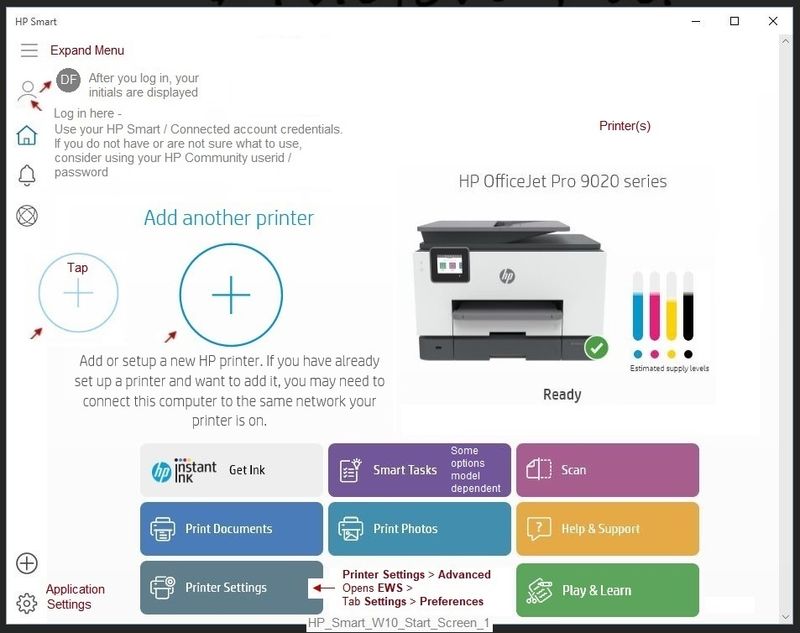
Next - If you have not done so, install the HP Smart for Windows Application.
HP Smart for Windows
HP Smart is an application available in the Microsoft Windows Store
Learn how to use HP Smart on your Windows 10 computer.
Open the Software and Drivers Support Website for your printer > Check the Box Get the App
OR
HP Printers - Using the HP Smart App (Windows 10)
NOTE: Website includes the HP Smart software for Windows and Mobile devices, plus an FAQ section to assist with questions / issues
================================================================
Next, if you have not done so, load paper, check paper and settings.
Page 15 Chapter 2 - Get started
Check / Adjust / Retain the Paper at the Printer Panel
Open Printer Tray,
If you have not yet done so, add desired paper type
Close Tray
IF applicable for your printer:
Look for a message on the Printer Control Panel,
Click Modify (wording varies), set the paper size and type, Click OK
NOTE: If the size of the Paper Size is not in the Drop-down menu, Select Custom (likely the last selection in the list)
Set the Preferences - Windows
- Check / enable the printer as the “Default Printer”
Control Panel > icon view > Devices and Printers > Right-Click on your printer > Set as Default
- Select and adjust settings in each category for the Media (kind of paper), source (tray), and paper size.
Control Panel > icon view > Devices and Printers > Right-Click on your printer > Printing Preferences
OR
Windows key + S (search for) Printers and Scanners
Left-Click on (your) Printer > Manage > Printing Preferences
Next
Tab Printing Shortcuts > Click / Highlight your preferred shortcut > Click Apply > Click OK to exit
NOTE - Make changes to a Shortcut
- Select a shortcut and adjust the settings for paper, source (tray), other settings
- If supported, save the edited shortcut or use “Save As” or “Create Custom Shortcut” to save under a new name
- Click OK to save the setup
================================================================
Next - Open HP Smart for Windows application and Print your photo
If you have not done so, "add" your printer, log into your HP account in the application, set anything else that catches your attention.
Get ready to print...
Basic Instructions
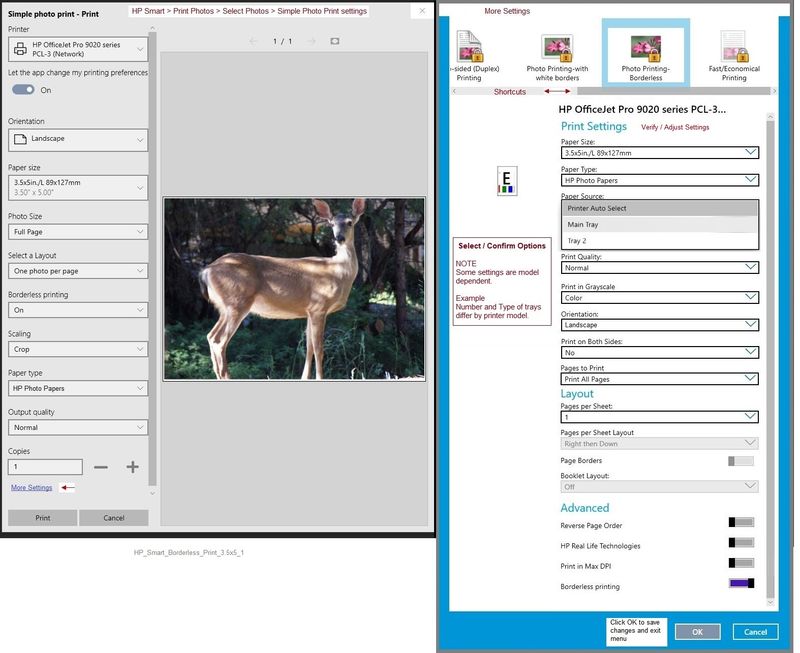
Click to Print a photo
Find and add the photo you want to print
Adjust the print settings on the main print menu, including Photo Size and the Size of your paper
Click More Settings
Click one of the Shortcuts along the ribbon (to print a photo or everyday printing)
Adjust the settings on the More Settings menu
Click OK to leave the More Settings menu
Click to Print
Examples
Reminder: Some selections are printer dependent!
HP_Smart_W10_Start_Screen_1
HP_Smart_Borderless_Print_3.5x5_1
References
Product Specifications for the HP ENVY Photo 6232 All-in-One Printer (K7G26B)
Category How to > Select Topic: Print > Select Subtopic: Instructions & Settings
Printer Home Page - References and Resources – Learn about your Printer - Solve Problems
“Things that are your printer”
NOTE: Content depends on device type and Operating System
Categories: Alerts, Access to the Print and Scan Doctor (Windows), Warranty Check, HP Drivers / Software / Firmware Updates, How-to Videos, Bulletins/Notices, Lots of How-to Documents, Troubleshooting, User Guides / Manuals, Product Information (Specifications), more
When the website support page opens, Select (as available) a Category > Topic > Subtopic
HP ENVY Photo 6232 All-in-One Printer
Thank you for participating in our HP Community.
We are a world community of volunteers dedicated to supporting HP technology
Click Thumbs Up to say Thank You.
Answered? Click "Accept as Solution" to help others find it.