-
×InformationNeed Windows 11 help?Check documents on compatibility, FAQs, upgrade information and available fixes.
Windows 11 Support Center. -

-
×InformationNeed Windows 11 help?Check documents on compatibility, FAQs, upgrade information and available fixes.
Windows 11 Support Center. -
- HP Community
- Printers
- Printing Errors or Lights & Stuck Print Jobs
- Re: Printing problem

Create an account on the HP Community to personalize your profile and ask a question
05-06-2019
08:51 AM
- last edited on
05-06-2019
08:56 AM
by
kevin-t
Goodevening,i want help about my printer because i try to print and my black ink don't print,but the three colours works perfect! I change it with a new one but it make the same , don't print!I 'll try the hp print and scan doctor but nothing happened! Thank you for listen to me and sorry about my English.
Solved! Go to Solution.
Accepted Solutions
05-07-2019 08:02 AM
@ggeo4, Welcome to HP Support Community!
Allow the printer to rest
Sometimes, print quality issues can be resolved during a period of inactivity. Consider waiting for about 30 minutes, and then try the print job again.
-
If these steps resolved the issue, you do not need to continue troubleshooting.
-
If the issue persists, continue to the next solution.
Check the print settings
Follow these steps to check the print settings to make sure that they are appropriate for your print job.
-
In the software application, you are trying to print from, click File, and then click Print.
The Print window opens.
-
Open the Properties dialog box.
Depending on the software application, the button might be Properties, Options, Printer Setup, Printer, or Preferences.
-
Depending on your print job, you might consider modifying the following settings:
-
Paper Type: If you are printing on photo paper, select the type of photo paper you are attempting to print on.
-
Print Quality: If you are dissatisfied with the quality of your printouts, increase the print quality. To print more quickly, decrease print quality. These options typically include Best, Normal, and Draft modes.
-
Paper Size: If you are printing on a different size of paper than you normally print on, select the correct paper size.
-
Black and White: If you want to print in black and white only, select the grayscale option.
-
-
After selecting the print settings, click OK to apply the settings, and then click Print.
Check the estimated ink levels
Low ink levels can impact print quality. Replace any ink cartridges that are low or empty.
-
Search Windows for your printer model name, and then click the printer name in the list of results.
The printer software opens.
-
Click the Estimated Ink Levels icon.
The HP Toolbox opens.
-
Click the Estimated Ink Levels tab.
The Estimated Ink Levels window opens.
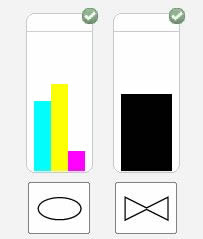
Figure: The Estimated Ink Levels window

Replace the cartridge if it is low on ink. If the issue persists, refer to this document for further troubleshooting steps(steps 7 to 13)
Keep me posted.
Cheers 🙂
Please click “Accept as Solution” if you feel my post solved your issue, it will help others find the solution. Click the “Kudos/Thumbs Up" on the bottom right to say “Thanks” for helping!
TEJ1602
I am an HP Employee
05-07-2019 08:02 AM
@ggeo4, Welcome to HP Support Community!
Allow the printer to rest
Sometimes, print quality issues can be resolved during a period of inactivity. Consider waiting for about 30 minutes, and then try the print job again.
-
If these steps resolved the issue, you do not need to continue troubleshooting.
-
If the issue persists, continue to the next solution.
Check the print settings
Follow these steps to check the print settings to make sure that they are appropriate for your print job.
-
In the software application, you are trying to print from, click File, and then click Print.
The Print window opens.
-
Open the Properties dialog box.
Depending on the software application, the button might be Properties, Options, Printer Setup, Printer, or Preferences.
-
Depending on your print job, you might consider modifying the following settings:
-
Paper Type: If you are printing on photo paper, select the type of photo paper you are attempting to print on.
-
Print Quality: If you are dissatisfied with the quality of your printouts, increase the print quality. To print more quickly, decrease print quality. These options typically include Best, Normal, and Draft modes.
-
Paper Size: If you are printing on a different size of paper than you normally print on, select the correct paper size.
-
Black and White: If you want to print in black and white only, select the grayscale option.
-
-
After selecting the print settings, click OK to apply the settings, and then click Print.
Check the estimated ink levels
Low ink levels can impact print quality. Replace any ink cartridges that are low or empty.
-
Search Windows for your printer model name, and then click the printer name in the list of results.
The printer software opens.
-
Click the Estimated Ink Levels icon.
The HP Toolbox opens.
-
Click the Estimated Ink Levels tab.
The Estimated Ink Levels window opens.
Figure: The Estimated Ink Levels window

Replace the cartridge if it is low on ink. If the issue persists, refer to this document for further troubleshooting steps(steps 7 to 13)
Keep me posted.
Cheers 🙂
Please click “Accept as Solution” if you feel my post solved your issue, it will help others find the solution. Click the “Kudos/Thumbs Up" on the bottom right to say “Thanks” for helping!
TEJ1602
I am an HP Employee