
-
×InformationNeed Windows 11 help?Check documents on compatibility, FAQs, upgrade information and available fixes.
Windows 11 Support Center. -
-
×InformationNeed Windows 11 help?Check documents on compatibility, FAQs, upgrade information and available fixes.
Windows 11 Support Center. -
- HP Community
- Printers
- Printing Errors or Lights & Stuck Print Jobs
- Re: Problem with restarting printer

Create an account on the HP Community to personalize your profile and ask a question
Your account also allows you to connect with HP support faster, access a personal dashboard to manage all of your devices in one place, view warranty information, case status and more.
Check some of the most frequent questions about Instant Ink: HP INSTANT INK, HP+ PLANS: INK AND TONER.
Check out our Black or Color Ink Not Printing, Other Print Quality Issues info about: Print quality and Cartridge Issues.

It has been a while since anyone has replied. Simply ask a new question if you would like to start the discussion again.

06-19-2020 06:43 AM
 HP Recommended
Product: HP DeskJet 2630
Operating System: Microsoft Windows 10 (64-bit)
I have just installed my new printer HP DeskJet 2630, everything seems to work fine, except for one thing. Every time a switch it on again with the power switch, it starts printing the "Printer Alignment Page". That is annoying, and a waste of ink and paper.
How can I avoid this?
Solved! Go to Solution.
1 ACCEPTED SOLUTION
Accepted Solutions
06-20-2020
05:24 AM
- last edited on
02-12-2026
11:11 AM
by
 FriendlyMod
HP Recommended
Hello again,
I managed to solve all my problems, and I would like to share my experience with you, maybe it will help others with similar problems.
Another problem that persisted before, was that the app HP (under Windows 10) always indicated that my printer was offline, so I was never able to use the app. Nevertheless, I was able to print without problems from the computer. Also this morning, the scan function disappeared completely. Since the German support was only available from next Monday onwards, I decided the following:
I uninstalled all HP drivers from the computer, so that the printer was no longer listed. Also I uninstalled the HP app.
Then I downloaded and installed the app again, and used it to simply add a new printer to the computer. That worked fine, and now everything works perfectly. The app now shows my printer is online and ready, and I can use it for scanning etc.
Best regards, and thanks again for your previous advice and help.
Robel1
5 REPLIES 5

06-19-2020 07:36 AM - edited 06-19-2020 07:39 AM
HP Recommended
Hello,
The symptom that the printer encounters, is related to the fact that the cartridge alignment process is not carried out correctly or is not completed.
In order to complete the cartridge alignment process, it is necessary to scan the alignment page of the printer.
To do this, do the following:
- After print out the alignment page, lift the scanner lid.
- Place the alignment page with the print side down on the scanner glass, and then position it according to the engraved guides around the glass.
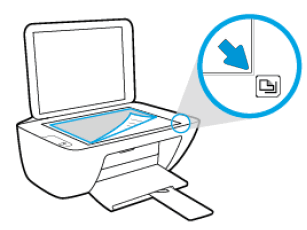
- Close the scanner lid.
- Press the Start Copy Black button (
 ) or the Start Copy Color button (
 ) on the printer control panel.
The printer aligns the ink cartridges.
Do not hesitate to contact us in case of need.
Best regards,
I'm not an HP employee. Did this message answer your question? Include it below as an Accept As Solution! Did you find this message useful? Click on the thumbs up set to give a Compliment! Follow us on Facebook Assistance customers HP.

06-19-2020 09:24 AM
HP Recommended
First of all thank you for your quick and good advice. I followed your instructions, but after pressing the "Color Copy" button, nothing seems to have happened. I pressed it again, but then the printer simply made a copy of the same page.
On the copy, I noticed that the printer did not copy the two black squares on the bottom of the original page completely, he only managed to copy the top part, so that instead of two black squares, only two lines appeared. On other documents i copied, I also noticed that the very bottom part is not completely covered.
Can it be that I messed it up because I copied other documents before I followed your instructions?
In any case, the main problem seems to be solved, since the printer does not print the Printer Alignment Page any more after switching it on again.
Best regards
Robel1
06-19-2020 09:38 AM - edited 06-19-2020 09:39 AM
HP Recommended
Thanks for your return,
As a first step, please follow the instructions in the HP Improving Scan Quality link.
Then, please follow the instructions in the HP Resolving Copy Problems link.
If the issue of copy and scan quality continues, I recommend that you Contact HP HP Support in your country/region or contact HP Support Germany-German.
Please do not hesitate to contact us in case of need.
Best regards,
I'm not an HP employee. Did this message answer your question? Include it below as an Accept As Solution! Did you find this message useful? Click on the thumbs up set to give a Compliment! Follow us on Facebook Assistance customers HP.
06-19-2020 10:33 AM
HP Recommended
Once again, thank you for your swift reply. The first 2 steps you mention do not offer a solution.
My only remaining problem is that the very bottom fringe of documents that I copy, or print from the computer, is not being printed, approx. only 1 cm. When printing from the computer, I can reduce the size of the document to 92%, and then everything is printed. I have no problems with quality of the print.
As it seems, for this relatively small problem I have to contact the German support.
Best regards
Robel1
06-20-2020
05:24 AM
- last edited on
02-12-2026
11:11 AM
by
FriendlyMod
HP Recommended
Hello again,
I managed to solve all my problems, and I would like to share my experience with you, maybe it will help others with similar problems.
Another problem that persisted before, was that the app HP (under Windows 10) always indicated that my printer was offline, so I was never able to use the app. Nevertheless, I was able to print without problems from the computer. Also this morning, the scan function disappeared completely. Since the German support was only available from next Monday onwards, I decided the following:
I uninstalled all HP drivers from the computer, so that the printer was no longer listed. Also I uninstalled the HP app.
Then I downloaded and installed the app again, and used it to simply add a new printer to the computer. That worked fine, and now everything works perfectly. The app now shows my printer is online and ready, and I can use it for scanning etc.
Best regards, and thanks again for your previous advice and help.
Robel1

Be alert for scammers posting fake support phone numbers and/or email addresses on the community.
If you think you have received a fake HP Support message, please report it to us by clicking on "Flag Post".
† The opinions expressed above are the personal opinions of the authors, not of HP. By using this site, you accept the Terms of Use and Rules of Participation.


Didn't find what you were looking for?
Ask the community
† The opinions expressed above are the personal opinions of the authors, not of HP. By using this site, you accept the <a href="https://www8.hp.com/us/en/terms-of-use.html" class="udrlinesmall">Terms of Use</a> and <a href="/t5/custom/page/page-id/hp.rulespage" class="udrlinesmall"> Rules of Participation</a>.