• ×
    Information
    Need Windows 11 help?
    Check documents on compatibility, FAQs, upgrade information and available fixes.
    Windows 11 Support Center.
  • post a message
  • ×
    Information
    Need Windows 11 help?
    Check documents on compatibility, FAQs, upgrade information and available fixes.
    Windows 11 Support Center.
  • post a message
Guidelines
Here is the solution for Blue screen error 83C0000B on HP OfficeJet Pro 8010e, 9020e Printer Series: Click here to view.
Check some of the most frequent questions about Instant Ink: HP INSTANT INK, HP+ PLANS: INK AND TONER.


Check out our Black or Color Ink Not Printing, Other Print Quality Issues info about: Print quality and Cartridge Issues.
HP Recommended
HP desk jet 3755

I just changed the black ink cartridge. Now when I try to print a word document, every other line prints just fine, and the other lines print only the top half of the letters. I'm using Hp ink cartridges, and have installed the cartridge properly. I have printed a printer report page, and that doesn't print out propery either

1 REPLY 1
HP Recommended

@JENNA1934

Welcome to HP Forums, 
This is a great place to get support, find answers and tips. Thank you for posting your query. I'll be more than glad to help you out 🙂 


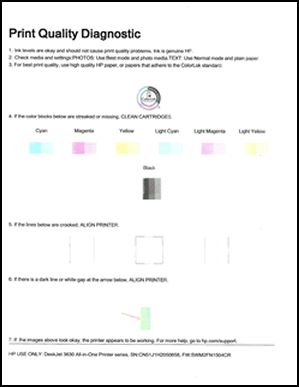
To diagnose this issue, print a Print Quality Diagnostic page using the HP software, and then evaluate the results.

Print a Print Quality Diagnostic page in Windows:

Use HP Printer Assistant to print a Print Quality Diagnostic page in Windows.

  1. Load plain paper into the input tray.

  2. Search Windows for your printer model name, and then click the printer name in the list of results.

    HP Printer Assistant opens.

  3. Click Maintain Your Printer.

  4. On the Device Services tab, click Print Quality Diagnostics Page .

    A Print Quality Diagnostic page prints.

    Figure : Print Quality Diagnostic page without defects

    Example of a Print Quality Diagnostic page without defects

If you find any defect on the report, try the steps below:

  • Clean the ink cartridges
  • Align the printer
  • Manually clean the area around the ink nozzles

NOTE: If the printhead is badly clogged, it might require another cleaning cycle. If so, wait 30 minutes before you perform both levels of cleaning again.


For instruction and additional troubleshooting steps: Click here


Please click “Accept as Solution” if you feel my post solved your issue, it will help others find the solution.

Click the “Kudos, Thumbs Up" on the bottom right to say “Thanks” for helping!

Roopa-S
I am an HP Employee

† The opinions expressed above are the personal opinions of the authors, not of HP. By using this site, you accept the <a href="https://www8.hp.com/us/en/terms-of-use.html" class="udrlinesmall">Terms of Use</a> and <a href="/t5/custom/page/page-id/hp.rulespage" class="udrlinesmall"> Rules of Participation</a>.