• ×
    Information
    Need Windows 11 help?
    Check documents on compatibility, FAQs, upgrade information and available fixes.
    Windows 11 Support Center.
  • post a message
  • ×
    Information
    Need Windows 11 help?
    Check documents on compatibility, FAQs, upgrade information and available fixes.
    Windows 11 Support Center.
  • post a message
Guidelines
Seize the moment! nominate yourself or a tech enthusiast you admire & join the HP Community Experts!
Check some of the most frequent questions about Instant Ink: HP INSTANT INK, HP+ PLANS: INK AND TONER.


Check out our Black or Color Ink Not Printing, Other Print Quality Issues info about: Print quality and Cartridge Issues.
HP Recommended
Officejet 6954
Microsoft Windows 10 (64-bit)

Black ink prints not much or not at all.  Second level "Clean Printheads" gets it going for a day or two, but then print quality deteriorates almost to nothing or less, and then second level "Clean Printheads" is again required.  Other printhead colors are fine.

1 ACCEPTED SOLUTION

Accepted Solutions
HP Recommended

@Larrykoen
 

Welcome to the HP Support Community!


I'm afraid this could be a possible Hardware issue with the printhead of the printer, let us try these steps:


Step 1: Make sure the ink cartridges are properly vented and seated correctly

Follow Step 9 from this document


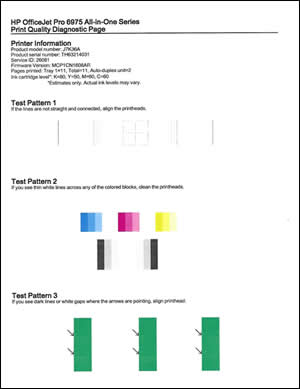
Step 2: Print a Print Quality Diagnostic Page

  1. Load plain white paper in the input tray.

  2. From the printer control panel, open the Setup  menu.

  3. Open the Reports or Tools menu.

  4. Touch Print Quality Report.

    A Print Quality Diagnostic Page prints.

    Example of the Print Quality Diagnostic Page

Step 3: Try replacing the Black ink cartridge and print/copy.


Let me know how this goes.


Please click “Accept as Solution” if you feel my post solved your issue, it will help others find the solution. Click the “Kudos/Thumbs Up" on the bottom right to say “Thanks” for helping!

KUMAR0307
I am an HP Employee

View solution in original post

3 REPLIES 3
HP Recommended

@Larrykoen
 

Welcome to the HP Support Community!


I'm afraid this could be a possible Hardware issue with the printhead of the printer, let us try these steps:


Step 1: Make sure the ink cartridges are properly vented and seated correctly

Follow Step 9 from this document


Step 2: Print a Print Quality Diagnostic Page

  1. Load plain white paper in the input tray.

  2. From the printer control panel, open the Setup  menu.

  3. Open the Reports or Tools menu.

  4. Touch Print Quality Report.

    A Print Quality Diagnostic Page prints.

    Example of the Print Quality Diagnostic Page

Step 3: Try replacing the Black ink cartridge and print/copy.


Let me know how this goes.


Please click “Accept as Solution” if you feel my post solved your issue, it will help others find the solution. Click the “Kudos/Thumbs Up" on the bottom right to say “Thanks” for helping!

KUMAR0307
I am an HP Employee

HP Recommended

Changing the Black ink cartridge fixed the problem.  The print quality diagnostic page that I made using the previous cartridge had horizontal white lines about 2mm high running through the middle of some of the text; e.g., a line through "ern 1" in "Test Pattern 1," and a line through "straight and connected, align the printheads" in "If the lines are not straight and connected, align the printheads."


I changed the Black ink cartridge and immediately printed a perfect print quality diagnostic page.


I had thought that this might be the solution but was reluctant to change the cartridge when it was still half full of ink, since the Instant Ink program calls for me to wait until the printer says to replace the cartridge.  Thank you for your assistance.

HP Recommended

@Larrykoen


Glad to know the issue is resolved after replacing the Black ink cartridge.

Since you are enrolled in Instant ink program and the previous ink cartridge was defective, I would like to send you a Black ink cartridge as a replacement. I would require some information to process the order.

I'm sending you a private message. Please check the mailbox icon at the top-right corner of this screen.

KUMAR0307
I am an HP Employee

† The opinions expressed above are the personal opinions of the authors, not of HP. By using this site, you accept the <a href="https://www8.hp.com/us/en/terms-of-use.html" class="udrlinesmall">Terms of Use</a> and <a href="/t5/custom/page/page-id/hp.rulespage" class="udrlinesmall"> Rules of Participation</a>.