• ×
    Information
    Need Windows 11 help?
    Check documents on compatibility, FAQs, upgrade information and available fixes.
    Windows 11 Support Center.
  • post a message
  • ×
    Information
    Need Windows 11 help?
    Check documents on compatibility, FAQs, upgrade information and available fixes.
    Windows 11 Support Center.
  • post a message
Guidelines
Here is the solution for Blue screen error 83C0000B on HP OfficeJet Pro 8010e, 9020e Printer Series: Click here to view.
Check some of the most frequent questions about Instant Ink: HP INSTANT INK, HP+ PLANS: INK AND TONER.


Check out our Black or Color Ink Not Printing, Other Print Quality Issues info about: Print quality and Cartridge Issues.
HP Recommended
office jet 6500
Microsoft Windows 10 (64-bit)

The carriage is stuck in the right hand position

3 REPLIES 3
HP Recommended

@modelaman


Welcome to HP support community.


Make sure the carriage moves freely

  1. Press the Power button () to turn on the product, if it is not already on.
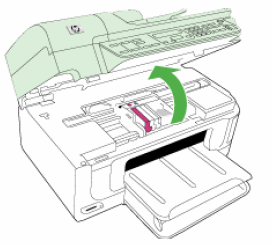
  2. Open the cartridge access door.

    Figure : Open the cartridge access door

    Illustration of opening the cartridge access door
  3. Without turning off the product, disconnect the power cord from the rear of the product.

       WARNING: 

    You must disconnect the power cord to move parts by hand without the risk of an electrical shock.

  4. Unplug the power cord from the wall outlet.

  5. Look inside the product to see where the carriage is stuck, and then check for any torn paper or other objects that might restrict the movement of the carriage.

    NOTE: 

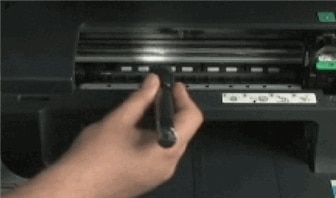
    You might need a flashlight to illuminate areas inside the product


    Figure : Use a flashlight to see inside the product

    Photo of using a flashlight to see inside the product.
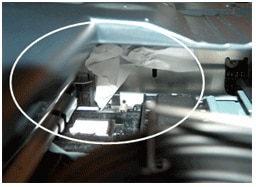
  6. Remove any loose paper or obstructions you find.

    Figure : Example of obstruction in carriage access area

    Photograph of paper obstructing carriage
  7. Reach inside the product through the cartridge access door, and then manually move the carriage. You might have to reach through the paper output tray to access the carriage.

    • If the carriage is stuck on the right side of the product, move the carriage to the left side of the product.

    • If the carriage is stuck on the left side of the product, move the carriage to the right side of the product.

    • If the carriage is stuck in the middle of the product, move the carriage to the right side of the product.

  8. Make sure the carriage moves freely across the width of the product by gently pushing the carriage to the left, and then to the right.

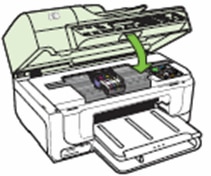
  9. Close the cartridge access door.

    Figure : Close the cartridge access door.

    Illustration of closing the cartridge access door
  10. Reconnect the power cord to the rear of the product.

  11. Plug the power cord into the wall outlet.

  12. Press the Power button () to turn on the product.

  13. Try to print a self-test report. See the steps on how to print a self-test report at the beginning of this document.

Plug the product directly into a wall outlet

  1. Disconnect the power cord from the rear of the product.

  2. Unplug the power cord from any power strips or surge suppressors.

  3. Plug the power cord directly into a wall outlet.

  4. Reconnect the power cord to the rear of the product.

  5. Press the Power button () to turn on the product.

  6. Try to print a self-test report. See the steps on how to print a self-test report at the beginning of this document.

You can refer this HP document for more assistance:- Click here


Let me know how it goes.

To thank me for my efforts to help you, please mark my post as an accepted solution so that it benefits several others.

Cheers.

Sandytechy20
I am an HP Employee

HP Recommended

Hello  SandyTechy20,  First I need to admit I made a typo in the product model number it should have been 7500.  That may not matter since the printers are similar.  In response to your solution recommendation I have completed the steps suggested and was not ableto free the carriage assy from the RH position.  I deceided to dismantle the printer to discover the cause of the jam.  I discovered that an excessive amount of ink had collected under the ink head carriage RH homing position.  That ink collected and jelled causing the carriage to become lodged at the RH location.  I beleive that is where the prinhead cleaning operation takes place.  I thinkit was the cleaning mechanism hardware that becam clogged and inoperabble.  I was able to clean out the ink build-up and free the carriage.  I reassembled the printer and now get a printhead error.  Since I am out of new cartridges and can’ttell if the printer will work without buying a new set of Cartridges I plan to just scrap the printer.  In the future I will be sure th inspect for ink build-up before it causes a failure.  Hopefully this will help others.  Modelaman

HP Recommended

@modelaman


Good to know that we worked together and found out the cause of the issue.

Feel free to contact us in the future if you need any assistance.


To thank me for my efforts to help you, please mark my post as an accepted solution so that it benefits several others.

Cheers.

Sandytechy20
I am an HP Employee

† The opinions expressed above are the personal opinions of the authors, not of HP. By using this site, you accept the <a href="https://www8.hp.com/us/en/terms-of-use.html" class="udrlinesmall">Terms of Use</a> and <a href="/t5/custom/page/page-id/hp.rulespage" class="udrlinesmall"> Rules of Participation</a>.