-
×InformationNeed Windows 11 help?Check documents on compatibility, FAQs, upgrade information and available fixes.
Windows 11 Support Center. -

-
×InformationNeed Windows 11 help?Check documents on compatibility, FAQs, upgrade information and available fixes.
Windows 11 Support Center. -
- HP Community
- Printers
- Printing Errors or Lights & Stuck Print Jobs
- paper size issue

Create an account on the HP Community to personalize your profile and ask a question
11-18-2023 08:55 AM
ENVY 7855
Trying to print a 4 by 6 document on letter size paper. Printer keeps telling me to load 4 by 6 paper. Also when I tried to print a letter size document still get error massage out of paper - load 4 by 6 paper
11-18-2023 12:36 PM
Welcome to the HP Community --
The Printer is not aware of what it is printing -- as long as the paper size / type / weight are supported in the tray you are using, the printer is happy to print the content sent to it.
Skip anything you don't need, don't want, already know, or is not relevant...
==========================================
Printer - Paper Size / Type - Tray and Paper
If the paper size, type, and weight is supported,
Reload the paper into the proper tray and immediately check / modify the paper size / type on the printer or using EWS.
EWS > HP Document / How-to
Use the HP printer Embedded Web Server (EWS)
NOTE: Find printer IP address
Section How do I manually assign an IP address to my printer? Items 1-2
EWS – Browser – Tray and Paper Management
Open your Browser > Type / enter the Printer IP address into URL / Address bar
Tab Settings > Preferences > Tray and Paper (Management)
Select / Adjust settings for Paper Size / Type
Model Dependent: Advanced section
Click Apply to save changes
Tray and Paper – Paper Size / Paper Type / Paper Weight
Reminder
HP Smart Mobile might require that paper size / type is rechecked / adjusted before the content is opened for print.
Paper Size, Type, and Weight loaded in the printer tray must be supported for use in that tray.
EWS provides access and control to check / adjust Tray and Paper Settings.
Notes
Depending on the printer model, the Printer Control Panel might provide access to Paper Size / Type settings immediately after the paper is (re)loaded into the appropriate printer intake tray.
Trays
- If the printer lacks a second tray, all paper / types are supported in the single available tray.
- Printers that include a Photo Tray generally restrict the paper sizes and paper type supported in that tray.
Example - EWS - Tray and Paper
EWS_7855_Preferences_Tray_and_Paper_Management_All_4
========================================
Printer - Printer Software - Windows
HP Full Feature Software / Full Driver printer software - supports printing and scanning from the web, printing in in other software and programs (for example, Word), and provides access to the full range of Printing Preferences / Shortcuts. The full driver adds at least two shortcuts to the Desktop: Printer Assistant and HP Scan. If the printer model includes built-in Fax hardware, the software supports the setup and use of the Fax driver. No Sign-in required.
Basics - Printer Software
Note: Skip part(s) that are not relevant to your situation.
Uninstall the full driver printer software from Programs and Features
Restart computer and Sign in
Install a new copy of the Full Feature Software
Restart computer and Sign in
Full Feature Software / Full Driver printer software
Details Page - Driver - For your Printer
>>> Full Feature Software - Web Pack Installation Package - Information - Download / Save / Install <<<
HP ENVY Photo 7800 All-in-One Print and Scan Driver and Accessories
After the software is installed, Restart the computer and log in
Next,
Optional – Supported for your printer
Next – HP Universal Scan Software - NOTE: Model and Operating System version Dependent
HP Universal Scan Full Feature Software adds OCR libraries to installed HP Scan software.
HPUS installs a new, full featured, (and separate) HP Scan software shortcut to the Desktop.
Note: HPUS can be installed as standalone or installed after the full feature printer software.
After the software is installed, Restart the computer and sign in
HP Universal Scan Software provides a larger GUI to make using the software easier on high-resolution screens. New features have been added to the main menu to help with navigating the settings.
=== --- === --- === --- === --- ===
Printer Assistant - Manage Scan to Computer
The installation of the full driver generally adds at least two shortcuts to the Desktop.
NOTE > HP Scan is not installed if the printer does not support Scan.
Printer Assistant
HP Scan
When needed / wanted, enable "Scan to Computer" using the Printer Assistant
Open the Printer Assistant > Tab Scan > Manage Scan to Computer > Enable
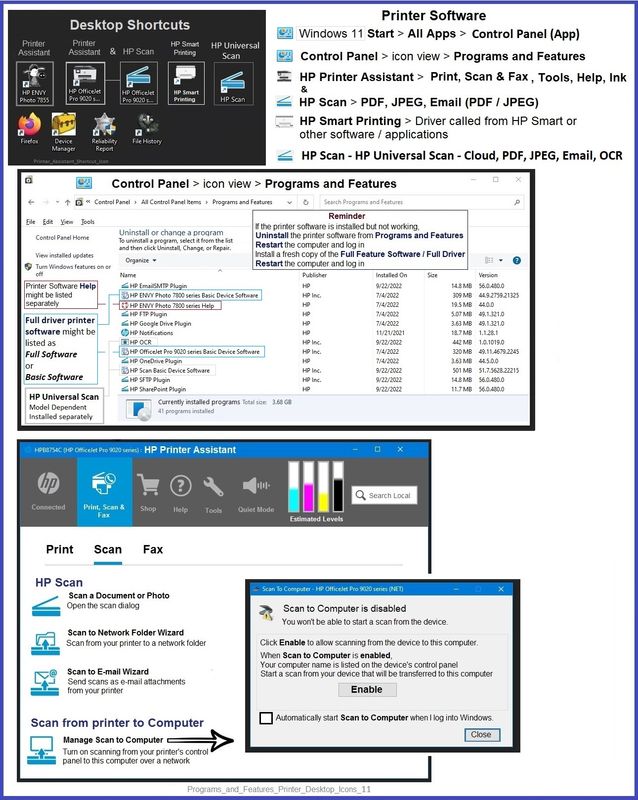
Example - Full Feature Software - Installed - Programs and Features
Programs_and_Features_Printer_Desktop_Icons_11
========================================
Printer - Adobe Reader DC - PDF Printing
Export your document to PDF.
If the document wants to print at the paper size,
Select the Page Size
Select "Custom Scale" as 100% or a percentage of 100%.
General Example - Reader - PDF Print - Letter size paper - Custom Scale = 100%
PDF_Reader_Print_Letter_Scale_3x5_1
========================================
What else?
The document page size is small -- if you like, Snip the document content > Save as an image file > Print
==========================================
HP Smart - Review
HP Smart is compatible with most modern printers -- as a default option the app helps quickly install and set up a printer for more immediate use. It's also a clever application.
For example,
- HP Smart works with the HP Smart Printing Queue for conflict-free job submission (HP Smart Printing supports Custom Presets / Shortcuts)
- HP Smart can easily print multiple images on a singe sheet of paper
- HP Smart can print an image / photo at a selected size on a (different) paper size
- HP Smart understands how to assist in the setup of PDF and Photo scan and print jobs
In the case of this printer series and Windows, use of HP Smart is entirely optional.
Example - HP Smart - Simple Photo Print - Letter paper - 4x6 in image
HP_Smart_Win_Simple_Photo_Print_Letter_4x6_1
========================================
Printer - Windows Photos - Application
Set the Paper size in EWS / Tray and Paper to Letter
Open Windows Photos
Open the content to be printed
Open the menu ( ... ) and select Print
In the Print Menu
Select the Printer
Select Orientation
Select number of copies
Select the Printer Tray
Select the Paper Size
Select the Paper Type
Select the Photo Size
Select Margins > Normal or Uniform
Select Fit > Shrink to Fit or Fill
Select More Settings > verify / adjust
Select OK to save changes and return to main menu
When ready, Print
Example - Windows Photos - Letter Paper - 5x7 photo size
Photos_Print_Letter-5x7_4
=+=+=+=+=+=+=+=+=+=+=+=+=+=
References / Resources
------------------------------------------------------------------
HP Printer Home Page - References and Resources
Learn about your Printer - Solve Problems
“Things that are your printer”
When the website support page opens, Select (as available) a Category > Topic > Subtopic
NOTE: Content depends on device type and Operating System
Categories: Alerts, Troubleshooting, Ink & Paper, HP Software / Drivers / Firmware Updates , Setup & User Guides, Product Specifications, Account & Registration, Warranty & Repair
Open
HP ENVY Photo 7855 All-in-One Printer
Thank you for participating in the HP Community --
People who own, use, and support HP devices.
Click Yes to say Thank You
Question / Concern Answered, Click my Post "Accept as Solution"