
-
×InformationNeed Windows 11 help?Check documents on compatibility, FAQs, upgrade information and available fixes.
Windows 11 Support Center. -
-
×InformationNeed Windows 11 help?Check documents on compatibility, FAQs, upgrade information and available fixes.
Windows 11 Support Center. -
- HP Community
- Printers
- Printing Errors or Lights & Stuck Print Jobs
- Re: print quality ( black ) is bad

Create an account on the HP Community to personalize your profile and ask a question
Your account also allows you to connect with HP support faster, access a personal dashboard to manage all of your devices in one place, view warranty information, case status and more.
Check some of the most frequent questions about Instant Ink: HP INSTANT INK, HP+ PLANS: INK AND TONER.
Check out our Black or Color Ink Not Printing, Other Print Quality Issues info about: Print quality and Cartridge Issues.

It has been a while since anyone has replied. Simply ask a new question if you would like to start the discussion again.

03-15-2019 04:33 AM
 HP Recommended
Product: officejet pro 7740
Operating System: Mac OS X 10.5 Leopard and older
even aftre installing new cartridge, the print quality is bad. The black printing is not on the left side of the stating piintin of pinting, so even if starting poiinting not totally on left side.
Solved! Go to Solution.
1 ACCEPTED SOLUTION
Accepted Solutions


03-19-2019 11:04 AM
HP Recommended
Try to clean the printhead manually. Use this link for reference.
If the issue still persists, you can try our other support options.
Follow the steps below to reach out to our HP Support team:
Step 1. Open link: www.hp.com/contacthp/
Step 2. Enter the product number or select to auto detect
Step 3. Scroll down to "Still need help? Complete the form to select your contact options"
Step 4. Scroll down and click: HP contact options - click on Get phone number and phone number appear.
Thank you.
Let me know if this helps.
Cheers 🙂
Please click “Accept as Solution” if you feel my post solved your issue, it will help others find the solution. Click the “Kudos/Thumbs Up" on the bottom right to say “Thanks” for helping!
TEJ1602
I am an HP Employee
7 REPLIES 7
03-18-2019 10:24 AM
HP Recommended
@PaulVeltman, Welcome to HP Support Community!
Does the copier work fine?
If yes, I would recommend you to check the print settings on your Mac Computer.
-
Open a document, click File, and then click Print.
The Print window opens.
-
Select the Paper Type/Quality or Media & Quality menu.
-
Depending on your print job, you might consider modifying the following settings:
-
Paper type: If one of the options matches your paper type exactly, select that option.
-
Quality: If you are dissatisfied with the quality of your printouts, increase the print quality. To print more quickly, decrease print quality.
To save your settings for future print jobs, select Save in the Presets menu and then name the new preset.
-
Try to print. If the issue persists, continue to the next step.
The printhead could be clogged, and you might need to clean the printhead several times to restore print quality. Use the automated tool from the printer control panel to clean the printhead.
-
On the printer control panel, swipe down to open the Dashboard, and then touch the Setup icon

-
Swipe up on the display, and then touch Printer Maintenance.
-
Touch Clean Printhead, and then touch Continue.
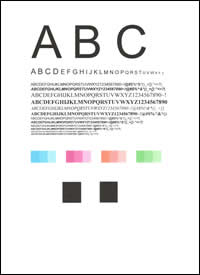
A test page prints.
-
Examine the test page.
-
If the print quality is unacceptable, touch Clean Again to continue the next level of cleaning. Repeat these steps for the third cleaning stage, if necessary.
-
If the print quality is acceptable, touch Done.
-
Let me know if this helps.
Cheers 🙂
Please click “Accept as Solution” if you feel my post solved your issue, it will help others find the solution. Click the “Kudos/Thumbs Up" on the bottom right to say “Thanks” for helping!
TEJ1602
I am an HP Employee
03-19-2019 03:17 AM
HP Recommended
Hi TEJ1602,
thanks for reply, I already cleaned the printhead several times, the test page is nice , only on the left side of the black printing parts there is no straight line ( letter A and test block on bottom of page ).

03-19-2019 11:04 AM
HP Recommended
Try to clean the printhead manually. Use this link for reference.
If the issue still persists, you can try our other support options.
Follow the steps below to reach out to our HP Support team:
Step 1. Open link: www.hp.com/contacthp/
Step 2. Enter the product number or select to auto detect
Step 3. Scroll down to "Still need help? Complete the form to select your contact options"
Step 4. Scroll down and click: HP contact options - click on Get phone number and phone number appear.
Thank you.
Let me know if this helps.
Cheers 🙂
Please click “Accept as Solution” if you feel my post solved your issue, it will help others find the solution. Click the “Kudos/Thumbs Up" on the bottom right to say “Thanks” for helping!
TEJ1602
I am an HP Employee
03-19-2019 04:39 PM
HP Recommended
Hi TEJ1602,
Thanks for advice will act like in the video link. But first go for small ski holiday so this action will be on sunday or later, first enjoy the snow.
Will inform you with the result.
Greetings
Paul
03-28-2019 07:54 AM
HP Recommended
Glad to hear back from you!
Happy to know that the printing is fine.
Do get back to us in the future if you need any assistance.
Cheers 🙂
TEJ1602
I am an HP Employee

Be alert for scammers posting fake support phone numbers and/or email addresses on the community.
If you think you have received a fake HP Support message, please report it to us by clicking on "Flag Post".
† The opinions expressed above are the personal opinions of the authors, not of HP. By using this site, you accept the Terms of Use and Rules of Participation.


Didn't find what you were looking for?
Ask the community
† The opinions expressed above are the personal opinions of the authors, not of HP. By using this site, you accept the <a href="https://www8.hp.com/us/en/terms-of-use.html" class="udrlinesmall">Terms of Use</a> and <a href="/t5/custom/page/page-id/hp.rulespage" class="udrlinesmall"> Rules of Participation</a>.