• ×
    Information
    Need Windows 11 help?
    Check documents on compatibility, FAQs, upgrade information and available fixes.
    Windows 11 Support Center.
  • post a message
  • ×
    Information
    Need Windows 11 help?
    Check documents on compatibility, FAQs, upgrade information and available fixes.
    Windows 11 Support Center.
  • post a message
Guidelines
Here is the solution for Blue screen error 83C0000B on HP OfficeJet Pro 8010e, 9020e Printer Series: Click here to view.
Check some of the most frequent questions about Instant Ink: HP INSTANT INK, HP+ PLANS: INK AND TONER.


Check out our Black or Color Ink Not Printing, Other Print Quality Issues info about: Print quality and Cartridge Issues.
HP Recommended
hp envy 4500 e all in one
Mac OS X 10.10 Yosemite

carriage jam, paper was removed but continues to show  carriage jam 

1 REPLY 1
HP Recommended

@jbjoie

Welcome to HP Forums, 

This is a great place to get support, find answers and tips, 

Thank you for posting your query, I'll be more than glad to help you out 🙂 


As I understand there's a carriage jam error on the printer,

Don't worry as I'll be glad to help, however, to provide an accurate resolution, I need a few more details: 

Did you ensure the carriage can move freely?


While you respond to that, here's what you need to do:


click here to play the video on YouTube.


Solution one: Make sure that the carriage can move freely

Follow these steps to make sure that the carriage moves freely across the width of the printer.

Step one: Check the carriage path for obstructions

  1. Press the Power button to turn on the printer, if it is not already on.

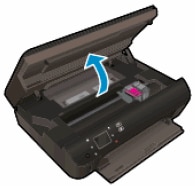
  2. Open the cartridge access door.

       NOTE:

    The carriage might try to move into the access area. If it does, allow it to move to that position.

    Figure : Open the cartridge access door

    Image: Open the cartridge access door.
  3. With the printer turned on, disconnect the power cord from the rear of the printer.

       WARNING:

    To avoid the risk of electrical shock, you must unplug the power cord before moving the carriage by hand and resetting the paper feed mechanism.

  4. Check for, and then remove, any loose paper or objects that might be restricting the carriage.

       NOTE:

    Use a flashlight to thoroughly check for torn pieces of paper that might remain inside the printer. If any torn pieces of paper remain inside the printer, more jams might occur.

  5. Reach into the cartridge access area, and then manually move the carriage.

    • If the carriage is stuck on the right side of the printer, move the carriage to the left side of the printer.

    • If the carriage is stuck on the left side of the printer, move the carriage to the right side of the printer.

    • If the carriage is stuck in the middle of the printer, move the carriage to the right side of the printer.

  6. Remove any additional loose paper or objects.

  7. Make sure that the carriage can move freely across the width of the printer by gently pushing the carriage to the left, and then to the right.

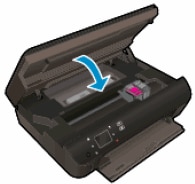
  8. Close the cartridge access door.

    Figure : Close the cartridge access door

    Image: Close the cartridge access door.
  9. Reconnect the power cord to the rear of the printer.

  10. Press the Power button to turn on the printer.

  11. Touch OK to clear any messages on the printer control panel.

Step two: Print a Printer Status Report

Print a test page to make sure that the hardware functions correctly.

  1. On the printer control panel, press the Down Arrow () to select Tools, and then press OK.

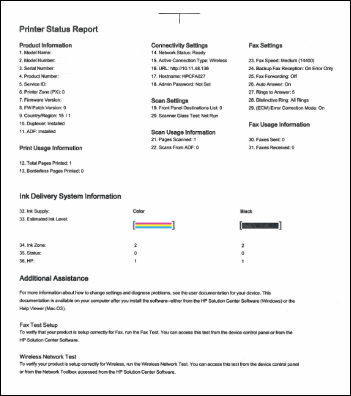
  2. Press the Down Arrow () to select Printer Status Report, and then press OK. The printer prints the test page.

    Figure : Example of a Printer Status Report

    Image: Example of a Printer Status Report
  • If these steps resolved the issue and the test page prints, you can stop troubleshooting.

  • If these steps did not resolve the issue or the test page did not print, continue to the next solution.

CLICK HERE FOR MORE STEPS AND INSTRUCTIONS.

(By the end of this article all the issues should be resolved)


Keep me posted,

If the information I've provided was helpful, 

give us some reinforcement by clicking the solution and kudos buttons, 

that'll help us and others see that we've got the answers!

Good Luck.

Riddle_Decipher
I am an HP Employee


Learning is a journey, not a destination.
Let's keep asking questions and growing together.
† The opinions expressed above are the personal opinions of the authors, not of HP. By using this site, you accept the <a href="https://www8.hp.com/us/en/terms-of-use.html" class="udrlinesmall">Terms of Use</a> and <a href="/t5/custom/page/page-id/hp.rulespage" class="udrlinesmall"> Rules of Participation</a>.